> ## Documentation Index
> Fetch the complete documentation index at: https://docs.abbyy.com/llms.txt
> Use this file to discover all available pages before exploring further.
# Sample 3. Step 26: Detecting the Table element with an InvoiceTable element
> Assemble the InvoiceTable Table element: configure columns, ordering rules, header, footer, and master columns to detect the invoice table reliably.
Now that all the preparations are completed, you can search for the Invoice Table field. First, describe an element of type [Table](/flexi-capture/fls/tables/general-tables):
1. **Describe the Header of the table.** As decided in [Step 13](/flexi-capture/fls/tutorial3/3step13), the names of the **Reference** and the **Designation** columns are described by keywords (**Table** element → **Properties** dialog box → **Columns** tab → column **Properties** dialog box), while the names of the **Quantity**, **Unit Price**, and **Total** columns are detected using the previously described auxiliary elements.
2. **Describe the Footer of the table.** As decided in [Step 13](/flexi-capture/fls/tutorial3/3step13), the footer is detected using the previously described element that uses keywords and phrases to find the beginning of the footer.
3. **Describe the search area of the table.** Use the **Sales** column name to restrict the search area on the right.
## Create the InvoiceTable element
To create the **InvoiceTable** element:
1. Create an element of type [Table](/flexi-capture/fls/tables/general-tables) and name it **InvoiceTable**.
2. Click the **Columns** tab.
3. Click **Select** and specify the previously described **InvoiceTable** block as the block to be detected by the **InvoiceTable** element. For detailed instructions, see [Step 3](/flexi-capture/fls/tutorial3/3step3).
4. Select the **Reference** column and click **Properties...**. The keyword **Reference** will be used to look for this column name, so leave the default values.
5. Select the **Designation** column and click **Properties...**. The keyword **Designation** will be used to look for this column name, so leave the default values.
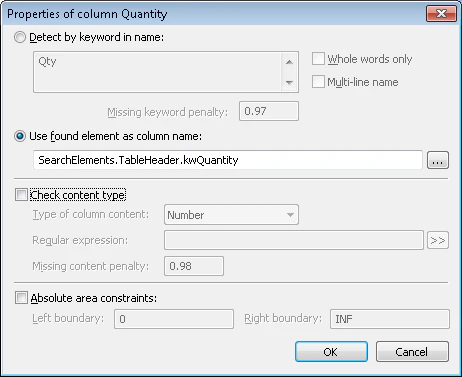
6. Select the **Quantity** column and click **Properties...**. Use the previously detected element `TableHeader.kwQuantity` to find this column name. Select the **Use found element as column name** option and click  to select the `TableHeader.kwQuantity` element.
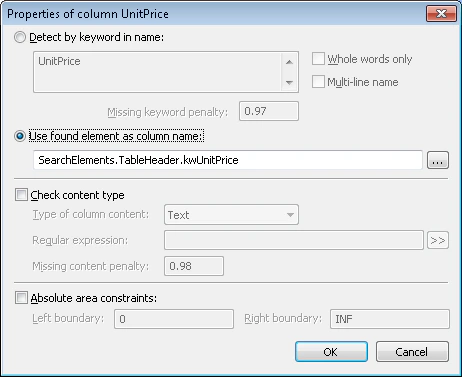
 1. Select the **UnitPrice** column and click **Properties...**. Use the previously detected element `TableHeader.kwUnitPrice` to find this column name. Select the **Use found element as column name** option and click to select the `TableHeader.kwUnitPrice` element.
 1. Select the **Total** column and click **Properties...**. Use the previously detected element `TableHeader.kwTotal` to find this column name. Select the **Use found element as column name** option and click to select the `TableHeader.kwTotal` element.
2. Click the **Order** tab.
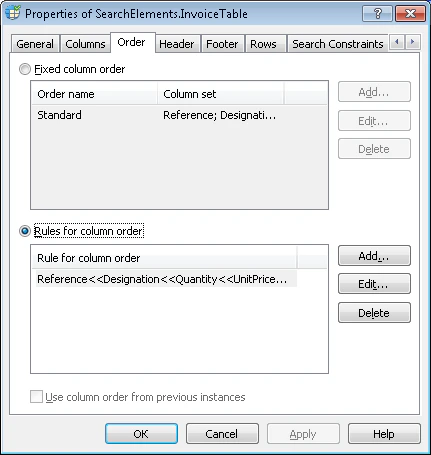
3. There can be other columns between the sought ones (for instance, **Unit**), but the sought columns are always located in the following order: **Reference**, **Designation**, **Quantity**, **Unit Price**, **Total**. Select the **Rules for column order** option, and then click **Add...** and specify the following column order: `Reference << Designation << Quantity << Unit Price << Total`.
1. Select the **Total** column and click **Properties...**. Use the previously detected element `TableHeader.kwTotal` to find this column name. Select the **Use found element as column name** option and click to select the `TableHeader.kwTotal` element.
2. Click the **Order** tab.
3. There can be other columns between the sought ones (for instance, **Unit**), but the sought columns are always located in the following order: **Reference**, **Designation**, **Quantity**, **Unit Price**, **Total**. Select the **Rules for column order** option, and then click **Add...** and specify the following column order: `Reference << Designation << Quantity << Unit Price << Total`.
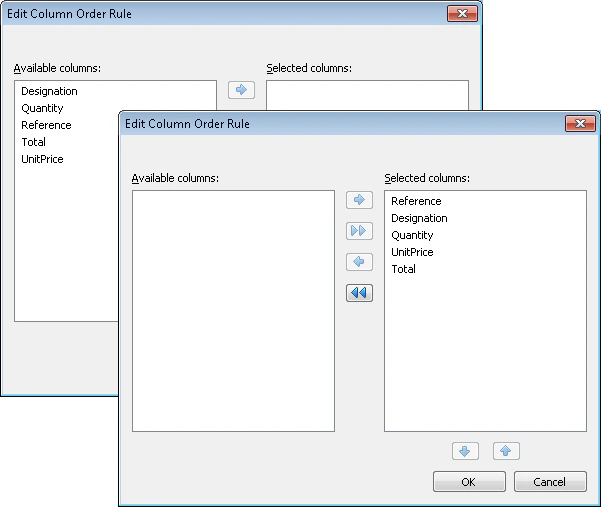 In the **Edit Column Order Rule** dialog box, move the columns into the **Selected columns** list in the order **Reference**, **Designation**, **Quantity**, **UnitPrice**, **Total**.
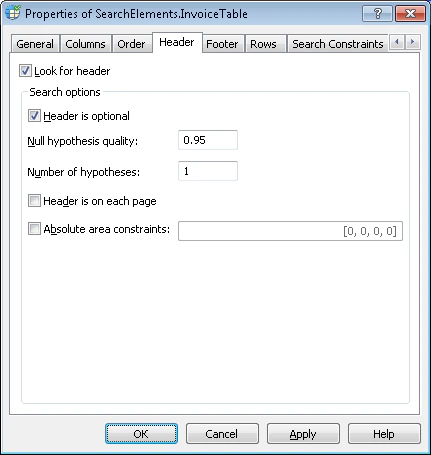
 1. Click the **Header** tab. The header is needed, but no search constraints are added, so leave the default values.
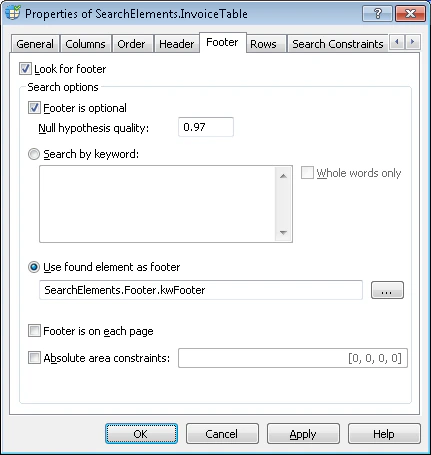
 1. Click the **Footer** tab. Use the previously detected element `Footer.kwFooter` to detect the footer. Select the **Use found element as footer** option and click to select the `Footer.kwFooter` element.
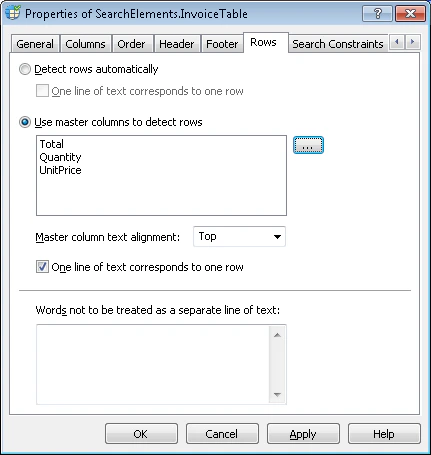
 1. Click the **Rows** tab.
2. Since some columns in the table can have entries consisting of multiple lines, you have to specify a master column to detect the rows. Select the **Use master columns to detect rows** option.
Specify the **Total** column as the primary master column, as this column always contains data and a single row of the table corresponds to each entry. In case this column is not detected on a document, specify the **Quantity** and **Unit Price** columns as secondary and tertiary master columns respectively. Click and specify this order of master columns.
1. Click the **Rows** tab.
2. Since some columns in the table can have entries consisting of multiple lines, you have to specify a master column to detect the rows. Select the **Use master columns to detect rows** option.
Specify the **Total** column as the primary master column, as this column always contains data and a single row of the table corresponds to each entry. In case this column is not detected on a document, specify the **Quantity** and **Unit Price** columns as secondary and tertiary master columns respectively. Click and specify this order of master columns.
 1. Click the **Relations** tab. Since the sought columns are located to the left of the beginning of the name of the **Sales** column (with a small gap), set the following search constraint:
* **Left of** the element `TableHeader.kwSales`,
* **Offset** = -40, **Reference boundary** = **Left**.
When selecting values for offsets, you might want to analyze the geometrical properties (that is, size and boundaries) of the reference and the sought objects detected during pre-recognition. Otherwise, these values are selected by trial and error.
2. Match the FlexiLayout with the test images. You see that the program has successfully detected the table element on all the images where it occurs.
But on some of the images, the **Quantity** column also includes unwanted artifacts from the previous column. To separate the useful data from noise, specify the type of content that can occur in the column.
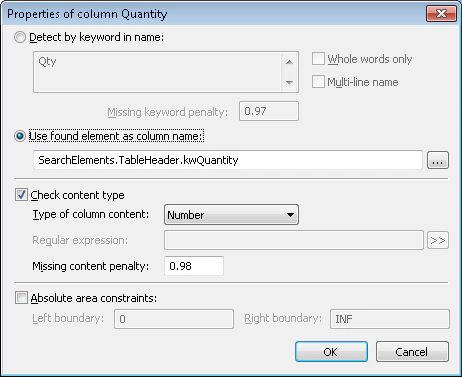
3. Open the **Properties** dialog box of the **InvoiceTable** element. Click the **Columns** tab, open the **Properties** dialog box for the **Quantity** column and select the **Check content type** option. Select **Number** in the **Type of column content** drop-down list.
1. Click the **Relations** tab. Since the sought columns are located to the left of the beginning of the name of the **Sales** column (with a small gap), set the following search constraint:
* **Left of** the element `TableHeader.kwSales`,
* **Offset** = -40, **Reference boundary** = **Left**.
When selecting values for offsets, you might want to analyze the geometrical properties (that is, size and boundaries) of the reference and the sought objects detected during pre-recognition. Otherwise, these values are selected by trial and error.
2. Match the FlexiLayout with the test images. You see that the program has successfully detected the table element on all the images where it occurs.
But on some of the images, the **Quantity** column also includes unwanted artifacts from the previous column. To separate the useful data from noise, specify the type of content that can occur in the column.
3. Open the **Properties** dialog box of the **InvoiceTable** element. Click the **Columns** tab, open the **Properties** dialog box for the **Quantity** column and select the **Check content type** option. Select **Number** in the **Type of column content** drop-down list.
 1. Try matching the FlexiLayout with the test images and make sure that the **Quantity** column does not contain any unwanted data.
2. To describe the location of the **InvoiceTable** block, select the **Source element** option, and then click and specify the **InvoiceTable** element as the source element.
1. Try matching the FlexiLayout with the test images and make sure that the **Quantity** column does not contain any unwanted data.
2. To describe the location of the **InvoiceTable** block, select the **Source element** option, and then click and specify the **InvoiceTable** element as the source element.