> ## Documentation Index
> Fetch the complete documentation index at: https://docs.abbyy.com/llms.txt
> Use this file to discover all available pages before exploring further.
# Sample 3. Step 3: Blocks
> Create the invoice sample blocks — six Text blocks plus an InvoiceTable Table block with named columns — before describing any FlexiLayout elements.
The main goal of FlexiLayout creation is reliable detection of the following blocks (provided they occur on an image):
* **Invoice Number**
* **Invoice Date**
* **Delivery Address**
* **Total Quantity**
* **Total Amount**
* **Country**
* **Invoice Table** (only the following columns: **Reference**, **Designation**, **Quantity**, **Unit Price**, **Total**)
Create these blocks first so that their list is available during FlexiLayout creation.
1. Create a block **InvoiceNumber** of type [Text](/flexi-capture/fls/template/blocks), which will correspond to the field **Invoice Number**.
2. Create a block **InvoiceDate** of type [Text](/flexi-capture/fls/template/blocks), which will correspond to the field **Invoice Date**.
3. Create a block **DeliveryAddress** of type [Text](/flexi-capture/fls/template/blocks), which will correspond to the field **Delivery Address**.
4. Create a block **TotalQuantity** of type [Text](/flexi-capture/fls/template/blocks), which will correspond to the field **Total Quantity**.
5. Create a block **TotalAmount** of type [Text](/flexi-capture/fls/template/blocks), which will correspond to the field **Total Amount**.
6. Create a block **Country** of type [Text](/flexi-capture/fls/template/blocks), which will correspond to the field **Country**.
7. Create a block **InvoiceTable** of type [Table](/flexi-capture/fls/tables/general-tables), which will correspond to the field **Invoice Table**. In the **Properties** dialog box of the block, click the Columns tab, enter the names of the columns and specify their order, which will later be used in a FlexiCapture Document Definition. Add the column names in the following order: **Reference**, **Designation**, **Quantity**, **UnitPrice**, and **Total**. For more information, see [Table block](/flexi-capture/fls/tables/table-block).
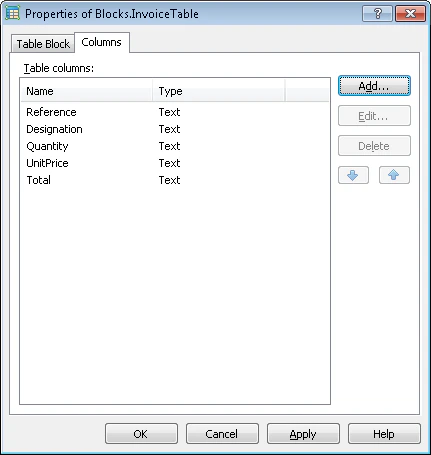 At this stage, you only specify the type of a block and its name (and the order of columns for the [Table](/flexi-capture/fls/tables/general-tables) block). You will specify the location of each block later, when all auxiliary elements have been described and debugged. It is very important that the block of type [Table](/flexi-capture/fls/tables/general-tables) be created before the element of type [Table](/flexi-capture/fls/tables/general-tables) which is used to look for the block, as the Table element must keep a reference to the Table block. This requirement makes [Table](/flexi-capture/fls/tables/general-tables) blocks different from blocks of types [Text](/flexi-capture/fls/template/blocks), [Barcode](/flexi-capture/fls/template/blocks), [Checkmark](/flexi-capture/fls/template/blocks), and [Picture](/flexi-capture/fls/template/blocks), which can be created after modifying a FlexiLayout, when all the elements for different blocks have been created (for instance, see [Tutorial 1](/flexi-capture/fls/tutorial/tutorial-general) and [Tutorial 2](/flexi-capture/fls/tutorial2/tutorial2-general)).
Now that the preparatory settings have been made, you can start creating elements.
At this stage, you only specify the type of a block and its name (and the order of columns for the [Table](/flexi-capture/fls/tables/general-tables) block). You will specify the location of each block later, when all auxiliary elements have been described and debugged. It is very important that the block of type [Table](/flexi-capture/fls/tables/general-tables) be created before the element of type [Table](/flexi-capture/fls/tables/general-tables) which is used to look for the block, as the Table element must keep a reference to the Table block. This requirement makes [Table](/flexi-capture/fls/tables/general-tables) blocks different from blocks of types [Text](/flexi-capture/fls/template/blocks), [Barcode](/flexi-capture/fls/template/blocks), [Checkmark](/flexi-capture/fls/template/blocks), and [Picture](/flexi-capture/fls/template/blocks), which can be created after modifying a FlexiLayout, when all the elements for different blocks have been created (for instance, see [Tutorial 1](/flexi-capture/fls/tutorial/tutorial-general) and [Tutorial 2](/flexi-capture/fls/tutorial2/tutorial2-general)).
Now that the preparatory settings have been made, you can start creating elements.