> ## Documentation Index
> Fetch the complete documentation index at: https://docs.abbyy.com/llms.txt
> Use this file to discover all available pages before exploring further.
# Sample 3. Step 7: Detecting the name of the Invoice Date field with a kwInvoiceDate element
> Find the Invoice Date field name with a kwInvoiceDate Static Text element, using relations and offsets to narrow the search for the short word Date.
Analysis of the test images reveals that the name of the field Invoice Date is a short and very common word “Date.” This means that you must restrict the search area as much as possible. You will have noticed that the name of the Date field (whenever it occurs on an image) is located very close to the name of the field Invoice Number.
To create the kwInvoiceDate element:
1. In the **InvoiceHeader** element, create an element of type [Static Text](/flexi-capture/fls/template/static-text) and name it **kwInvoiceDate**.
2. Click the Static Text tab.
3. In the Search text field, enter the text to find: “**Date**”.
4. Leave 30 as the value for the Max error percentage (for the 4-letter search word, this means no more than 1 error).
5. Click the Relations tab.
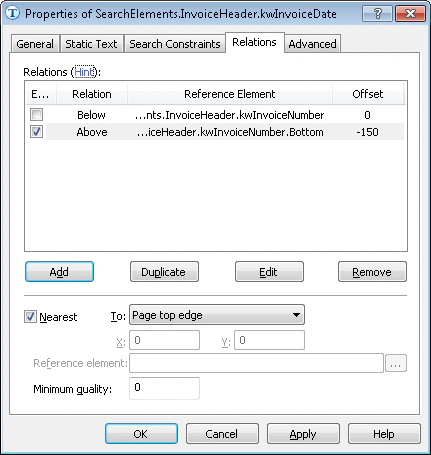
6. On the Relations tab, specify that the keywords of the name can only occur below the name of the field **Invoice Number**, but no more than 150 dots below its bottom boundary.
* Below the element **kwInvoiceNumber**, Offset = 0, and
* Above the bottom of the element **kwInvoiceNumber**, Offset = -150, Reference boundary = Bottom.
 To select the best values for offsets, you may want to analyze the geometrical properties (that is, size and boundaries) of the objects detected during pre-recognition.
1. Click the Advanced tab.
2. Since the **Invoice Date** field is in the left half of the image, set the following [additional search constraint](/flexi-capture/fls/template/advanced-constraints) in the Advanced pre-search relations field: Look for the object in the left half of the image. In the [FlexiLayout language](/flexi-capture/fls/code/general-code):\
`LeftOf: PageRect.Left + PageRect.Width/2;`
3. Try matching the FlexiLayout with the test images and make sure that the program successfully detects the element on all the images where applicable.
To select the best values for offsets, you may want to analyze the geometrical properties (that is, size and boundaries) of the objects detected during pre-recognition.
1. Click the Advanced tab.
2. Since the **Invoice Date** field is in the left half of the image, set the following [additional search constraint](/flexi-capture/fls/template/advanced-constraints) in the Advanced pre-search relations field: Look for the object in the left half of the image. In the [FlexiLayout language](/flexi-capture/fls/code/general-code):\
`LeftOf: PageRect.Left + PageRect.Width/2;`
3. Try matching the FlexiLayout with the test images and make sure that the program successfully detects the element on all the images where applicable.