> ## Documentation Index
> Fetch the complete documentation index at: https://docs.abbyy.com/llms.txt
> Use this file to discover all available pages before exploring further.
# Sample 4. Step 1: Preparatory settings
> Start the Sample 4 multi-page invoice tutorial: create a FlexiLayout Studio project, assemble reference documents, and set FlexiLayout properties.
To configure the preparatory settings for the Sample 4 multi-page invoice project:
Run ABBYY FlexiLayout Studio and create a new project (**File → New Project**). Name the project **Invoices** and select the **ABBYY FlexiLayout Project Files (\*.fsp)** project type.
Add the test images to the batch. For detailed instructions, see [Sample 1. Step 2](/flexi-capture/fls/tutorial/step2).
The test images for Sample 4 are located in `%public%\ABBYY\FlexiCapture\12.0\Samples\FLS\English\Invoice\InvoicesBatch\\Images\bwPage.frdat`.
For each document in the batch, you can create a reference assembly, which shows how the pages are separated into documents. A reference assembly can be created either manually or automatically when you add the images to the batch. A reference assembly lets you compare the assembled documents with the correct "ideals". For more information, see [Reference document assembly](/flexi-capture/fls/settings/etalon-assembling).
To correctly assemble pages into documents, first analyze them to see which pages go into which document and in what order. In the **Batch** window, the pages that belong to the same document must strictly follow one another (page 1, page 2, page 3, and so on).
If the pages were added to a batch in a random order and cannot be assembled into documents, renumber them. To renumber the pages, drag and drop each page into the location you want in the **Batch** window. The program automatically renumbers the rearranged pages.
To assemble the pages into a reference document:
1. In the **Batch** window, select the pages that belong to the same document.
2. Right-click the selection and select **Assemble to Reference Documents...**.
3. In the **Assemble to Reference Documents** dialog box, select **One document**. The program groups all the selected pages into one document.
4. Select **First page of document matches Header**. This option means that the **Header** element must be matched with the first page of the document.
5. Select **Last page of document matches Footer**. This option means that the **Footer** element must be matched with the last page of the document.
6. Click **OK**. The reference layout appears in **Reference layout** mode: the beginning and end of the document are marked with green markers.
If the pages were assembled into a document incorrectly, you can cancel the operation by selecting **Disassemble Reference Documents**.
Specify the following properties for your FlexiLayout:
* **Name**: **Invoice**.
* **Text type**: Select the **Typographic** and **Matrix printer** text types.
* **Text languages**: Select **English**, because the sample documents are in English.
* **Mode**: Select **Fast** recognition mode.
* **Minimum number of pages**: **1**, because the sample documents can include a minimum of one page.
* **Maximum number of pages**: **3**, because the sample documents can include a maximum of three pages.
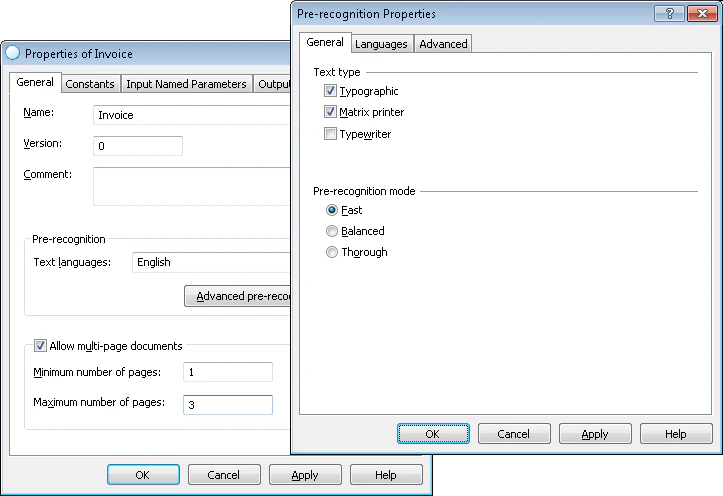 For detailed instructions on selecting pre-recognition parameters, see [Sample 1. Step 3](/flexi-capture/fls/tutorial/step3).