> ## Documentation Index
> Fetch the complete documentation index at: https://docs.abbyy.com/llms.txt
> Use this file to discover all available pages before exploring further.
# Sample 4. Step 5.3: Name of Invoice Date field, kwInvoiceDate element
> Locate the Invoice Date field name with a kwInvoiceDate Static Text element, using relations to kwInvoiceNumber and a Nearest constraint on hypotheses.
Once you have examined the images, you will notice that:
* The name of the **Invoice Date** field is a short and very common word **Date**.\
This means that you have to narrow down the search area as much as possible.
* The name of the **Date** field (if this field is present on a given image) is located very close to the name of the **Invoice Number** field.
To create a kwInvoiceDate element:
1. In the **InvoiceHeader** element, create an element of type Static Text and name it **kwInvoiceDate**.
2. Click the Static Text tab.
3. In the Search text field, type the text to search for: **Date**.
4. Set Max error percentage to 30 (which means that only one error is allowed in the four-letter word).
5. Click the Relations tab.
6. On the Relations tab click the Add button and add relations specifying that the keywords may not be more than 30 dots above the upper boundary of the name of the **Invoice Number** field and not more than 700 dots below its lower boundary:
* Below the upper boundary of the region of **kwInvoiceNumber**, Offset = -30, Reference boundary = Top.
* Above the lower boundary of the region of **kwInvoiceNumber**, Offset = -700, Reference boundary = Bottom.
When selecting **Offset** values, you may want to examine the geometrical properties (boundaries and sizes) of the reference and search image objects in pre-recognition results mode. You can use the Measure Rectangle tool to measure distances. **Offset** values can only be selected by trial and error.
7. Temporarily exclude the **InvoiceFooter** element and match the FlexiLayout.
Try matching the FlexiLayout. You will notice that:
* On the first page of some of the documents, several hypotheses have been generated for **kwInvoiceDate** and sometimes the wrong hypothesis has been selected. To correct the error, adjust the properties of the element.
* The field of interest is closest to the upper edge of the page.
To specify additional search constraints:
1. Open the **Properties** dialog box for the **kwInvoiceDate** element.
2. Click the Relations tab.
3. Select Nearest and then select Page top edge from the To drop-down list.
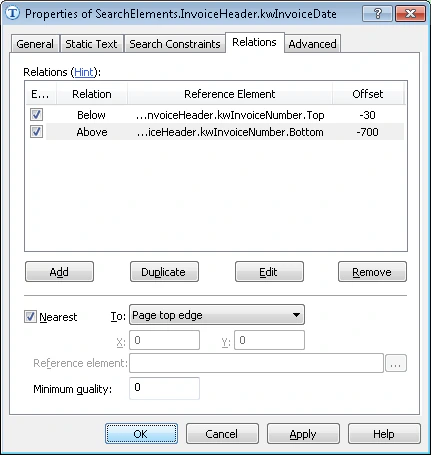 Match the FlexiLayout again to make sure that the name of the Invoice Date field can be reliably detected.