> ## Documentation Index
> Fetch the complete documentation index at: https://docs.abbyy.com/llms.txt
> Use this file to discover all available pages before exploring further.
# Sample 4. Step 5.5: Invoice Date field, grDate, InvoiceDate, and InvoiceDateAsString elements
> Step 5.5 of FlexiLayout Studio Sample 4: capture the Invoice Date field with a grDate group, Date element, and Character String fallback for poor scans.
Once you have examined the images, you will notice that:
* On some of the documents, the **Invoice Date** field is located to the right of the field name and on others it is located beneath the name. Therefore, limit the search area to rectangles to the right of and beneath the name.
* Use a **Date** element to search for the date. Additionally, specify the following condition: if the field name is not detected, do not search for the field data.
* Quite often, dates may be recognized unreliably. This may be due to scanning defects, invalid date formats, and so on. Therefore, specify an additional Character String element in case the Date element fails to find any date.
To specify the settings common to all the elements, create an element of type Group.
To create a grDate element of type Group:
1. In the **InvoiceHeader** element, create an element of type **Group** and name it **grDate**.
2. Click the Advanced tab and specify additional search constraints: limit the search area to the array of rectangles consisting of one rectangle to the right of the field name and one rectangle below the field name with some offset. In the [FlexiLayout language](/flexi-capture/fls/code/general-code) this constraint can be written as follows:
```text theme={null}
RectArray DataRegion;
Let r1= Rect (kwInvoiceDate.Rect.Right, kwInvoiceDate.Rect.Top -20dt, kwInvoiceDate.Rect.Right + 650dt, kwInvoiceDate.Rect.Bottom + 50dt);
Let r2 = Rect (kwInvoiceDate.Rect.Left - 150dt, kwInvoiceDate.Rect.Bottom, kwInvoiceDate.Rect.Right + 100dt, kwInvoiceDate.Rect.Bottom + 100dt);
DataRegion = RectArray (r1);
DataRegion.Add (r2);
RestrictSearchArea (DataRegion);
```
To create an InvoiceDate element:
1. In the `InvoiceHeader.grDate` element, create an element of type Date and name it **InvoiceDate**.
2. Click the Date tab.
3. Specify all the possible date formats for the **InvoiceDate** element:
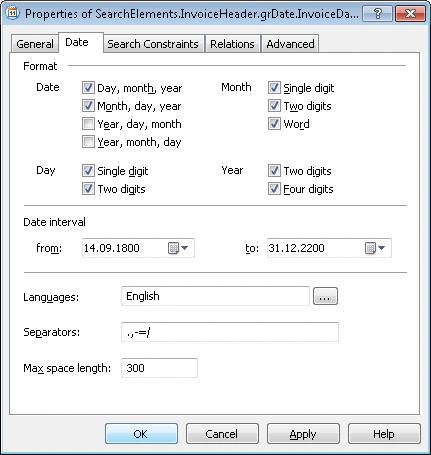 4. On some of the images, the search area of the **Invoice Date** field will include the already detected **kwInvoiceNumber** and **InvoiceNumber** elements. To prevent the program from considering the values of these elements as hypotheses for the **Invoice Date** field, exclude these elements from the search area:
* Click the Add... button next to the Exclude regions of elements field.
* Select **kwInvoiceNumber** from the list of elements.
* Click **OK**. The string `SearchElements.InvoiceHeader.kwInvoiceNumber` will appear in the Exclude regions of elements field.
Repeat these actions for the element `SearchElements.InvoiceHeader.InvoiceNumber`.
5. Click the Advanced tab.
6. The **Invoice Date** field is not a required element. However, if a document contains a date (in the **Invoice Date** field), there is always the corresponding field name on the document (described earlier by the **kwInvoiceDate** element). Therefore, you can specify an additional search condition in **Advanced pre-search relations**: Search for the image object only if the **kwInvoiceDate** has been detected. In the [FlexiLayout language](/flexi-capture/fls/code/general-code), this condition can be written as follows:
```text theme={null}
If InvoiceHeader.kwInvoiceDate.IsNull
Then DontFind();
```
7. Temporarily exclude the **InvoiceFooter** element and match the FlexiLayout.
For poor quality images, when recognition results do not fit any of the standard parameters of the Date element, add an alternative element that uses less strict conditions to search for the Invoice Date field.
To create an InvoiceDateAsString element:
1. In the `InvoiceHeader.grDate` element, create an element of type Character String and name it **InvoiceDateAsString**.
2. Click the Character String tab.
3. Specify the alphabet:\
,-./0123456789ABCDEFGHIJKLMNOPQRSTUVWXYZ abcdefghijklmnopqrstuvwxyz
4. Set the percentage of non-alphabet characters to 30%.
5. In the Character count field, specify the fuzzy interval `{-1, 8, 14, INF}` for the length of the character string, assuming that possible values fall into the range of 8 to 14 characters. Any hypothesis outside this interval will be penalized.
6. Set Max space length to 20. This limits the maximum length of space in the text string to 20 dots.
7. For the other element properties, keep the default settings.
8. Click the Advanced tab.
9. Since the **InvoiceDateAsString** element must be searched for only if the **InvoiceDate** element is not detected on the image, specify the following condition in the **Advanced pre-search relations** field: Search for the image object only if the **InvoiceDate** element is not detected. In the [FlexiLayout language](/flexi-capture/fls/code/general-code), this condition can be written as follows:
```text theme={null}
If Not InvoiceDate.IsNull Then DontFind;
```
10. Specify an additional condition for **InvoiceDate** similar to the previous one: Search for the image object only if the **kwInvoiceDate** element has been detected. Search for an image object closest to the **kwInvoiceDate** element. In the [FlexiLayout language](/flexi-capture/fls/code/general-code), this condition can be written as follows:
```text theme={null}
If InvoiceHeader.kwInvoiceDate.IsNull Then DontFind;
Nearest: InvoiceHeader.kwInvoiceDate;
```
11. Specify the location of the **InvoiceDate** block as the rectangular region of the detected **InvoiceDate** or **InvoiceDateAsString** element increased by 5 dots vertically and horizontally. To do this, select the Expression option and type the following expression:
```text theme={null}
Rect outputRect;
if not InvoiceHeader.grDate.InvoiceDate.IsNull then
outputRect = InvoiceHeader.grDate.InvoiceDate.Rect;
else
{ outputRect = InvoiceHeader.grDate.InvoiceDateAsString.Rect;
IsNull = InvoiceHeader.grDate.InvoiceDateAsString.IsNull;
}
OutputRegion = outputRect;
OutputRegion.Inflate (5dt, 5dt);
```
4. On some of the images, the search area of the **Invoice Date** field will include the already detected **kwInvoiceNumber** and **InvoiceNumber** elements. To prevent the program from considering the values of these elements as hypotheses for the **Invoice Date** field, exclude these elements from the search area:
* Click the Add... button next to the Exclude regions of elements field.
* Select **kwInvoiceNumber** from the list of elements.
* Click **OK**. The string `SearchElements.InvoiceHeader.kwInvoiceNumber` will appear in the Exclude regions of elements field.
Repeat these actions for the element `SearchElements.InvoiceHeader.InvoiceNumber`.
5. Click the Advanced tab.
6. The **Invoice Date** field is not a required element. However, if a document contains a date (in the **Invoice Date** field), there is always the corresponding field name on the document (described earlier by the **kwInvoiceDate** element). Therefore, you can specify an additional search condition in **Advanced pre-search relations**: Search for the image object only if the **kwInvoiceDate** has been detected. In the [FlexiLayout language](/flexi-capture/fls/code/general-code), this condition can be written as follows:
```text theme={null}
If InvoiceHeader.kwInvoiceDate.IsNull
Then DontFind();
```
7. Temporarily exclude the **InvoiceFooter** element and match the FlexiLayout.
For poor quality images, when recognition results do not fit any of the standard parameters of the Date element, add an alternative element that uses less strict conditions to search for the Invoice Date field.
To create an InvoiceDateAsString element:
1. In the `InvoiceHeader.grDate` element, create an element of type Character String and name it **InvoiceDateAsString**.
2. Click the Character String tab.
3. Specify the alphabet:\
,-./0123456789ABCDEFGHIJKLMNOPQRSTUVWXYZ abcdefghijklmnopqrstuvwxyz
4. Set the percentage of non-alphabet characters to 30%.
5. In the Character count field, specify the fuzzy interval `{-1, 8, 14, INF}` for the length of the character string, assuming that possible values fall into the range of 8 to 14 characters. Any hypothesis outside this interval will be penalized.
6. Set Max space length to 20. This limits the maximum length of space in the text string to 20 dots.
7. For the other element properties, keep the default settings.
8. Click the Advanced tab.
9. Since the **InvoiceDateAsString** element must be searched for only if the **InvoiceDate** element is not detected on the image, specify the following condition in the **Advanced pre-search relations** field: Search for the image object only if the **InvoiceDate** element is not detected. In the [FlexiLayout language](/flexi-capture/fls/code/general-code), this condition can be written as follows:
```text theme={null}
If Not InvoiceDate.IsNull Then DontFind;
```
10. Specify an additional condition for **InvoiceDate** similar to the previous one: Search for the image object only if the **kwInvoiceDate** element has been detected. Search for an image object closest to the **kwInvoiceDate** element. In the [FlexiLayout language](/flexi-capture/fls/code/general-code), this condition can be written as follows:
```text theme={null}
If InvoiceHeader.kwInvoiceDate.IsNull Then DontFind;
Nearest: InvoiceHeader.kwInvoiceDate;
```
11. Specify the location of the **InvoiceDate** block as the rectangular region of the detected **InvoiceDate** or **InvoiceDateAsString** element increased by 5 dots vertically and horizontally. To do this, select the Expression option and type the following expression:
```text theme={null}
Rect outputRect;
if not InvoiceHeader.grDate.InvoiceDate.IsNull then
outputRect = InvoiceHeader.grDate.InvoiceDate.Rect;
else
{ outputRect = InvoiceHeader.grDate.InvoiceDateAsString.Rect;
IsNull = InvoiceHeader.grDate.InvoiceDateAsString.IsNull;
}
OutputRegion = outputRect;
OutputRegion.Inflate (5dt, 5dt);
```