> ## Documentation Index
> Fetch the complete documentation index at: https://docs.abbyy.com/llms.txt
> Use this file to discover all available pages before exploring further.
# Sample 4. Step 7.2: Name of ExtraQuantity column, ExtraQtyTag element
> Distinguish the extra quantity column by creating an ExtraQtyTag Static Text element, so the Quantity column name search can exclude its region later.
Now you need to detect the name Quantity, which appears on the documents as "Qty", "Quantity", "ORDERED", or "QtyNet". However, there is one more name in the table which may also contain the word "Quantity". This name also contains unique text. Therefore, first describe the ExtraQtyTag element and then exclude it from the search area of the name Quantity.
On all the documents, the name of the ExtraQtyTag column is exactly the same. Even though the quality of the images is fairly good, set the maximum error percentage to 35%. For a seven- or eight-letter word this means that two characters may be incorrect.
Additionally, since all the names are placed on the same level, specify an additional search constraint relative to the already detected name of the Designation column.
To create an ExtraQtyTag element:
1. In the **TableHeader** element, create an element of type Static Text and name it **ExtraQtyTag**.
2. Click the Static Text tab.
3. In the Search text field, specify the text to search for: `Quantity *BK.ORD`.
4. Set Max error percentage to 35.
5. Since the **ExtraQuantity** field contains multiple lines, select the options Take spaces into account and Permit multiple lines.
6. Do not penalize hypotheses carried over to the next line: set Line break penalty to 1.
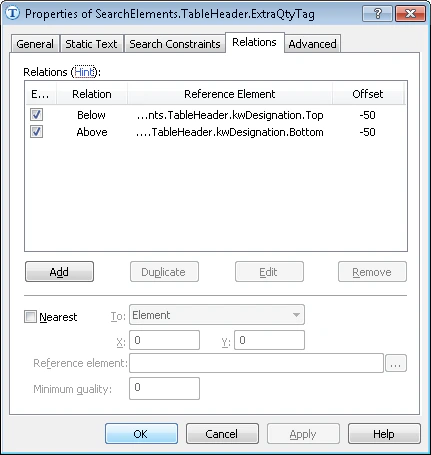
7. To specify that the name being searched for is located on the same level as the name **Designation**, click the Relations tab and specify the following additional constraints:
* Above the lower boundary of the **kwDesignation** element, Offset = -50, Reference boundary = Bottom
* Below the upper boundary of the **kwDesignation** element, Offset = -50, Reference boundary = Top
 8. To optimize the search process, specify an additional condition: Do not search for the name if the name **Designation** has not been detected. Click the Advanced tab and specify this condition in **Advanced pre-search relations**. In the [FlexiLayout language](/flexi-capture/fls/code/general-code), this condition can be written as follows:
```text theme={null}
If kwDesignation.IsNull then Dontfind();
```
9. In **Advanced pre-search relations**, also specify additional constraints:
```text theme={null}
WholeWordMode: true;// Only whole words will be considered as hypotheses
```
This constraint can also be specified via the GUI by selecting Whole words only on the Static Text tab.
10. Match the FlexiLayout to make sure that the element is detected on the first page of the document.
8. To optimize the search process, specify an additional condition: Do not search for the name if the name **Designation** has not been detected. Click the Advanced tab and specify this condition in **Advanced pre-search relations**. In the [FlexiLayout language](/flexi-capture/fls/code/general-code), this condition can be written as follows:
```text theme={null}
If kwDesignation.IsNull then Dontfind();
```
9. In **Advanced pre-search relations**, also specify additional constraints:
```text theme={null}
WholeWordMode: true;// Only whole words will be considered as hypotheses
```
This constraint can also be specified via the GUI by selecting Whole words only on the Static Text tab.
10. Match the FlexiLayout to make sure that the element is detected on the first page of the document.