> ## Documentation Index
> Fetch the complete documentation index at: https://docs.abbyy.com/llms.txt
> Use this file to discover all available pages before exploring further.
# Sample 4. Step 7.4: Name of UnitPrice column, kwUnitPrice element
> Search for the Unit Price column name with a kwUnitPrice Static Text element placed right of kwQuantity and scored with a FuzzyQuality post-search check.
Once you have analyzed the images you will notice that the name of the Unit Price column can be described by the following search text: "UnitPrice", "Price", and "RATE", and the name Unit appears as "Unit". To prevent the program from detecting the word "Unit" in the name of the Unit Price column, first describe Unit Price, because it contains unique text, and then use an additional relation to describe Unit.
When creating an element to search for the keywords of the name of the Unit Price column, take into account the fact that the Unit Price column is always located to the right of the Quantity column.
To create a kwUnitPrice element:
1. In the **TableHeader** element, create an element of type Static Text and name it **kwUnitPrice**.
2. Click the Static Text tab.
3. In the Search text field, specify the text to search for: `UnitPrice|Price|RATE`.
4. To specify that the name being searched for is located on the same level as the name **Designation**, click the Relations tab and specify the following additional constraints. For more information, see [Step 7.2](/flexi-capture/fls/tutorial4/4step7-2).
5. On the Relations tab, specify the following condition: search for an element closest to the X coordinate with value = 0.
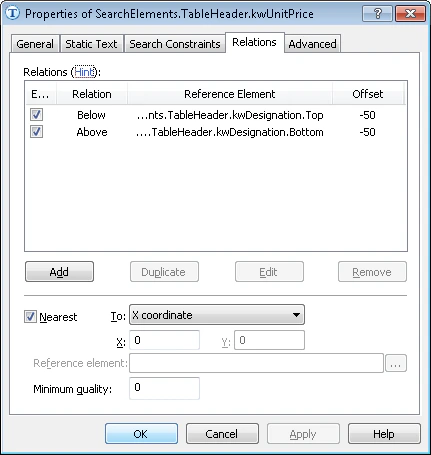 6. Click the Advanced tab.
7. Since the name of the **Unit Price** column is located to the right of the name of the **kwQuantity** column, specify the following additional conditions in Advanced pre-search relations: If the **kwQuantity** element has been detected, search for the image object to the right of the **kwQuantity** element. In the [FlexiLayout language](/flexi-capture/fls/code/general-code), this condition can be written as follows:
```text theme={null}
If Not (TableHeader.kwQuantity.IsNull) Then
RightOf: TableHeader.kwQuantity, 0 * dot;
```
8. To optimize the search process, specify an additional condition: Do not search for the name if the name **Designation** has not been detected. For more information, see [Step 7.2](/flexi-capture/fls/tutorial4/4step7-2).
9. You can influence the quality of generated hypotheses by specifying additional checks in the Advanced post-search relations field. In this case, you can specify the following check: If the element has been detected, calculate the difference between the reference width and the width of the detected element and see if it belongs to the given fuzzy interval. In the [FlexiLayout language](/flexi-capture/fls/code/general-code), this condition can be written as follows:
```text theme={null}
If not IsNull then
{ FuzzyQuality: 400dt - width, {-50000,0,0, 50000}*dt;
}
//This check means that the greater the difference, the greater the penalty coefficient
```
10. Match the FlexiLayout to make sure that the element is detected on the first page of the document.
6. Click the Advanced tab.
7. Since the name of the **Unit Price** column is located to the right of the name of the **kwQuantity** column, specify the following additional conditions in Advanced pre-search relations: If the **kwQuantity** element has been detected, search for the image object to the right of the **kwQuantity** element. In the [FlexiLayout language](/flexi-capture/fls/code/general-code), this condition can be written as follows:
```text theme={null}
If Not (TableHeader.kwQuantity.IsNull) Then
RightOf: TableHeader.kwQuantity, 0 * dot;
```
8. To optimize the search process, specify an additional condition: Do not search for the name if the name **Designation** has not been detected. For more information, see [Step 7.2](/flexi-capture/fls/tutorial4/4step7-2).
9. You can influence the quality of generated hypotheses by specifying additional checks in the Advanced post-search relations field. In this case, you can specify the following check: If the element has been detected, calculate the difference between the reference width and the width of the detected element and see if it belongs to the given fuzzy interval. In the [FlexiLayout language](/flexi-capture/fls/code/general-code), this condition can be written as follows:
```text theme={null}
If not IsNull then
{ FuzzyQuality: 400dt - width, {-50000,0,0, 50000}*dt;
}
//This check means that the greater the difference, the greater the penalty coefficient
```
10. Match the FlexiLayout to make sure that the element is detected on the first page of the document.