> ## Documentation Index
> Fetch the complete documentation index at: https://docs.abbyy.com/llms.txt
> Use this file to discover all available pages before exploring further.
# Formatting Toolbar
> Format form text with the Formatting toolbar in ABBYY FormDesigner: font, size, bold, italic, alignment, and checkmark field placement around text.
On the **Formatting** toolbar you will find buttons for formatting text on the form. Click a button to choose the corresponding formatting tool.
Select the text you want to format, and then select an instrument on the toolbar by clicking the corresponding button.
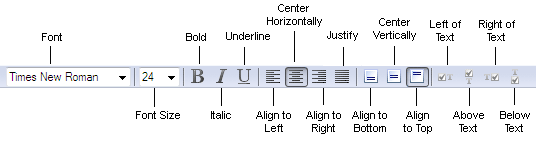 Buttons on the **Formatting** toolbar:
| **Button** | **Description** |
| -------------------------------------------------------------- | ------------------------------------------------------------------------------ |
| [Font](/flexi-capture/form-designer/tool-bars-formatting#font) | Changes the font of the text within the selected elements. |
| **Font Size** | Changes the font size for the text within the selected elements. |
| **Bold** | Changes the selected text to bold. |
| **Italic** | Changes the selected text to italic. |
| **Underline** | Underlines the selected text. |
| **Align to Left** | Aligns the text within the selected element to the left edge of the element. |
| **Center Horizontally** | Centers the text within the selected element horizontally. |
| **Align to Right** | Aligns the text within the selected element to the right edge of the element. |
| **Justify** | Justifies the text within the selected element. |
| **Align to Bottom** | Aligns the text within the selected element to the bottom edge of the element. |
| **Center Vertically** | Centers the text within the selected element vertically. |
| **Align to Top** | Aligns the text within the selected element to the top edge of the element. |
| **Left of Text** | Places the checkmark field to the left of the explanatory text. |
| **Above Text** | Places the checkmark field above the explanatory text. |
| **Right of Text** | Places the checkmark field to the right of the explanatory text. |
| **Below Text** | Places the checkmark field below the explanatory text. |
You may purchase additional fonts and multilingual font support at [www.paratype.com](https://www.paratype.com/).
Buttons on the **Formatting** toolbar:
| **Button** | **Description** |
| -------------------------------------------------------------- | ------------------------------------------------------------------------------ |
| [Font](/flexi-capture/form-designer/tool-bars-formatting#font) | Changes the font of the text within the selected elements. |
| **Font Size** | Changes the font size for the text within the selected elements. |
| **Bold** | Changes the selected text to bold. |
| **Italic** | Changes the selected text to italic. |
| **Underline** | Underlines the selected text. |
| **Align to Left** | Aligns the text within the selected element to the left edge of the element. |
| **Center Horizontally** | Centers the text within the selected element horizontally. |
| **Align to Right** | Aligns the text within the selected element to the right edge of the element. |
| **Justify** | Justifies the text within the selected element. |
| **Align to Bottom** | Aligns the text within the selected element to the bottom edge of the element. |
| **Center Vertically** | Centers the text within the selected element vertically. |
| **Align to Top** | Aligns the text within the selected element to the top edge of the element. |
| **Left of Text** | Places the checkmark field to the left of the explanatory text. |
| **Above Text** | Places the checkmark field above the explanatory text. |
| **Right of Text** | Places the checkmark field to the right of the explanatory text. |
| **Below Text** | Places the checkmark field below the explanatory text. |
You may purchase additional fonts and multilingual font support at [www.paratype.com](https://www.paratype.com/).