> ## Documentation Index
> Fetch the complete documentation index at: https://docs.abbyy.com/llms.txt
> Use this file to discover all available pages before exploring further.
# ABBYY FlexiCapture main window
> Navigate the ABBYY FlexiCapture main window to browse project batches and documents, open the Document window to verify data, and copy or move documents.
The main window of the program displays the list of document batches in the project you are working with.
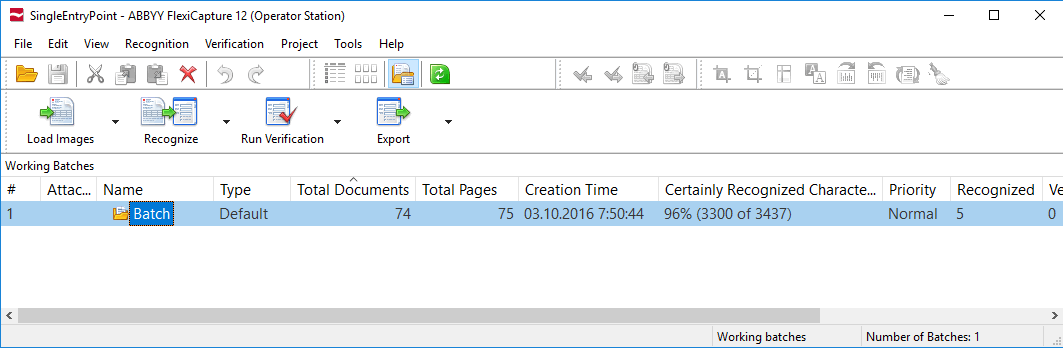 To view the contents of the batch, double-click it. You will see the list of documents in the batch.
To return to the list of batches, click **View → Working Batches** (or **Test Batches**, if you are using test batches).
To view the contents of the batch, double-click it. You will see the list of documents in the batch.
To return to the list of batches, click **View → Working Batches** (or **Test Batches**, if you are using test batches).
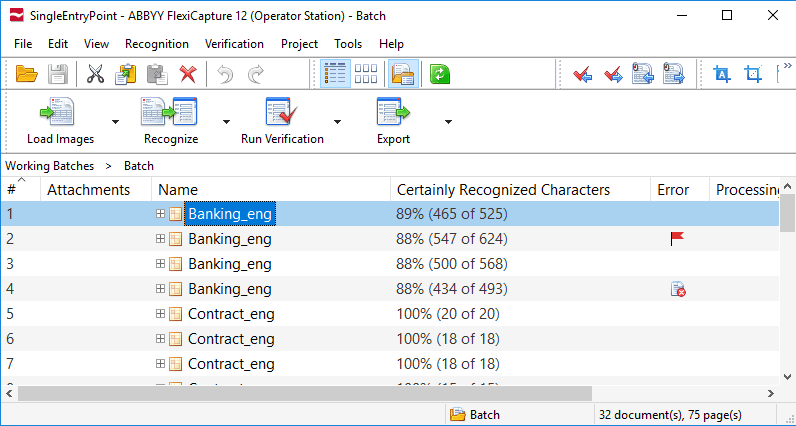 The main menu, with toolbars below it, is located at the top of the window.
The rest of the **Main window** is occupied by the **Batch** working window with the list of documents in the batch.
The **Status Bar** is located at the bottom of the window. The Status Bar shows the status of the program and the operations that are currently being carried out. When you position the cursor over menu items and buttons, the Status Bar will display their short descriptions.
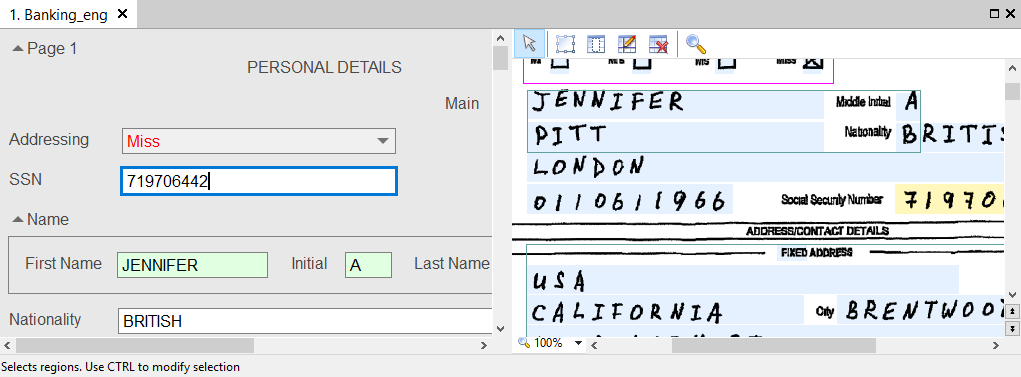
To verify the recognized data, open the **Document window**. To do it, double-click the name of the document or one of its pages. The Document window consists of three parts:
* The image of the document page
* The recognized data
* The rule errors (displayed only if there are rule errors)
For more information, see [Verification in the document window](/flexi-capture/operator-work/verification-doc-window).
The main menu, with toolbars below it, is located at the top of the window.
The rest of the **Main window** is occupied by the **Batch** working window with the list of documents in the batch.
The **Status Bar** is located at the bottom of the window. The Status Bar shows the status of the program and the operations that are currently being carried out. When you position the cursor over menu items and buttons, the Status Bar will display their short descriptions.
To verify the recognized data, open the **Document window**. To do it, double-click the name of the document or one of its pages. The Document window consists of three parts:
* The image of the document page
* The recognized data
* The rule errors (displayed only if there are rule errors)
For more information, see [Verification in the document window](/flexi-capture/operator-work/verification-doc-window).
 ## Copy and move documents
You can copy or move documents from one batch to another — for example, from a regular batch to a test batch for training. All information about a copied or moved document, including the applied Document Definition and any recognized data, is retained.
In the list of documents, select the documents you want to copy or move.
Press **Ctrl+C** to copy or **Ctrl+X** to cut. You can also use the
## Copy and move documents
You can copy or move documents from one batch to another — for example, from a regular batch to a test batch for training. All information about a copied or moved document, including the applied Document Definition and any recognized data, is retained.
In the list of documents, select the documents you want to copy or move.
Press **Ctrl+C** to copy or **Ctrl+X** to cut. You can also use the  and
and  toolbar buttons, or the **Copy** and **Cut** commands on the **Edit** menu.
Open the batch you want to copy or move the documents to.
Press **Ctrl+V**, click the
toolbar buttons, or the **Copy** and **Cut** commands on the **Edit** menu.
Open the batch you want to copy or move the documents to.
Press **Ctrl+V**, click the  button, or click **Edit → Paste**.
## Related topics
* [Main window menu](/flexi-capture/interface/main-menu)
* [Main window toolbars](/flexi-capture/interface/main-toolbars)
button, or click **Edit → Paste**.
## Related topics
* [Main window menu](/flexi-capture/interface/main-menu)
* [Main window toolbars](/flexi-capture/interface/main-toolbars)