> ## Documentation Index
> Fetch the complete documentation index at: https://docs.abbyy.com/llms.txt
> Use this file to discover all available pages before exploring further.
# Project Setup Station window
> Tour of the Project Setup Station window in ABBYY FlexiCapture: filter batches, browse the Batch pane, and verify data in the Document window.
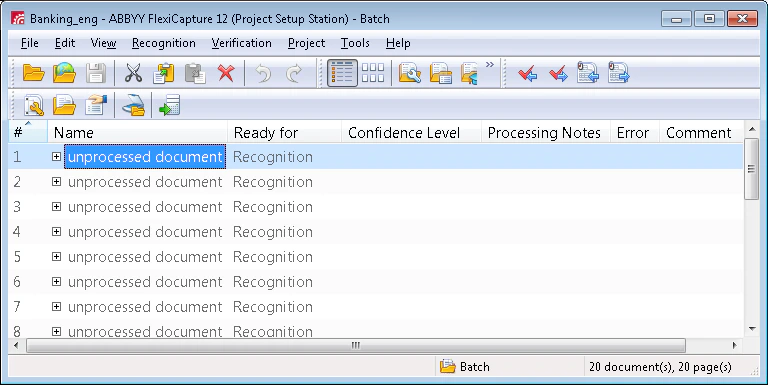
The main window of the Project Setup Station contains a list of document batches from the current project. By default, all batches except those that have already been processed are displayed.
## Filter batches
You can filter batches from projects that are stored on the processing server. Select a filter from the **Show** drop-down list and specify its settings.
| Filter | Description |
| --------------------------------------------------- | -------------------------------------------------------------------------------------------------------------------------------------------------------------------------------------------------------------------------------------------------------------------------------------------------------------------------------------------------------------- |
| **All batches except processed** | Default. Shows all batches except those that have already been processed. |
| **Batches on stages...** | Filters batches by processing stage.
**Only enabled stages** hides stages that are not used to process any batch type in the current project.
**Show out-of-processing batches** shows batches that were not processed; enabling it disables filtering by selected batch types. |
| **Batch with name prefix...** | Filters batches by the prefixes of their names. |
| **Batch with ID...** | Filters batches by their IDs. |
| **Batch containing document with ID...** | Filters batches by the IDs of the documents they contain. |
| **Batches created in period...** | Filters batches by creation time. Dates earlier than 02/01/1753 and later than 12/31/2100 are not permitted. |
| **Batches with batch type...** | Filters batches by their type. |
| **Batches with specific registration parameter...** | Filters batches by registration parameter names and values (up to three parameters). Specify each name and value manually or select them from the **Parameter** drop-down list, which contains registration parameters from all batch types and the last ten names you typed. The **Value** drop-down list contains the last ten values that a user specified. |
| **Batches filtered with...** | An advanced search that uses batch name prefixes, batch types, creation dates, registration parameters, and stages. |
| **Batches overdue within time period...** | Filters batches by deadline date. |
| **Batches with expiration status...** | Filters batches by deadline status. For more information, see [SLA settings](/flexi-capture/project-settings/sla-settings). |
When a filter is in use, a brief summary of its settings appears to the right of the **Show** drop-down list. To change the settings of the current filter, click the  button.
## Batch window
The top of the window contains the menu bar and the toolbar. The bottom contains the status bar, which displays messages about the program's status and the operations it is performing, along with brief descriptions of selected menu items and buttons. The rest of the window is taken up by the **Batch** pane, which contains a list of batches.
button.
## Batch window
The top of the window contains the menu bar and the toolbar. The bottom contains the status bar, which displays messages about the program's status and the operations it is performing, along with brief descriptions of selected menu items and buttons. The rest of the window is taken up by the **Batch** pane, which contains a list of batches.
 One page can contain up to 500 batches. Use the arrow buttons on the right to switch between pages.
Double-click a batch to view the documents it contains.
One page can contain up to 500 batches. Use the arrow buttons on the right to switch between pages.
Double-click a batch to view the documents it contains.
 To return to the list of batches, click **View → Working Batches** (or **Test Batches** if you are working with test batches).
### Copy and move documents
You can copy or move documents from one batch to another — for example, from a regular batch to a test batch for training. All information about a copied or moved document, including the applied Document Definition and any recognized data, is retained.
In the list of documents, select the documents you want to copy or move.
Press **Ctrl+C** to copy or **Ctrl+X** to cut. You can also use the
To return to the list of batches, click **View → Working Batches** (or **Test Batches** if you are working with test batches).
### Copy and move documents
You can copy or move documents from one batch to another — for example, from a regular batch to a test batch for training. All information about a copied or moved document, including the applied Document Definition and any recognized data, is retained.
In the list of documents, select the documents you want to copy or move.
Press **Ctrl+C** to copy or **Ctrl+X** to cut. You can also use the  and
and  toolbar buttons, or the **Copy** and **Cut** commands on the **Edit** menu.
Open the batch you want to copy or move the documents to.
Press **Ctrl+V**, click the
toolbar buttons, or the **Copy** and **Cut** commands on the **Edit** menu.
Open the batch you want to copy or move the documents to.
Press **Ctrl+V**, click the  button, or click **Edit → Paste**.
## Document window
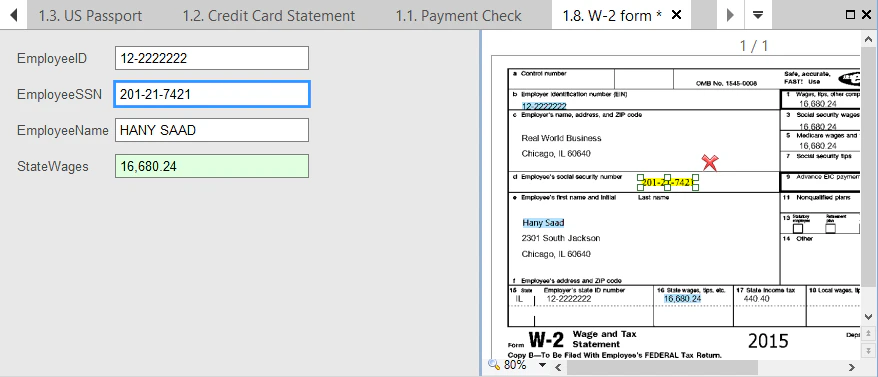
To begin verifying data, open the **Document** window by double-clicking the name of a document or one of its pages. This window is divided into three panes:
* A pane with an image of the document
* A pane with the data form
* A pane with rule errors (displayed only when there are rule errors)
When you place the mouse pointer over a field that contains a date or a number, a tooltip displays the value. The format of the data in the tooltip depends on the regional settings on your computer.
button, or click **Edit → Paste**.
## Document window
To begin verifying data, open the **Document** window by double-clicking the name of a document or one of its pages. This window is divided into three panes:
* A pane with an image of the document
* A pane with the data form
* A pane with rule errors (displayed only when there are rule errors)
When you place the mouse pointer over a field that contains a date or a number, a tooltip displays the value. The format of the data in the tooltip depends on the regional settings on your computer.
 ### View and edit document sets in the Document window
You can open any number of documents from a document set. A new tab is created for each document. Each tab's caption contains the number of the document in the batch and the name of each applied Document Definition. An asterisk next to a name indicates that there are unsaved changes. Switch between tabs by clicking them, by clicking the
### View and edit document sets in the Document window
You can open any number of documents from a document set. A new tab is created for each document. Each tab's caption contains the number of the document in the batch and the name of each applied Document Definition. An asterisk next to a name indicates that there are unsaved changes. Switch between tabs by clicking them, by clicking the  and
and  buttons to the right of the tabs, or by clicking the
  button and selecting the document from the list.
* Clicking the
button and selecting the document from the list.
* Clicking the  button on the toolbar saves changes in all open documents.
* If you open several documents from a set and then open a document from a different set, all documents from the old set are closed.
* When you open a document from a set, its parent documents also open.
If a Document Definition has a [summary section](/flexi-capture/templates/docsets-settings#summary-section) that contains links to original fields, you can quickly switch to the required original field. To do this, double-click the link or click the **Go to Original Field** command on the shortcut menu.
## Related topics
* [Main window menu](/flexi-capture/interface/main-menu)
* [Main window toolbars](/flexi-capture/interface/main-toolbars)
button on the toolbar saves changes in all open documents.
* If you open several documents from a set and then open a document from a different set, all documents from the old set are closed.
* When you open a document from a set, its parent documents also open.
If a Document Definition has a [summary section](/flexi-capture/templates/docsets-settings#summary-section) that contains links to original fields, you can quickly switch to the required original field. To do this, double-click the link or click the **Go to Original Field** command on the shortcut menu.
## Related topics
* [Main window menu](/flexi-capture/interface/main-menu)
* [Main window toolbars](/flexi-capture/interface/main-toolbars)