> ## Documentation Index
> Fetch the complete documentation index at: https://docs.abbyy.com/llms.txt
> Use this file to discover all available pages before exploring further.
# Document Definition editor window
> Document Definition editor window in ABBYY FlexiCapture: mark field regions and static elements, edit the data form, and manage document structure.
Document Definitions are created and edited in the Document Definition editor window.
## Open the editor
To open the Document Definition editor from the main window of the program:
Select **Project → Document Definitions...**.
In the **Document Definitions** dialog box that opens, highlight the Document Definition name and click **Edit...**.
The Document Definition editor window also opens when the [Document Definition Wizard](/flexi-capture/templates/template-wizard) finishes.
## Window layout
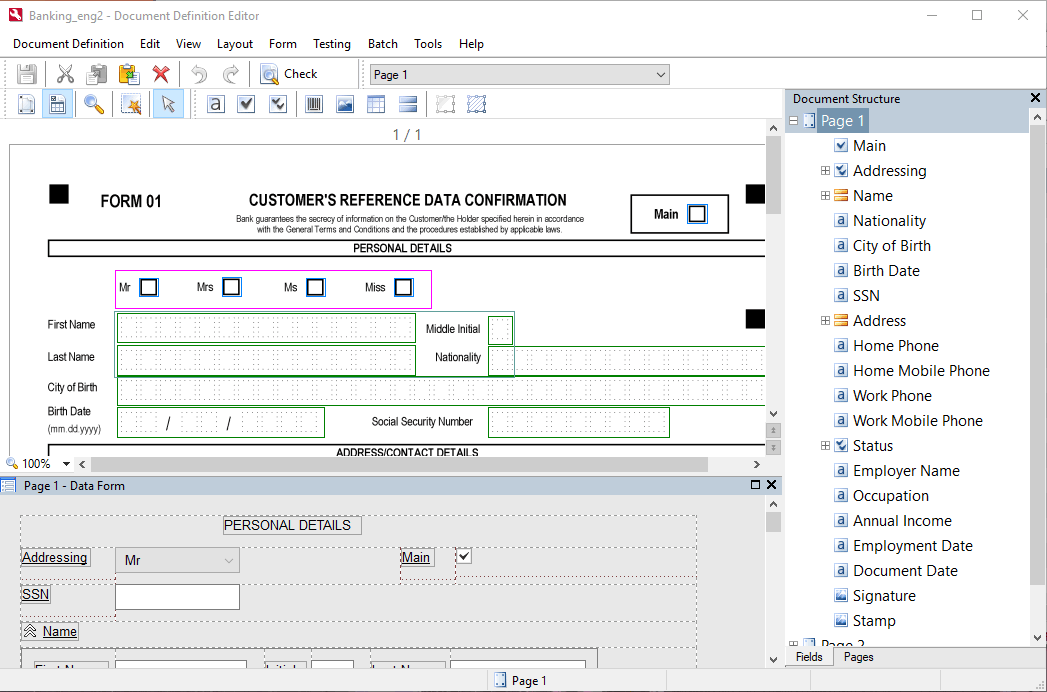 The Document Definition editor window consists of three parts:
* The page image with marked fields and static elements, shown at the top-left. The program has two modes for handling fields and static elements:
* The **Field Regions** mode, enabled by clicking the
The Document Definition editor window consists of three parts:
* The page image with marked fields and static elements, shown at the top-left. The program has two modes for handling fields and static elements:
* The **Field Regions** mode, enabled by clicking the  button.
* The **Static Elements** mode, enabled by clicking the
button.
* The **Static Elements** mode, enabled by clicking the  button.
* The editor for [configuring data presentation](/flexi-capture/templates/data-form) is at the bottom-left.
* The right side of the window contains the **Document Structure** pane. The **Fields** tab of this pane contains a list of all fields in the Document Definition, and the **Pages** tab contains thumbnails of all pages in the document. You can change the order of the pages by dragging the thumbnails or by using shortcut menu commands (right-click a thumbnail and click **Move** → **Up** or **Down** on the shortcut menu). The order of the pages in the **Pages** pane affects document assembly settings in the Document Definition.
## Related topics
* [Document Definition editor menu](/flexi-capture/interface/template-editor-menu)
* [Document Definition editor toolbars](/flexi-capture/interface/template-editor-toolbars)
button.
* The editor for [configuring data presentation](/flexi-capture/templates/data-form) is at the bottom-left.
* The right side of the window contains the **Document Structure** pane. The **Fields** tab of this pane contains a list of all fields in the Document Definition, and the **Pages** tab contains thumbnails of all pages in the document. You can change the order of the pages by dragging the thumbnails or by using shortcut menu commands (right-click a thumbnail and click **Move** → **Up** or **Down** on the shortcut menu). The order of the pages in the **Pages** pane affects document assembly settings in the Document Definition.
## Related topics
* [Document Definition editor menu](/flexi-capture/interface/template-editor-menu)
* [Document Definition editor toolbars](/flexi-capture/interface/template-editor-toolbars)