> ## Documentation Index
> Fetch the complete documentation index at: https://docs.abbyy.com/llms.txt
> Use this file to discover all available pages before exploring further.
# Training with clustering
> Train FlexiCapture for Invoices with clustering: group documents with varying layouts into clusters, and then export or import trained FlexiLayouts per batch.
During training, ABBYY FlexiCapture sorts incoming documents into training batches associated with the companies they come from. Documents from the same company usually share a layout, so you can train a single FlexiLayout and apply it at the verification stage.
## How clustering works
When documents from one company have widely varying layouts, use the clustering feature. With clustering turned on, FlexiCapture for Invoices analyzes documents and groups them into *clusters* based on shared features, and then trains a separate FlexiLayout for each cluster.
Clustering is turned on by default and runs fully automatically: the clusters themselves remain invisible to you. Documents are clustered inside the training batch used for their company, and training begins as soon as a cluster contains at least one document.
The resulting FlexiLayouts depend on whether clustering is on or off:
| Clustering | Document grouping | FlexiLayout created |
| ---------- | ------------------------------------------------------------ | --------------------------- |
| Off | Documents go into the training batch for their company | One FlexiLayout per company |
| On | Documents are clustered within each company's training batch | One FlexiLayout per cluster |
If you have no databases but still want to use field training, accumulate company information by adding records to your data sets as you capture documents. For more information, see [Looking up vendors and business units in the database](/flexi-capture/invoice-reader/ir-data-set-using#modifying-vendor-and-business-unit-records-and-adding-new-ones).
When you update a project created in an earlier version of ABBYY FlexiCapture, you can use your existing FlexiLayouts without any modifications. However, if you choose to use the clustering feature, the clustering algorithm redistributes your documents among the training batches and trains a new FlexiLayout for each cluster.
## Disable clustering
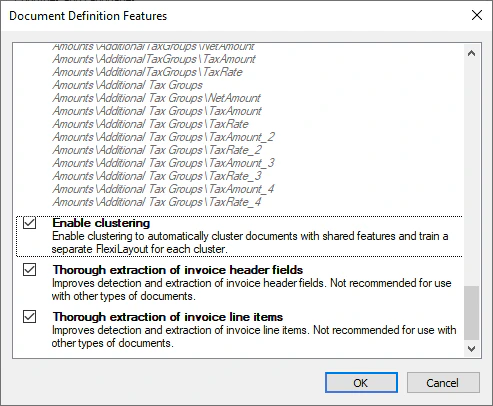
Clustering is turned on by default. To turn it off:
In the Document Definition editor, click **Document Definition** → **Document Definition Properties**.
In the dialog box that opens, click the **Document Definition Settings** tab.
Click **Edit** to the right of **Additional Fields and Features**.
In the **Document Definition Features** dialog box, clear **Enable clustering**.
 ## Export a trained FlexiLayout
In the training batch view, two columns help you judge how well a company's documents are recognized:
| Column | Shows |
| ------------------- | -------------------------------------------------------------------------------- |
| **Samples count** | The number of documents in the batch |
| **Samples matched** | The number of documents where the trained FlexiLayout detects 100% of the fields |
If documents from a specific company are recognized with too many errors, create a custom FlexiLayout, or export the trained FlexiLayout and edit it in ABBYY FlexiLayout Studio. When you finish, import the custom or edited FlexiLayout back into the training batch.
To export a trained FlexiLayout from ABBYY FlexiCapture:
On the Project Setup Station, switch to the training batch view by clicking **Field Training** → **Open Field Extraction Training Batches** (or press `Ctrl+Alt+B`).
Right-click the batch and click **Export Trained FlexiLayout** on the shortcut menu.
In the dialog box that opens, select where to save the `*.fsp` project file that contains your FlexiLayout. You can then open this file in ABBYY FlexiLayout Studio and modify the FlexiLayout.
## Import a FlexiLayout
You can import a modified or completely new FlexiLayout into a training batch to be used for one specific company. For more information, see [Training done by project administrators](/flexi-capture/invoice-reader/ir-training-doc-variants).
To import a FlexiLayout into a training batch:
On the Project Setup Station, switch to the **Field Extraction Training Batches** view by clicking **Field Training** → **Open Field Extraction Training Batches** (or press `Ctrl+Alt+B`).
Right-click the batch and click **Import FlexiLayout** on the shortcut menu.
In the dialog box that opens, select the `*.afl` file that contains your FlexiLayout.
## Clustering limitations
When you use clustering, the following limitations apply:
* If you create a new FlexiLayout manually, make sure it covers all possible document variants from the company — you cannot manually create a FlexiLayout for a single cluster.
* Only the FlexiLayout for the main document fields is exported. Line item fields use a separate machine learning algorithm whose results cannot be exported or modified, so no FlexiLayout can be generated or exported for them. You can still create a FlexiLayout for line item fields manually.
* Only the FlexiLayout trained for the first cluster is exported.
* After you import a new or modified FlexiLayout into a training batch:
* Documents are no longer trained during processing.
* Clustering is disabled for that batch.
* The imported FlexiLayout is used to process all documents from the company, regardless of cluster.
## Export a trained FlexiLayout
In the training batch view, two columns help you judge how well a company's documents are recognized:
| Column | Shows |
| ------------------- | -------------------------------------------------------------------------------- |
| **Samples count** | The number of documents in the batch |
| **Samples matched** | The number of documents where the trained FlexiLayout detects 100% of the fields |
If documents from a specific company are recognized with too many errors, create a custom FlexiLayout, or export the trained FlexiLayout and edit it in ABBYY FlexiLayout Studio. When you finish, import the custom or edited FlexiLayout back into the training batch.
To export a trained FlexiLayout from ABBYY FlexiCapture:
On the Project Setup Station, switch to the training batch view by clicking **Field Training** → **Open Field Extraction Training Batches** (or press `Ctrl+Alt+B`).
Right-click the batch and click **Export Trained FlexiLayout** on the shortcut menu.
In the dialog box that opens, select where to save the `*.fsp` project file that contains your FlexiLayout. You can then open this file in ABBYY FlexiLayout Studio and modify the FlexiLayout.
## Import a FlexiLayout
You can import a modified or completely new FlexiLayout into a training batch to be used for one specific company. For more information, see [Training done by project administrators](/flexi-capture/invoice-reader/ir-training-doc-variants).
To import a FlexiLayout into a training batch:
On the Project Setup Station, switch to the **Field Extraction Training Batches** view by clicking **Field Training** → **Open Field Extraction Training Batches** (or press `Ctrl+Alt+B`).
Right-click the batch and click **Import FlexiLayout** on the shortcut menu.
In the dialog box that opens, select the `*.afl` file that contains your FlexiLayout.
## Clustering limitations
When you use clustering, the following limitations apply:
* If you create a new FlexiLayout manually, make sure it covers all possible document variants from the company — you cannot manually create a FlexiLayout for a single cluster.
* Only the FlexiLayout for the main document fields is exported. Line item fields use a separate machine learning algorithm whose results cannot be exported or modified, so no FlexiLayout can be generated or exported for them. You can still create a FlexiLayout for line item fields manually.
* Only the FlexiLayout trained for the first cluster is exported.
* After you import a new or modified FlexiLayout into a training batch:
* Documents are no longer trained during processing.
* Clustering is disabled for that batch.
* The imported FlexiLayout is used to process all documents from the company, regardless of cluster.