> ## Documentation Index
> Fetch the complete documentation index at: https://docs.abbyy.com/llms.txt
> Use this file to discover all available pages before exploring further.
# Training your NLP models
> Set up an NLP training batch in ABBYY FlexiCapture, load 100-500 sample documents, mark up fields manually, and run training to build your NLP model.
After you have published your Document Definition, close the **Document Definition** dialog box, and then navigate to the **Field Extraction Training Batches** section and create a new document batch.
1. Click **File** and select New Batch.
2. In the dialog box that opens, select the Document Definition that you created earlier, and then select the section for which you have configured fields and click **OK**.
3. In the Look up Variant for Training Batch window, select the variant to be used for training.
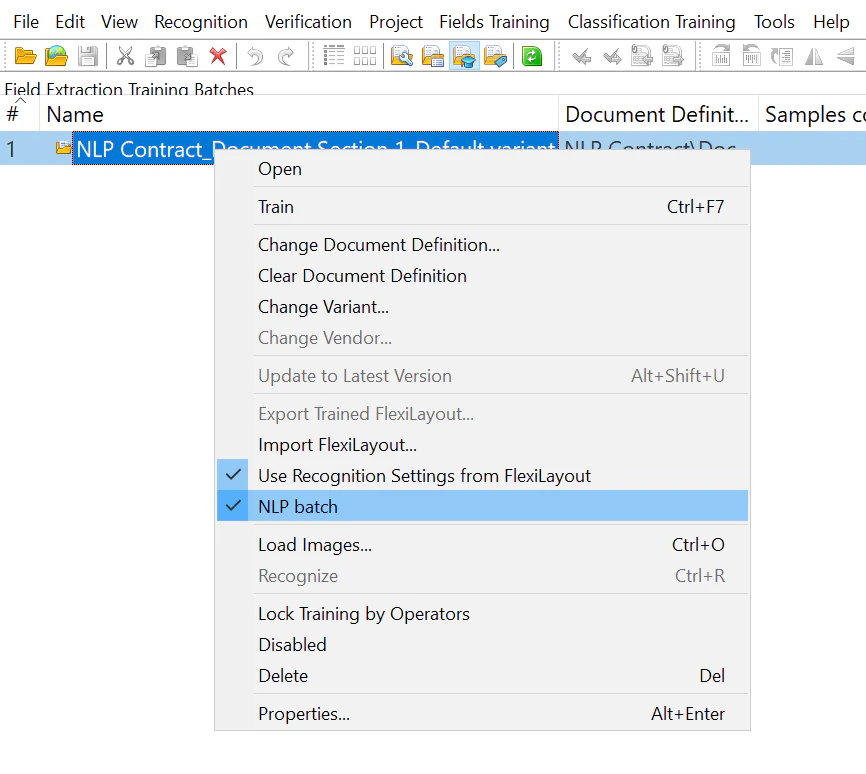
4. Select the newly created batch and either select the NLP batch option or click **Field extraction training >** NLP batch.
 Now you need to load the documents that will be used to train the NLP model.
1. Open the batch that you have created by double-clicking it.
2. Click **File >** Load Images...**.**
3. In the dialog box that opens, click Image Processing Settings..., select the **One** **document per file** option, and click **OK**.
4. Choose the documents to be used for training the NLP model.
5. After all the documents have been loaded, select them and click **Recognition >** Match Document Definition. Alternatively, right-click the selection and click Match Document Definition. Then choose the appropriate Document Definition.
The quality of a trained NLP model depends on the number of documents in the training batch and the quality of their markup. Please note the following:
* All the fields described by the Document Definition should be marked up in the training documents.
* It is recommended to have between 100 and 500 documents in each training batch. This number of documents will enable the program to select the best parameters for your NLP model without slowing down the training process.
After you have successfully loaded the documents, you need to manually mark up the fields on each document so that the NLP models will know where to look for entities. To do this, complete the following steps for each document:
1. Double-click a document to open it.
2. Select a field for which information from the document should be extracted. Then either choose the value of the field on the document or draw a rectangle around it. Repeat this step for each field.
3. Go to the next document by clicking the
Now you need to load the documents that will be used to train the NLP model.
1. Open the batch that you have created by double-clicking it.
2. Click **File >** Load Images...**.**
3. In the dialog box that opens, click Image Processing Settings..., select the **One** **document per file** option, and click **OK**.
4. Choose the documents to be used for training the NLP model.
5. After all the documents have been loaded, select them and click **Recognition >** Match Document Definition. Alternatively, right-click the selection and click Match Document Definition. Then choose the appropriate Document Definition.
The quality of a trained NLP model depends on the number of documents in the training batch and the quality of their markup. Please note the following:
* All the fields described by the Document Definition should be marked up in the training documents.
* It is recommended to have between 100 and 500 documents in each training batch. This number of documents will enable the program to select the best parameters for your NLP model without slowing down the training process.
After you have successfully loaded the documents, you need to manually mark up the fields on each document so that the NLP models will know where to look for entities. To do this, complete the following steps for each document:
1. Double-click a document to open it.
2. Select a field for which information from the document should be extracted. Then either choose the value of the field on the document or draw a rectangle around it. Repeat this step for each field.
3. Go to the next document by clicking the  button. Repeat the above steps for all the remaining documents.
4. Save the changes.
After you have marked up all the documents, return to the Field Extraction Training Batches view. Right-click the batch and click Train on the shortcut menu. Once trained, the model is ready to use.
Training results can either be disabled or deleted. To disable training results, right-click the training batch and select the Disabled item on the shortcut menu. To delete training results, right-click the training batch and select the Delete item on the shortcut menu.
If you need to use your trained NLP model in another project, simply import the training batch and its associated Document Definition into that project.
button. Repeat the above steps for all the remaining documents.
4. Save the changes.
After you have marked up all the documents, return to the Field Extraction Training Batches view. Right-click the batch and click Train on the shortcut menu. Once trained, the model is ready to use.
Training results can either be disabled or deleted. To disable training results, right-click the training batch and select the Disabled item on the shortcut menu. To delete training results, right-click the training batch and select the Delete item on the shortcut menu.
If you need to use your trained NLP model in another project, simply import the training batch and its associated Document Definition into that project.