> ## Documentation Index
> Fetch the complete documentation index at: https://docs.abbyy.com/llms.txt
> Use this file to discover all available pages before exploring further.
# Analyze images and match Document Definitions
> Analyze images before recognition and apply Document Definitions in ABBYY FlexiCapture using the Match Document Definition command or the selection panel.
In most cases FlexiCapture selects the right Document Definition on its own. Sometimes you need to analyze a page or apply a Document Definition yourself.
To apply Document Definitions manually, a user needs a role with the **Modify document layout** permission enabled. To see the permissions enabled for a role, open the **User Roles** tab of the project properties dialog box.
## Analyze images in a distributed installation
In a distributed installation, the program analyzes and recognizes images automatically and finds matching Document Definitions.
Verification operators and senior verification operators can also start image analysis and Document Definition matching themselves. On a Verification Station, click **Tools → Reanalyze**.
## Analyze a page in a standalone installation
Analyze a page before recognizing it to determine a matching Document Definition. Use one of the following ways:
* Click **Recognition → Analyze**.
* Click the arrow to the right of the **Recognize** button, and then click **Analyze**.
The document containing the page takes the name of the Document Definition, and the page takes the name of its corresponding Document Definition section.
## Apply a Document Definition manually
Select a document or a document page.
Use one of the following ways:
* Click **Recognition → Match Document Definition...** in the main menu.
* Right-click the document and click **Match Document Definition...** on the shortcut menu.
* In a standalone installation, click the arrow to the right of the **Recognize** button, and then click **Match Document Definition...**.
Select the Document Definition in the **Select Document Definition** dialog box.
A document can have only a Document Definition assigned, and a page can have only a Document Definition section assigned. When you apply a Document Definition that has several sections to a document, the program analyzes how the sections apply across the pages. A Document Definition with only one section skips that analysis.
Click **OK**. The definition is applied to the selected document or page.
The **Analyze and recognize documents after matching** option is enabled by default, so analysis and recognition start automatically. Turn it off to apply a Document Definition without a further analysis and a second recognition.
## Apply a Document Definition from the side panel
The **Select Document Definition** panel applies a Document Definition to a page or a document quickly. The top of the panel shows the most recently used Document Definitions. The bottom lists all the Document Definitions and sections available to you.
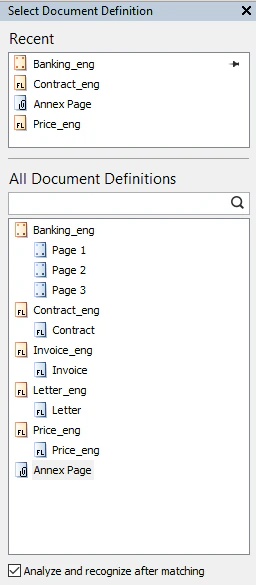 To show or hide the panel, click **View → Side Panels → Select Document Definition**. To find a Document Definition, type its name in the search bar.
Click
To show or hide the panel, click **View → Side Panels → Select Document Definition**. To find a Document Definition, type its name in the search bar.
Click  to pin the Document Definitions you use most often.
Select the page or document you want to apply a Document Definition to.
Click the Document Definition you want in the panel.
to pin the Document Definitions you use most often.
Select the page or document you want to apply a Document Definition to.
Click the Document Definition you want in the panel.