> ## Documentation Index
> Fetch the complete documentation index at: https://docs.abbyy.com/llms.txt
> Use this file to discover all available pages before exploring further.
# How to tune up the performance of a Processing Station
> Tune ABBYY FlexiCapture Processing Station performance with the right CPU cores, Hyper-Threading, fast disks or RAM drives, and a sized temporary folder.
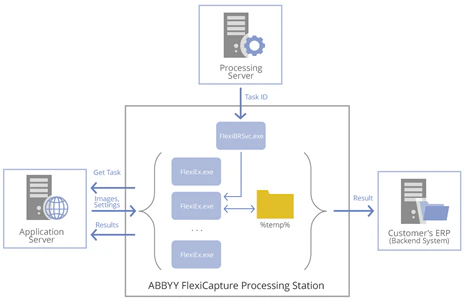
A Processing Station is a Windows service application. To process a task, a Station:
* Connects to the Processing Server, to get identifiers of tasks to process
* Connects to the Application Server via HTTP/HTTPS and downloads images, document data, and processing settings
* Initiates several executive processes to carry out processing tasks
* Uploads the results to either the Application Server or to a backend system (for example, an ERP system or DMS).
These processes intensively use the hard disk to save intermediate processing data to a temporary folder.
 The hardware used for Processing Stations has a considerable impact on FlexiCapture performance.
## Recommended hardware
A Processing Station requires:
* CPU: 8 physical cores with Hyper-Threading, 2.4 GHz or higher
* 16 GB RAM
* HDD: 150 GB
* NIC: 1 Gb/s
* OS: Windows 2012 or later
A Station launches one executive process per CPU core, so more CPU cores allow more tasks to be processed simultaneously. For better CPU performance, use *Hyper-Threading* where technically possible.
Using more than 16 logical CPU cores is a poor choice: multiple executive processes will compete for hard disk time and CPU cache memory.
At least 2.5 GB of RAM per logical core is sufficient for processing.
The **processing speed** greatly depends on the *CPU frequency* and the *hard disk read-write speed*. Set up a fast hard drive for a Processing Station, or combine several hard drives into RAID0 for faster access by executive processes to temporary folders.
If the amount of available RAM is greater than the recommended 2.5 GB per logical core, create a *virtual hard disk* in RAM and place the *temporary folder* for executive processes there — this may boost processing speed by up to 30%.
There is no need to provide redundancy for the hard drives of the Processing Station. If one fails, only the results of the current processing are lost; the images are forwarded to another Processing Station and processed there. For this, you need at least 2 Processing Stations in the System.
## Estimate the size of the temporary folder
The **maximum hard disk space required for a temporary folder** is the *total size of the document images* in a typical batch, in MB, multiplied by the *number of executive processes* (by default, the number of logical CPU cores).
### Worked example
Calculate the maximum size of a temporary folder where grayscale images are processed in 100-page batches on an 8-core Station with Hyper-Threading enabled:
* The size of a batch = 100 pages × 3 MB (the typical size of a grayscale page) = 300 MB.
* An 8-core computer with Hyper-Threading enabled provides 16 logical cores, so the Processing Station runs 16 simultaneous executive processes.
* The required space for the temporary folder is 300 MB × 16 executive processes = 4.8 GB.
* If the temporary folder is hosted in RAM, the required RAM size is 2.5 GB per logical core (for processing) × 16 executive processes + 4.8 GB for the temporary folder = about 45 GB of RAM.
The hardware used for Processing Stations has a considerable impact on FlexiCapture performance.
## Recommended hardware
A Processing Station requires:
* CPU: 8 physical cores with Hyper-Threading, 2.4 GHz or higher
* 16 GB RAM
* HDD: 150 GB
* NIC: 1 Gb/s
* OS: Windows 2012 or later
A Station launches one executive process per CPU core, so more CPU cores allow more tasks to be processed simultaneously. For better CPU performance, use *Hyper-Threading* where technically possible.
Using more than 16 logical CPU cores is a poor choice: multiple executive processes will compete for hard disk time and CPU cache memory.
At least 2.5 GB of RAM per logical core is sufficient for processing.
The **processing speed** greatly depends on the *CPU frequency* and the *hard disk read-write speed*. Set up a fast hard drive for a Processing Station, or combine several hard drives into RAID0 for faster access by executive processes to temporary folders.
If the amount of available RAM is greater than the recommended 2.5 GB per logical core, create a *virtual hard disk* in RAM and place the *temporary folder* for executive processes there — this may boost processing speed by up to 30%.
There is no need to provide redundancy for the hard drives of the Processing Station. If one fails, only the results of the current processing are lost; the images are forwarded to another Processing Station and processed there. For this, you need at least 2 Processing Stations in the System.
## Estimate the size of the temporary folder
The **maximum hard disk space required for a temporary folder** is the *total size of the document images* in a typical batch, in MB, multiplied by the *number of executive processes* (by default, the number of logical CPU cores).
### Worked example
Calculate the maximum size of a temporary folder where grayscale images are processed in 100-page batches on an 8-core Station with Hyper-Threading enabled:
* The size of a batch = 100 pages × 3 MB (the typical size of a grayscale page) = 300 MB.
* An 8-core computer with Hyper-Threading enabled provides 16 logical cores, so the Processing Station runs 16 simultaneous executive processes.
* The required space for the temporary folder is 300 MB × 16 executive processes = 4.8 GB.
* If the temporary folder is hosted in RAM, the required RAM size is 2.5 GB per logical core (for processing) × 16 executive processes + 4.8 GB for the temporary folder = about 45 GB of RAM.