> ## Documentation Index
> Fetch the complete documentation index at: https://docs.abbyy.com/llms.txt
> Use this file to discover all available pages before exploring further.
# Create applications using the FlexiCapture REST API interface
> Create applications on the FlexiCapture Cloud REST API web portal that connect to existing cloud projects so users can run document processing tasks.
Applications in the FlexiCapture Cloud REST API interface are connected to existing projects in the FlexiCapture Cloud tenant. They make it possible for the user to create document processing tasks. The processing can then be carried out in the FlexiCapture project connected to the appropriate application.
To create applications, a user needs a FlexiCapture Cloud account with permissions for the following roles in the FlexiCapture Cloud user tenant:
* Senior Verification Operator
* External User
For more information about modifying a user's roles, see [Set up FlexiCapture Cloud account permissions](/flexi-capture/rest-api-apps-setup).
For a user to be able to create and use applications, the user's FlexiCapture Cloud account should not be deleted or disabled.
To create an application on the FlexiCapture Cloud REST API web portal:
Use your account details to log in on the FlexiCapture Cloud REST API web portal.
Go to the **Applications** tab and click **Add one more application**.
 Specify the FlexiCapture Cloud tenant name and your account details for that tenant.
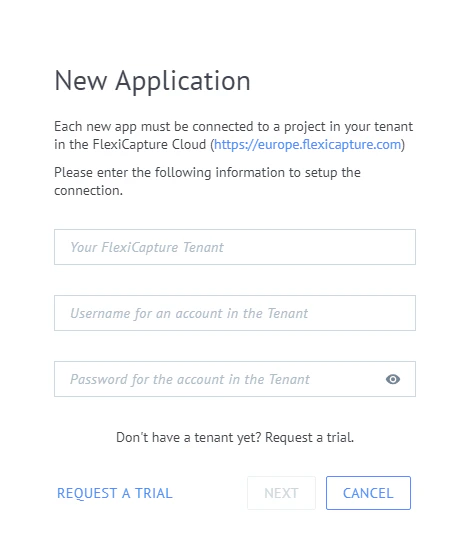 Click **Next**.
Choose the appropriate project and enter a name for the application.
Click **Next**.
Choose the appropriate project and enter a name for the application.
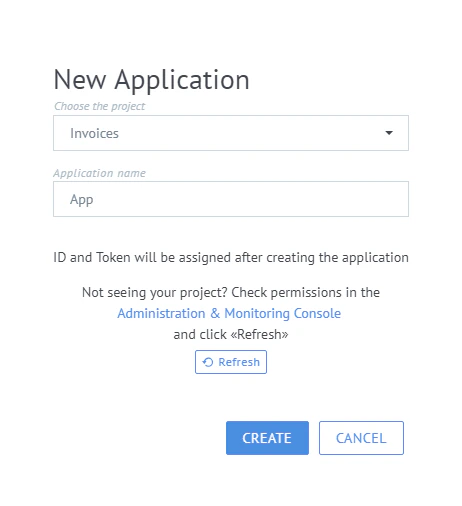 Click **Create**.
The application is created and can be selected as active for submitting tasks using the Document Capture section of the web portal.
Click **Create**.
The application is created and can be selected as active for submitting tasks using the Document Capture section of the web portal.