> ## Documentation Index
> Fetch the complete documentation index at: https://docs.abbyy.com/llms.txt
> Use this file to discover all available pages before exploring further.
# Processing error diagnostics
> Diagnose FlexiCapture Cloud REST API processing errors in the Administration and Monitoring Console by filtering the event log for the batch by task ID.
In the web Administration and Monitoring Console, you can view an event log and identify tasks that have been processed with errors.
The FlexiCapture Cloud REST API assigns a unique identifier to each new task. After that, a batch with the same name is created in FlexiCapture Cloud and is queued for processing. To check the status of a task based on its ID:
Enter your account credentials to log in to the web Administration and Monitoring Console on your tenant.
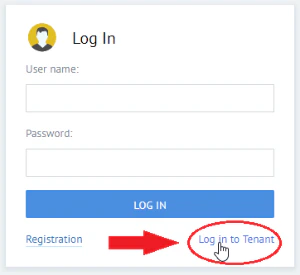
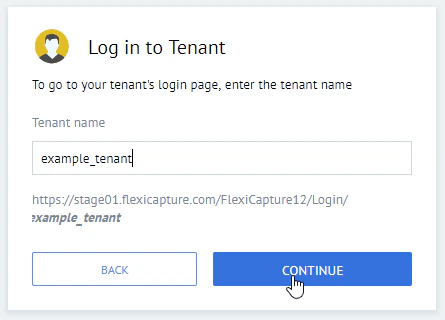
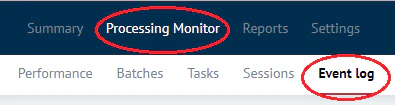
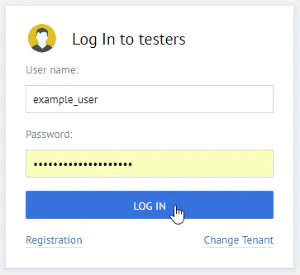 Click **Processing Monitor** and then click **Event log**.
 Click the **+** icon to create a new filter that looks for the batch with the same name as the ID of the task you are looking for.
 After you enter the ID in the field on the right, make sure you click the matching ID that appears in the tip below the entry field; otherwise the filter will not work.
 Click **Apply**.
Review the task status and any errors found in the task.
If you are unable to fix an error, contact the technical support team.
The batch ID in FlexiCapture Cloud will not match the task ID in the FlexiCapture REST API.
For the description of HTTP error codes that may be returned to REST API requests, see [Request errors](/flexi-capture/cloud/rest-api-errors).
Click **Apply**.
Review the task status and any errors found in the task.
If you are unable to fix an error, contact the technical support team.
The batch ID in FlexiCapture Cloud will not match the task ID in the FlexiCapture REST API.
For the description of HTTP error codes that may be returned to REST API requests, see [Request errors](/flexi-capture/cloud/rest-api-errors).