> ## Documentation Index
> Fetch the complete documentation index at: https://docs.abbyy.com/llms.txt
> Use this file to discover all available pages before exploring further.
# Registration Parameters of Batches and Documents
> Configure registration parameters for batch and document types in the Scanning Station, using text or drop-down values from files or external databases.
**Registration parameters** are string properties that identify documents and batches, such as the scanning date or the Operator's name.
You can set registration parameters for batch types or document types. For example, if one batch type processes different documents, create several document types, each with its own registration parameters.
Set registration parameters when you create a batch type, or later in the batch type's properties dialog box. You can edit the registration parameters of batches and document types, unless they are read-only, on the **Batch** and **Document** tabs of the **Registration Parameters** dialog box. For more information, see [Specify registration parameters](/flexi-capture/scanning-station/reg-params-fill).
The process is the same for document types and batch types, except that document types support two parameter types: **Text** and **Drop-down list**. You can also assign an Operator to specify or check specific registration parameters when a new batch is created.
## Add a registration parameter
Open the **Batch Type Properties** dialog box, then open the list for the type you want:
* For the current **batch type**, click the **Batch Registration Parameters** tab and click **New\...**.
* For a **document type**, click the **Document Types** tab and click **Add...**.
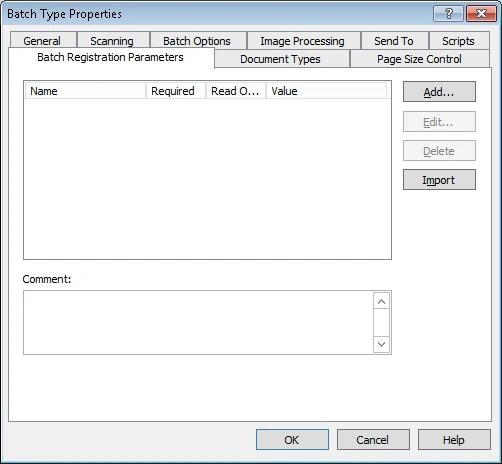 In the **Registration Parameter** dialog box, type a name for the new registration parameter.
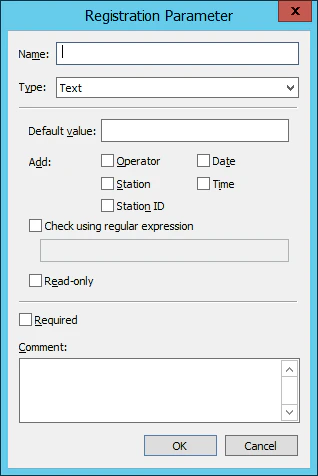 From the **Type** drop-down list, select **Text** or **Drop-down list**. The available settings depend on the type. See [Text registration parameters](#text-registration-parameters) or [Drop-down list registration parameters](#drop-down-list-registration-parameters).
## Text registration parameters
A text registration parameter is a text string. It can contain user-specified text, automatically generated text, or both, but it cannot be empty. The **Default value** field holds the user-specified text and any automatically generated tags.
To include data automatically, select the options you want. The following data is available.
| Data | Description | Tag |
| -------------- | ---------------------------------------------------- | ----- |
| **Operator** | The user who started the Scanning Station | `` |
| **Station** | The computer where the Scanning Station is installed | `
From the **Type** drop-down list, select **Text** or **Drop-down list**. The available settings depend on the type. See [Text registration parameters](#text-registration-parameters) or [Drop-down list registration parameters](#drop-down-list-registration-parameters).
## Text registration parameters
A text registration parameter is a text string. It can contain user-specified text, automatically generated text, or both, but it cannot be empty. The **Default value** field holds the user-specified text and any automatically generated tags.
To include data automatically, select the options you want. The following data is available.
| Data | Description | Tag |
| -------------- | ---------------------------------------------------- | ----- |
| **Operator** | The user who started the Scanning Station | `` |
| **Station** | The computer where the Scanning Station is installed | `` |
| **Station ID** | The identifier of the Scanning Station | `` |
| **Date** | The date the batch or document was created | `` |
| **Time** | The time the batch or document was created | `` |
Two more options are available:
* **Check using regular expression** – Checks the parameter against a template that you specify with the [Alphabet Used in Regular Expressions](/flexi-capture/scanning-station/appendix/reg-ex). If the parameter does not match the template, the batch cannot be sent, and a message explains why.
* **Read-only** – Prevents the Operator from changing the default value. Not available when **Check using regular expression** is enabled.
## Drop-down list registration parameters
For this type, the Operator selects a value from a drop-down list.
Populate the list in one of the following ways:
* **Create list items manually** – Click **Add...**, then type a value in the dialog box that opens (see [Text registration parameters](#text-registration-parameters)).
* **Import list items from a TXT file** – Click **Import**, then select the TXT file. Each line becomes a list item.
* **Use an external source** – Select **Use external source of values**, then choose a file or a database in the **Values Source Settings** dialog box.
Make sure all stations have access to the selected external source.
### Use a file as the external source
Click **Browse** and select a file in the **Source of Values** dialog box. Each line of the file becomes a list item.
### Use a database as the external source
Click **Set Up...** in the **Values Source Settings** dialog box.
On the **Provider** tab, select a provider.
On the **Connection** tab, specify a connection string and connection settings. Test the connection if necessary, then click **OK**.
In the **Values Source Settings** dialog box, specify a schema, a database table, and a database field, then click **OK**.
The following database types are supported:
* Microsoft SQL
* Oracle
* Azure
* Microsoft Access
Values from external sources update only when you create a new batch type or edit an existing one.
## Import registration parameters from ABBYY FlexiCapture
To load the registration parameters specified for this batch type in your ABBYY FlexiCapture project, click **Import** on the **Batch Registration Parameters** tab of the **Batch Type Properties** dialog box.
When you import registration parameters again:
* Registration parameters you added manually are preserved.
* If an existing parameter has the same name as one in the FlexiCapture project, the FlexiCapture parameter and its settings are used.
* The imported parameters are updated.
* If a parameter was renamed on the Scanning Station, it is preserved and the FlexiCapture parameter is added again.
* If a parameter was renamed in the FlexiCapture project, the old parameter is removed from the Scanning Station and the new one is imported.
You can also remove any registration parameter and change the **Required** option for imported parameters.
The following options are available for both **Text** and **Drop-down list** parameters:
* **Required** – The parameter must have a value. A batch with a required registration parameter cannot be exported until the parameter has a value.
* **Comment** – A comment for the registration parameter.
You can import registration parameters from an external source (a TXT file or a database) and from TXT files at the same time.