> ## Documentation Index
> Fetch the complete documentation index at: https://docs.abbyy.com/llms.txt
> Use this file to discover all available pages before exploring further.
# Batch Types dialog box
> Batch Types dialog box in ABBYY Scanning Station manages batch types: create, copy, edit, delete, and export or import them as XML files.
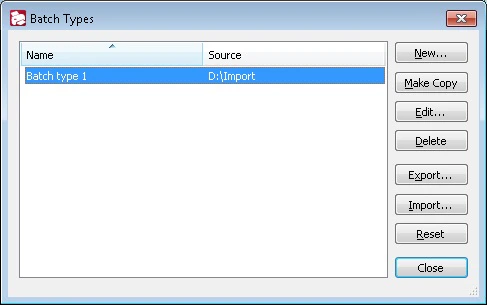
In the **Batch Types** dialog box, you can manage batch types: create, copy, edit, remove, export, and import them.
To open this dialog box, select **Tools → Batch Types...**.
 ## Manage batch types
The list displays the names of the batch types and the scanner source used by them. Use the buttons to the right of the list to manage the batch types.
| **Button** | **Description** |
| ------------- | ------------------------------------------------------------------------------------------------------------------------------------------ |
| **New\...** | Starts the [Batch Type Wizard](/flexi-capture/scanning-station/shared/interface/batch-type-wizard), where you can create a new batch type. |
| **Copy** | Copies the selected batch type. |
| **Edit...** | Edits the selected batch type. |
| **Delete** | Deletes the selected batch type. |
| **Export...** | Exports batch types to an XML file. See [Export batch types](#export-batch-types). |
| **Import...** | Imports batch types from an XML file. See [Import batch types](#import-batch-types). |
| **Close** | Closes the dialog box. |
## Export batch types
Click **Export...** to open the **Export Batch Types** dialog box.
Select **Export all batch types** or **Export selected batch types**.
To prohibit changes, select **Prohibit editing batch types** and enter a password. Whenever these batch types are imported or edited, the program asks for a valid password.
Click **OK**, and in the [Select Batch Types Storage dialog box](/flexi-capture/scanning-station/shared/interface/select-storage), select a folder to store the XML file with the batch type descriptions.
## Import batch types
When you import batch types, all existing batch types are deleted.
Click **Import...** to open the [Select Batch Types Storage dialog box](/flexi-capture/scanning-station/shared/interface/select-storage).
Provide the path to the XML file that contains the batch type descriptions.
When transferring a batch type that contains external .Net assemblies, include not only the XML file with the batch type descriptions but also the `.spr` folder, which holds the external assembly files (`*.asr`). When you load a batch type from the server, the `.spr` folder is imported automatically.
## Manage batch types
The list displays the names of the batch types and the scanner source used by them. Use the buttons to the right of the list to manage the batch types.
| **Button** | **Description** |
| ------------- | ------------------------------------------------------------------------------------------------------------------------------------------ |
| **New\...** | Starts the [Batch Type Wizard](/flexi-capture/scanning-station/shared/interface/batch-type-wizard), where you can create a new batch type. |
| **Copy** | Copies the selected batch type. |
| **Edit...** | Edits the selected batch type. |
| **Delete** | Deletes the selected batch type. |
| **Export...** | Exports batch types to an XML file. See [Export batch types](#export-batch-types). |
| **Import...** | Imports batch types from an XML file. See [Import batch types](#import-batch-types). |
| **Close** | Closes the dialog box. |
## Export batch types
Click **Export...** to open the **Export Batch Types** dialog box.
Select **Export all batch types** or **Export selected batch types**.
To prohibit changes, select **Prohibit editing batch types** and enter a password. Whenever these batch types are imported or edited, the program asks for a valid password.
Click **OK**, and in the [Select Batch Types Storage dialog box](/flexi-capture/scanning-station/shared/interface/select-storage), select a folder to store the XML file with the batch type descriptions.
## Import batch types
When you import batch types, all existing batch types are deleted.
Click **Import...** to open the [Select Batch Types Storage dialog box](/flexi-capture/scanning-station/shared/interface/select-storage).
Provide the path to the XML file that contains the batch type descriptions.
When transferring a batch type that contains external .Net assemblies, include not only the XML file with the batch type descriptions but also the `.spr` folder, which holds the external assembly files (`*.asr`). When you load a batch type from the server, the `.spr` folder is imported automatically.