> ## Documentation Index
> Fetch the complete documentation index at: https://docs.abbyy.com/llms.txt
> Use this file to discover all available pages before exploring further.
# Toolbar Customization dialog box
> Customize the Scripts toolbar in the Toolbar Customization dialog box: add script buttons and separators, reorder them, and load bitmap icons.
Use the **Toolbar Customization** dialog box to customize the Scripts toolbar for individual batches or for a specific batch type.
To open the **Toolbar Customization** dialog box:
* **For individual batches**: click **Customize Toolbar...** on the **Scripts** tab of the **Tools → Options...** dialog box.
* **For a specific batch type**: you can customize the Scripts toolbar when creating the batch type with the [Batch Type Wizard](/flexi-capture/scanning-station/shared/interface/batch-type-wizard) or adjust it in the [Batch Type Properties dialog box](/flexi-capture/scanning-station/shared/interface/batch-type-properties). To do so, click **Customize Toolbar...** on the **Scripts** tab.
For more information about the Scripts toolbar, see [Main Window Toolbars](/flexi-capture/scanning-station/interface/toolbars).
The Toolbar Customization dialog box opens.
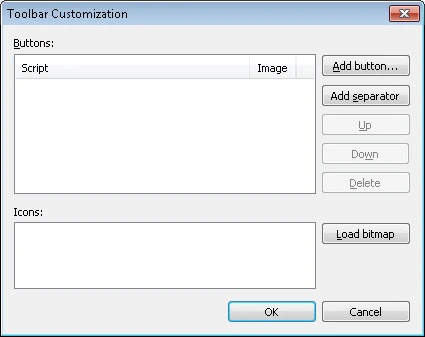 The dialog box displays the names of the scripts and the icons associated with them.
## Add and arrange script buttons
| Button | Action |
| :---------------- | :---------------------------------------------------------------------------------------------------------------------------------------------------------------- |
| **Add Button...** | Adds a button that runs a selected script. Click **Add Button...** and select the script from the drop-down list of scripts available for the current batch type. |
| **Add Separator** | Adds a separator between two buttons on the Scripts toolbar. Select the button after which you want the separator. Then click **Add Separator**. |
| **Up** / **Down** | Moves a selected button up or down one position. |
| **Delete** | Removes a selected button. |
| **Load Bitmap** | Adds icons for the script buttons. |
## Load button icons
When you load button icons:
* You can load only one BMP file for all icons.
* To add icons for more than one button, load a bitmap that contains all the necessary pictures.
* The BMP file must be 24x24 pixels.
* The loaded bitmap is split automatically.
To replace a button icon, click the script name and then the icon you want. The icon appears next to the script name.
The dialog box displays the names of the scripts and the icons associated with them.
## Add and arrange script buttons
| Button | Action |
| :---------------- | :---------------------------------------------------------------------------------------------------------------------------------------------------------------- |
| **Add Button...** | Adds a button that runs a selected script. Click **Add Button...** and select the script from the drop-down list of scripts available for the current batch type. |
| **Add Separator** | Adds a separator between two buttons on the Scripts toolbar. Select the button after which you want the separator. Then click **Add Separator**. |
| **Up** / **Down** | Moves a selected button up or down one position. |
| **Delete** | Removes a selected button. |
| **Load Bitmap** | Adds icons for the script buttons. |
## Load button icons
When you load button icons:
* You can load only one BMP file for all icons.
* To add icons for more than one button, load a bitmap that contains all the necessary pictures.
* The BMP file must be 24x24 pixels.
* The loaded bitmap is split automatically.
To replace a button icon, click the script name and then the icon you want. The icon appears next to the script name.