> ## Documentation Index
> Fetch the complete documentation index at: https://docs.abbyy.com/llms.txt
> Use this file to discover all available pages before exploring further.
# Specify timeouts for inactive sessions
> Set inactive-session timeouts for ABBYY FlexiCapture local, remote, and web stations via registry keys and IIS settings so stalled tasks return to the queue.
An operator may open a task and then stay inactive for a long time. After a period of inactivity, that operator's working session becomes inactive. Inactive sessions with open tasks can cause you to miss the processing targets specified in your [SLA](/flexi-capture/project-settings/sla-settings) or delay the processing of entire batches.
To prevent this from happening, you can specify a timeout period after which an inactive session will be automatically closed.
All open sessions, both active and inactive, are displayed in the Administration and Monitoring Console in **System Monitor → Sessions**.
You can specify a timeout on the following stations:
* Verification Station (local or remote)
* Data Verification Station (local or remote)
* Project Setup Station (local)
* Web Verification Station
* Web Capture Station
## Set timeouts on local and remote stations
A session becomes inactive if the operator has not performed any actions within a certain period of time. The Processing Server will poll the Application Server every 60 minutes and delete any sessions that have timed out. If a timed out session contains an open task, this task will be returned to the general queue and all the changes made by the operator will be lost.
A timeout can be set locally for each station. The default timeout value is 15 minutes. To change it, modify the following registry key:
`Computer\HKEY_CURRENT_USER\Software\ABBYY\FlexiCapture\12.0\Shell\Options\UserTimeOut`
If this key does not exist in the Windows registry on a given machine, add it and enter a timeout value.
Once a session becomes inactive, the timeout countdown begins on the Application Server.
You can also set the timeout after which a session becomes inactive in IIS Manager on the computer where the Application Server is installed.
To specify a timeout value:
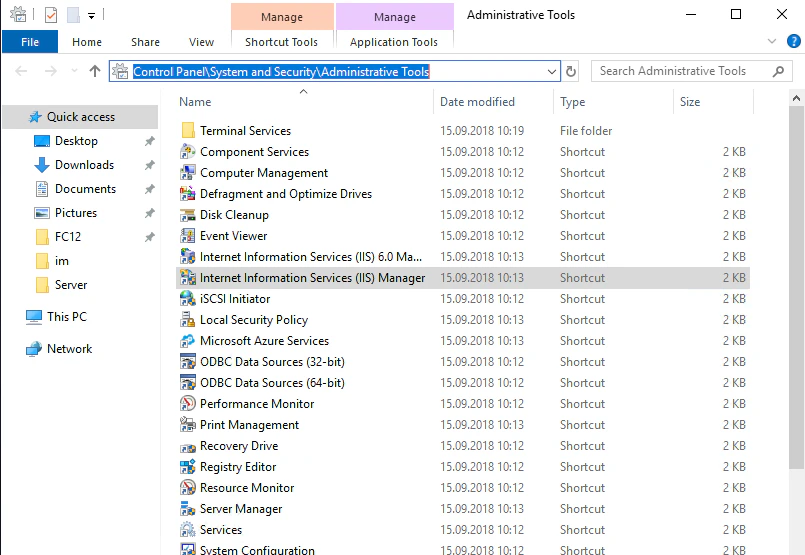
1. Click **Control Panel → System and Security → Administrative Tools → Internet Information Services (IIS) Manager**.
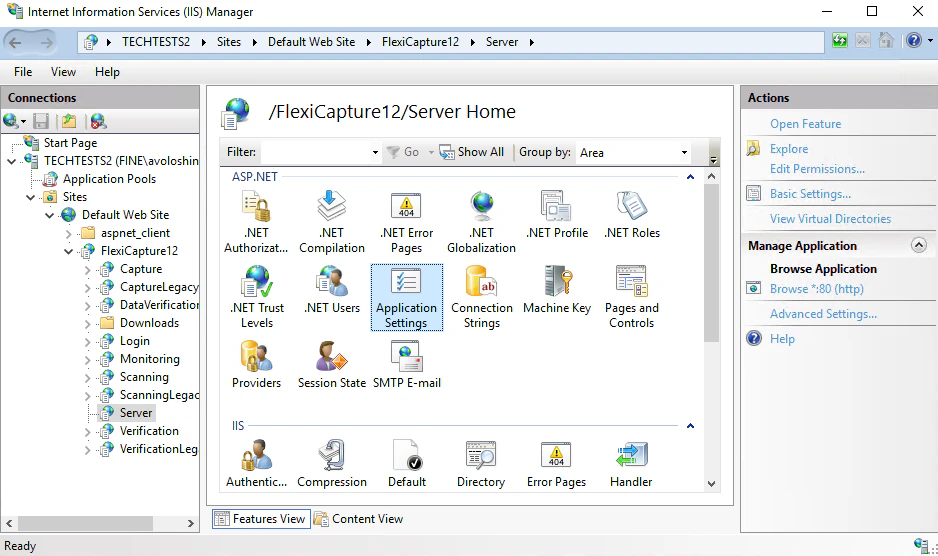
 2. In IIS Manager, click **Sites** **→** **Default Web Site** **→** **FlexiCapture12** **→** **Server** **→** **Application Settings**.
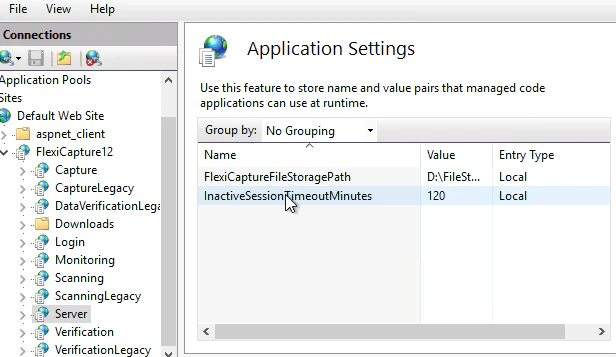
 3. Enter a timeout value in minutes in the `InactiveSessionTimeoutMinutes` parameter. The default value is 0. If this parameter does not exist in IIS Manager, add it and specify a timeout value.
 The timeouts for the Verification Stations, the Data Verification Stations, and the Project Setup Station are stored in the `web.config` file on the Application Server (the default location is `C:\inetpub\wwwroot\FlexiCapture12\Server\web.config`).
You can use any text editor to open and edit the `web.config` file.
If a timed out session contains an open task, this task will be returned to the general queue and all the changes made by the operator will be lost.
## Set timeouts on web stations
On a web station, the timeout countdown begins after the operator has not performed any actions in the station’s browser window for a certain period of time. The default timeout value is 120 minutes. The Processing Server will poll the Application Server every 60 seconds (unless you have specified a different polling period) and delete any inactive sessions that have timed out.
You can modify any of the timeout values.
The timeout value you specify for the web stations will only apply to the Web Verification Stations and the Web Capture Stations.
You can set the timeout after which a session becomes inactive on a web station in IIS Manager on the computer where the Application Server is installed.
To specify a timeout value:
1. Click **Control Panel** **→** **System and Security** **→** **Administrative Tools** **→** **Internet Information Services (IIS) Manager**.
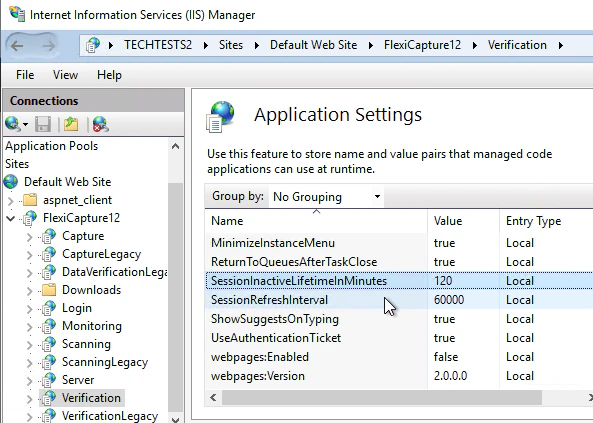
2. In IIS Manager, click **Sites** **→** **Default Web Site** **→** **FlexiCapture12** **→** **Verification** **→** **Application Settings**.
The timeouts for the Verification Stations, the Data Verification Stations, and the Project Setup Station are stored in the `web.config` file on the Application Server (the default location is `C:\inetpub\wwwroot\FlexiCapture12\Server\web.config`).
You can use any text editor to open and edit the `web.config` file.
If a timed out session contains an open task, this task will be returned to the general queue and all the changes made by the operator will be lost.
## Set timeouts on web stations
On a web station, the timeout countdown begins after the operator has not performed any actions in the station’s browser window for a certain period of time. The default timeout value is 120 minutes. The Processing Server will poll the Application Server every 60 seconds (unless you have specified a different polling period) and delete any inactive sessions that have timed out.
You can modify any of the timeout values.
The timeout value you specify for the web stations will only apply to the Web Verification Stations and the Web Capture Stations.
You can set the timeout after which a session becomes inactive on a web station in IIS Manager on the computer where the Application Server is installed.
To specify a timeout value:
1. Click **Control Panel** **→** **System and Security** **→** **Administrative Tools** **→** **Internet Information Services (IIS) Manager**.
2. In IIS Manager, click **Sites** **→** **Default Web Site** **→** **FlexiCapture12** **→** **Verification** **→** **Application Settings**.
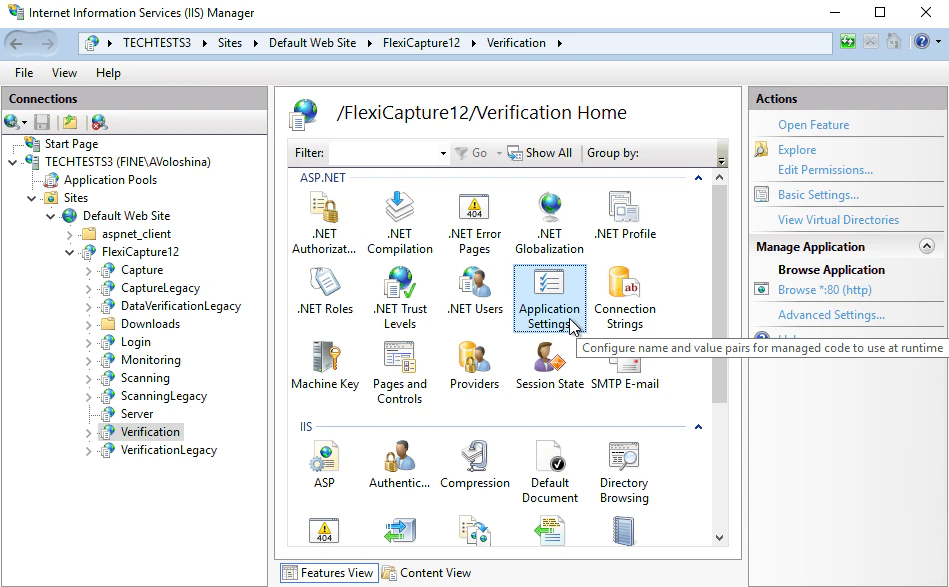 3. In Application Settings, modify the following parameters:
* `SessionInactiveLifetimeInMinutes` — The timeout after which a session becomes inactive. Default: 120 minutes.
* `SessionRefreshInterval` — The polling interval in milliseconds. Default: 60,000 (the Application Server polls the web stations for inactive sessions every 60 seconds).
If these parameters do not exist in IIS Manager, add them and specify values.
3. In Application Settings, modify the following parameters:
* `SessionInactiveLifetimeInMinutes` — The timeout after which a session becomes inactive. Default: 120 minutes.
* `SessionRefreshInterval` — The polling interval in milliseconds. Default: 60,000 (the Application Server polls the web stations for inactive sessions every 60 seconds).
If these parameters do not exist in IIS Manager, add them and specify values.
 The timeouts for the web stations are stored in the `web.config` file (the default location is `C:\inetpub\wwwroot\FlexiCapture12\Verification\Web.config`).
You can use any text editor to open and edit the `web.config` file.
Once a web station times out, the user of that web station will be redirected to the [login page](/flexi-capture/web-stations/login-page).
If an inactive session contains an open task, that task will be returned to the general queue and all the changes made by the operator will be saved on the Application Server, even if the operator has not clicked the **Save** button. When another operator picks up this task from the Application Server, they will be able to accept or reject the changes made by the previous operator before the task was returned to the general queue.
The timeouts for the web stations are stored in the `web.config` file (the default location is `C:\inetpub\wwwroot\FlexiCapture12\Verification\Web.config`).
You can use any text editor to open and edit the `web.config` file.
Once a web station times out, the user of that web station will be redirected to the [login page](/flexi-capture/web-stations/login-page).
If an inactive session contains an open task, that task will be returned to the general queue and all the changes made by the operator will be saved on the Application Server, even if the operator has not clicked the **Save** button. When another operator picks up this task from the Application Server, they will be able to accept or reject the changes made by the previous operator before the task was returned to the general queue.