> ## Documentation Index
> Fetch the complete documentation index at: https://docs.abbyy.com/llms.txt
> Use this file to discover all available pages before exploring further.
# Specify timeouts for postponed tasks and tasks assigned to specific operators
> Set timeouts in IIS Manager so postponed, rescanning, and operator-assigned ABBYY FlexiCapture tasks return automatically to the general queue.
You can specify a timeout period after which a task will be automatically returned to the general queue.
Timeouts can be specified for the following types of tasks:
* [Postponed tasks](#postponed)\
An operator can pick up a task from a queue and then decide to postpone it. Postponed tasks of one operator will remain inaccessible to other operators, which may sometimes delay the processing of the entire batch.
* [Postponed rescanning tasks](#postponedrescanning)
* [Tasks assigned to specific operators](#assignedtooperator)\
Tasks assigned to one operator will remain inaccessible to other operators.
Postponed tasks and tasks assigned to a specific operator can be returned to the general queue either manually or automatically.
## Set a timeout for postponed tasks
A timeout period after which a [postponed task](/flexi-capture/web-stations/verification/postponed-tasks) will be returned to the general queue can be specified in IIS Manager. Every 60 minutes, the Processing Server checks for timed out tasks and returns them to the general queue.
To specify a timeout value:
1. Click **Control Panel** **→** **System and Security** **→** **Administrative Tools** **→** **Internet Information Services (IIS) Manager**.
2. In IIS Manager, click **Sites** **→** **Default Web Site** **→** **FlexiCapture12** **→** **Server** **→** **Application Settings**.
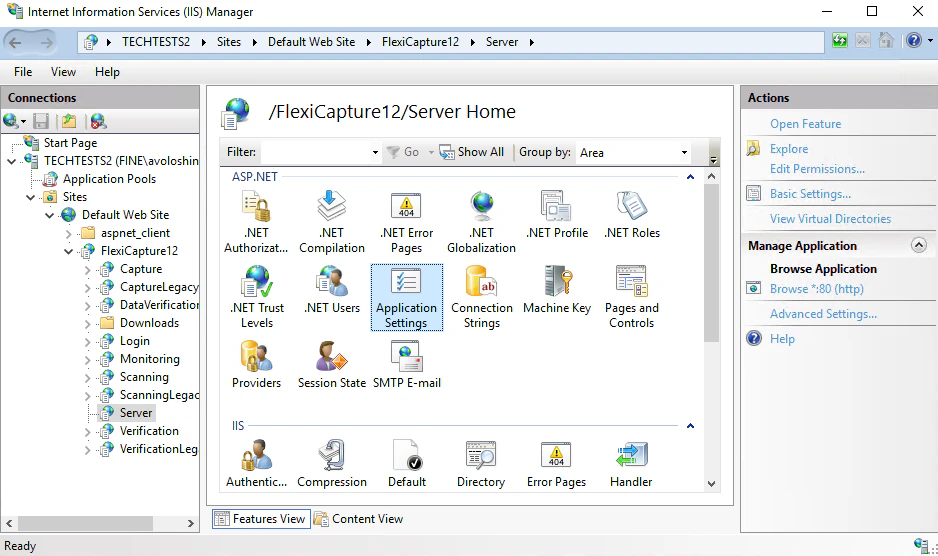 3. Enter a timeout value in minutes in the `PostponedTaskExpirationMinutes` parameter. The default value is 0. If this parameter does not exist in IIS Manager, add it and specify a timeout value.
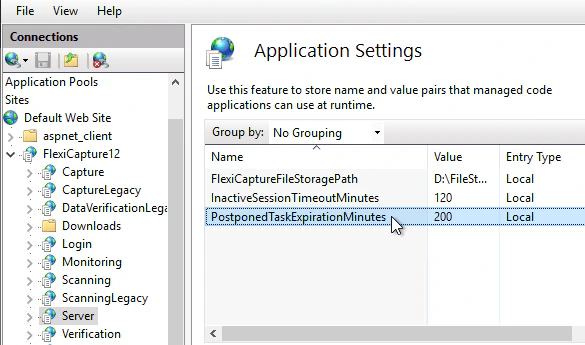 When a postponed task is returned to the general queue, all the changes made by the operator will be saved on the Application Server, even if the operator has not clicked the **Save** button. When another operator picks up this task from the Application Server, they will be able to accept or reject the changes made by the previous operator before the postponed task was returned to the general queue.
## Set a timeout for postponed rescanning tasks
A timeout period after which a [postponed rescanning task](/flexi-capture/web-stations/scanning/rescanning) will be returned to the general queue can be specified in IIS Manager. Every 60 minutes, the Processing Server checks for timed out rescanning tasks and returns them to the general queue.
To specify a timeout value:
1. Click **Control Panel** **→** **System and Security** **→** **Administrative Tools** **→** **Internet Information Services (IIS) Manager**.
2. In IIS Manager, click **Sites** **→** **Default Web Site** **→** **FlexiCapture12** **→** **Server** **→** **Application Settings**.
3. Enter a timeout value in minutes in the `RescanningTaskExpirationMinutes` parameter. The default value is 0. If this parameter does not exist in IIS Manager, add it and specify a timeout value.
When a postponed task is returned to the general queue, all the changes made by the operator will be saved on the Application Server, even if the operator has not clicked the **Save** button. When another operator picks up this task from the Application Server, they will be able to accept or reject the changes made by the previous operator before the postponed task was returned to the general queue.
## Set a timeout for postponed rescanning tasks
A timeout period after which a [postponed rescanning task](/flexi-capture/web-stations/scanning/rescanning) will be returned to the general queue can be specified in IIS Manager. Every 60 minutes, the Processing Server checks for timed out rescanning tasks and returns them to the general queue.
To specify a timeout value:
1. Click **Control Panel** **→** **System and Security** **→** **Administrative Tools** **→** **Internet Information Services (IIS) Manager**.
2. In IIS Manager, click **Sites** **→** **Default Web Site** **→** **FlexiCapture12** **→** **Server** **→** **Application Settings**.
3. Enter a timeout value in minutes in the `RescanningTaskExpirationMinutes` parameter. The default value is 0. If this parameter does not exist in IIS Manager, add it and specify a timeout value.
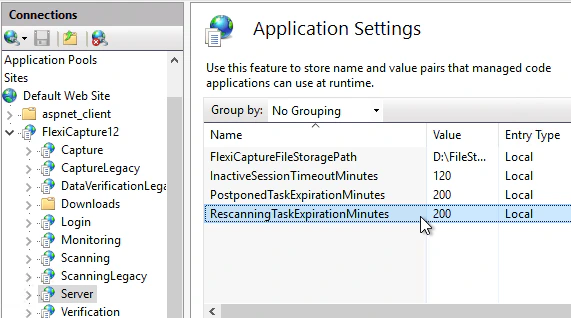 When a postponed rescanning task is returned to the general queue, all the changes made by the operator will be saved on the Application Server, even if the operator has not clicked the **Save** button. When another operator picks up this rescanning task from the Application Server, they will be able to accept or reject the changes made by the previous operator before the postponed rescanning task was returned to the general queue.
## Set a timeout for tasks assigned to specific operators
A timeout period after which a task assigned to a specific operator will cease to be assigned to that operator can be specified in IIS Manager. Every 60 minutes, the Processing Server checks for timed out assigned tasks and returns them to the general queue.
To specify a timeout value:
1. Click **Control Panel** **→** **System and Security** **→** **Administrative Tools** **→** **Internet Information Services (IIS) Manager**.
2. In IIS Manager, click **Sites** **→** **Default Web Site** **→** **FlexiCapture12** **→** **Server** **→** **Application Settings**.
3. Enter a timeout value in minutes in the `PersonalTaskExpirationMinutes` parameter. The default value is 0. If this parameter does not exist in IIS Manager, add it and specify a timeout value.
When a postponed rescanning task is returned to the general queue, all the changes made by the operator will be saved on the Application Server, even if the operator has not clicked the **Save** button. When another operator picks up this rescanning task from the Application Server, they will be able to accept or reject the changes made by the previous operator before the postponed rescanning task was returned to the general queue.
## Set a timeout for tasks assigned to specific operators
A timeout period after which a task assigned to a specific operator will cease to be assigned to that operator can be specified in IIS Manager. Every 60 minutes, the Processing Server checks for timed out assigned tasks and returns them to the general queue.
To specify a timeout value:
1. Click **Control Panel** **→** **System and Security** **→** **Administrative Tools** **→** **Internet Information Services (IIS) Manager**.
2. In IIS Manager, click **Sites** **→** **Default Web Site** **→** **FlexiCapture12** **→** **Server** **→** **Application Settings**.
3. Enter a timeout value in minutes in the `PersonalTaskExpirationMinutes` parameter. The default value is 0. If this parameter does not exist in IIS Manager, add it and specify a timeout value.
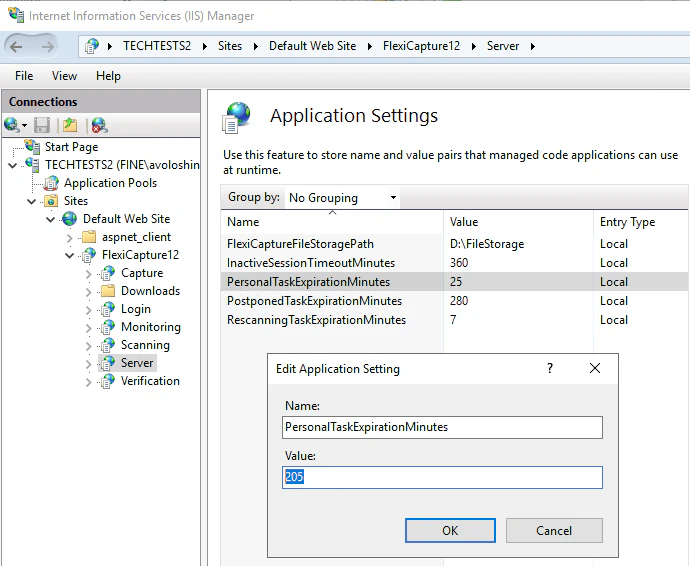 When a timed out assigned task is returned to the general queue, it will become accessible to other operators.