> ## Documentation Index
> Fetch the complete documentation index at: https://docs.abbyy.com/llms.txt
> Use this file to discover all available pages before exploring further.
# Application Server performance diagnostics
> Verify ABBYY FlexiCapture Application Server health by testing IIS pages and the WSDL endpoint, checking requirements, and enabling failed request tracing.
If you suspect that there are problems related to the Application Server, verify that it is working as intended by doing the following:
1. Navigate to [https://localhost](https://localhost) or [https://127.0.0.1](https://127.0.0.1) on the machine where the Application Server is installed. This should take you to the IIS starting page:
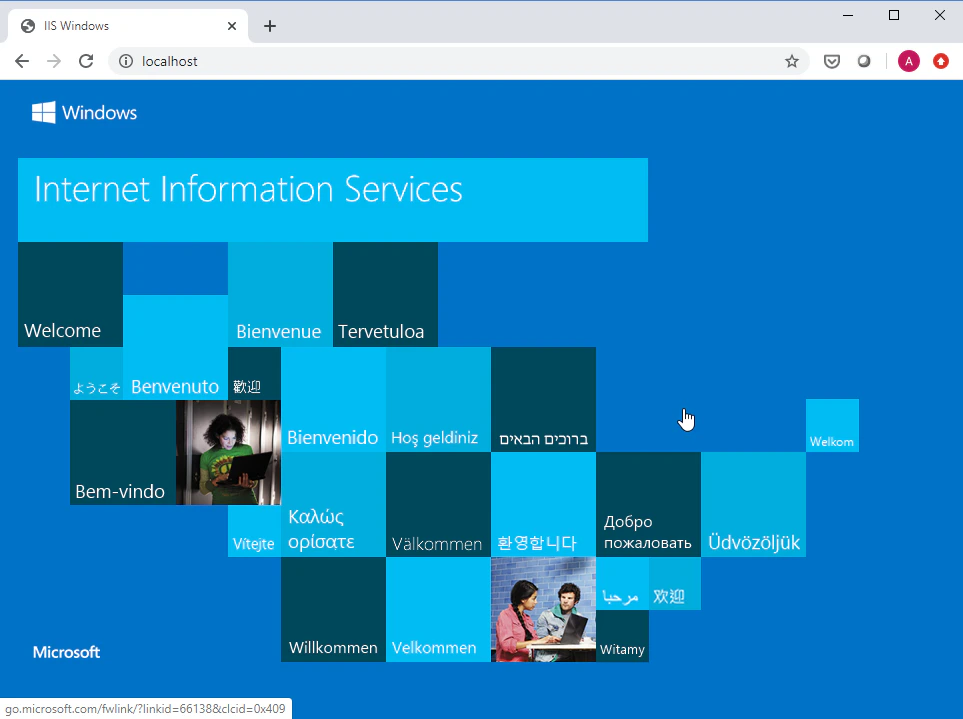 If you are unable to open this page, this means that there are problems with IIS functionality.
Verify that the IIS server is running. If the server has been launched but is not working, refer to the IIS documentation located here: [https://docs.microsoft.com/en-us/previous-versions/iis/6.0-sdk/ms524996(v%3Dvs.90)](https://docs.microsoft.com/en-us/previous-versions/iis/6.0-sdk/ms524996\(v=vs.90\)).
2. If you are able to successfully open the page from step 1, navigate to [https://localhost/FlexiCapture12/Server/API/v1/WSDL](https://localhost/FlexiCapture12/Server/API/v1/WSDL).
This should open a page containing XML code as shown below:
If you are unable to open this page, this means that there are problems with IIS functionality.
Verify that the IIS server is running. If the server has been launched but is not working, refer to the IIS documentation located here: [https://docs.microsoft.com/en-us/previous-versions/iis/6.0-sdk/ms524996(v%3Dvs.90)](https://docs.microsoft.com/en-us/previous-versions/iis/6.0-sdk/ms524996\(v=vs.90\)).
2. If you are able to successfully open the page from step 1, navigate to [https://localhost/FlexiCapture12/Server/API/v1/WSDL](https://localhost/FlexiCapture12/Server/API/v1/WSDL).
This should open a page containing XML code as shown below:
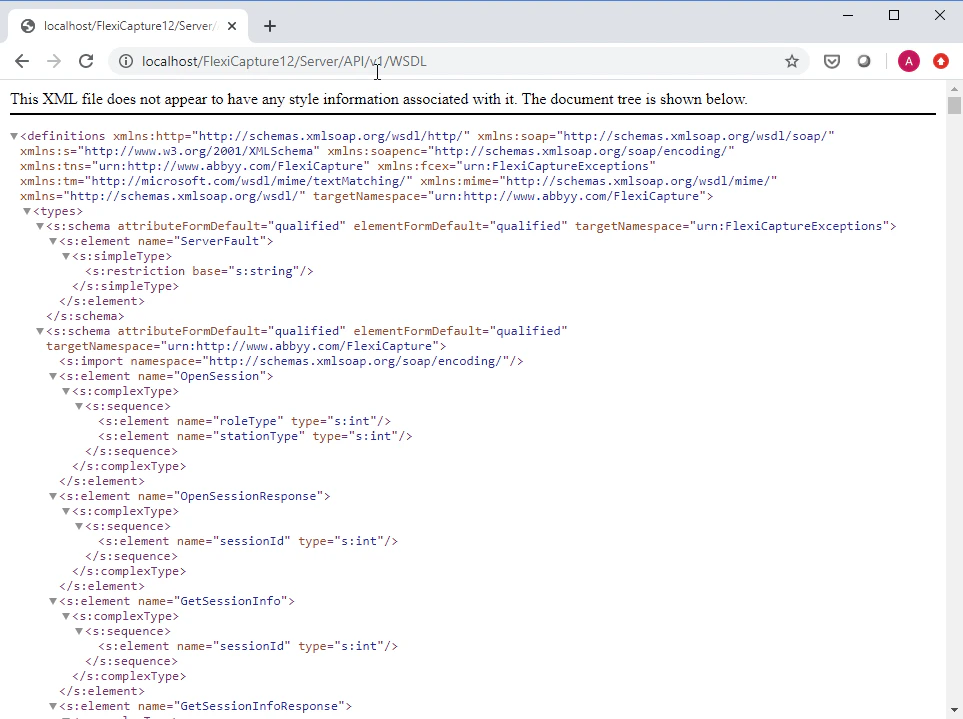 If the page does not open, then:
* In the IIS settings, check that the Application Server has been launched.
* Verify that your machine satisfies the minimum [system requirements](/flexi-capture/admin-guide/ds-pre-install).
* Check the error messages in the system log on the machine where the Application Server is installed.
If the above steps do not help you restore the functionality of the Application Server, contact ABBYY's technical support, providing the following information:
* The `web.config` files from the following folders:\
`C:\inetpub\wwwroot\FlexiCapture12\Server`\
`C:\inetpub\wwwroot\FlexiCapture12`\
`C:\inetpub\wwwroot`
* Messages that are displayed when trying to open the page from step 1.
* System log messages.
3. If the first two steps are successful, use a different machine (for example, a machine where the Processing Station is installed) to access the following page: [https://AppServer](https://AppServer). If the page does not open, it means that access to the machine where the Application Server is installed is blocked. The most common cause is usually incorrect firewall and/or proxy settings.
## Extended Application Server diagnostics
To automatically save information about Application Server errors, failed request tracing is required.
Detailed instructions for setting up failed request tracing can be found in the official IIS documentation:
[https://docs.microsoft.com/en-us/iis/configuration/system.applicationhost/sites/site/tracefailedrequestslogging](https://docs.microsoft.com/en-us/iis/configuration/system.applicationhost/sites/site/tracefailedrequestslogging).
If the page does not open, then:
* In the IIS settings, check that the Application Server has been launched.
* Verify that your machine satisfies the minimum [system requirements](/flexi-capture/admin-guide/ds-pre-install).
* Check the error messages in the system log on the machine where the Application Server is installed.
If the above steps do not help you restore the functionality of the Application Server, contact ABBYY's technical support, providing the following information:
* The `web.config` files from the following folders:\
`C:\inetpub\wwwroot\FlexiCapture12\Server`\
`C:\inetpub\wwwroot\FlexiCapture12`\
`C:\inetpub\wwwroot`
* Messages that are displayed when trying to open the page from step 1.
* System log messages.
3. If the first two steps are successful, use a different machine (for example, a machine where the Processing Station is installed) to access the following page: [https://AppServer](https://AppServer). If the page does not open, it means that access to the machine where the Application Server is installed is blocked. The most common cause is usually incorrect firewall and/or proxy settings.
## Extended Application Server diagnostics
To automatically save information about Application Server errors, failed request tracing is required.
Detailed instructions for setting up failed request tracing can be found in the official IIS documentation:
[https://docs.microsoft.com/en-us/iis/configuration/system.applicationhost/sites/site/tracefailedrequestslogging](https://docs.microsoft.com/en-us/iis/configuration/system.applicationhost/sites/site/tracefailedrequestslogging).