> ## Documentation Index
> Fetch the complete documentation index at: https://docs.abbyy.com/llms.txt
> Use this file to discover all available pages before exploring further.
# Installation problems
> Diagnose and fix ABBYY FlexiCapture installation errors, including missing prerequisites, permissions, MSI and setup.exe logs, and Licensing Service issues.
Some common problems that may cause errors during installation:
* [System requirements for ABBYY FlexiCapture Distributed](/flexi-capture/admin-guide/ds-requirements) are not met
* The IIS server is not installed
* Insufficient hard drive space
* Insufficient permissions for installing to the specified directory
## Logging
If the system requirements have been met and the user account has all the required permissions but an error still occurs during installation, enable installation logging. This allows you to analyze and eliminate any errors.
### Log a setup.exe installation
When installing using `setup.exe`, logging is done automatically.
The logs are stored in the `%temp%` folder if errors occurred during installation, and in the folder where the product is installed if installation finished successfully. For a distributed version, information about errors may be stored in the following files:
* `ABBYY FlexiCapture 12 Servers x64.log`
* `ABBYY FlexiCapture 12 Stations x64.log`
* `ABBYY FlexiCapture 12 Authentication Module.log`
* `AbbyyMsiLog.txt`
For a standalone installation and installations of separate stations, the log files are named accordingly. For example, `ABBYY FlexiCapture 12 Verification Station x64.log`, `ABBYY FlexiCapture 12 Operator Station x64.log`, and so on.
If an error occurs during installation, examine the information in the log files. If you cannot fix the errors yourself, contact ABBYY's technical support and provide all the installation logs.
### Log an .msi installation
When installing using an `.msi` file, logging needs to be enabled manually. To enable it, set the following registry keys:
```reg theme={null}
[HKEY_CURRENT_USER\Software\ABBYY\Debug]
"EnableMsiLog"="1"
[HKEY_LOCAL_MACHINE\Software\Policies\Microsoft\Windows\Installer]
"Logging"="voicewarmup"
```
To disable logging, set the keys as follows:
```reg theme={null}
[HKEY_CURRENT_USER\Software\ABBYY\Debug]
"EnableMsiLog"="0"
[HKEY_LOCAL_MACHINE\Software\Policies\Microsoft\Windows\Installer]
"Logging"=""
```
### Analyze .msi installation logs
Logs can be analyzed using the `Wilogutl.exe` utility, which is part of the [Windows SDK](https://docs.microsoft.com/en-us/windows/win32/msi/wilogutl-exe).
Launch `Wilogutl.exe`.
Select the appropriate log file.
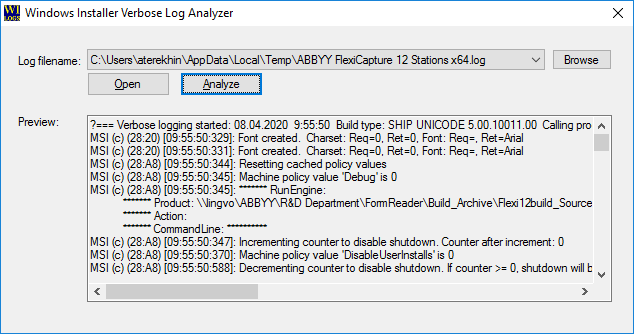 Click **Analyze**.
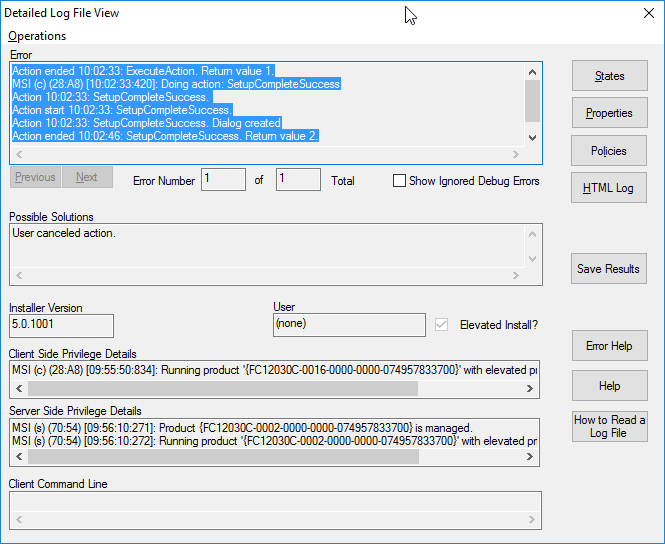 Some typical `.msi` installation errors are described in the [Windows Installer documentation](https://docs.microsoft.com/en-us/windows/win32/msi/error-codes).
## Error when launching the Licensing Service
If a message saying that the Licensing Service could not be launched appears during installation, analyze the licensing logs. These are stored in the `Licenses` folder (the default location is `C:\ProgramData\ABBYY\FlexiCapture\12.0\Licenses`).
If analyzing the logs does not help you solve the problem, run extended diagnostics. To do this, launch the licensing service locally by running the following command:
```
"C:\Program Files (x86)\Common Files\ABBYY\FlexiCapture\12.0\Licensing\LicensingService.exe" /standalone
```
If you cannot fix the errors yourself, contact ABBYY's technical support and provide the updated logs stored in `C:\ProgramData\ABBYY\FlexiCapture\12.0\Licenses`.
Some typical `.msi` installation errors are described in the [Windows Installer documentation](https://docs.microsoft.com/en-us/windows/win32/msi/error-codes).
## Error when launching the Licensing Service
If a message saying that the Licensing Service could not be launched appears during installation, analyze the licensing logs. These are stored in the `Licenses` folder (the default location is `C:\ProgramData\ABBYY\FlexiCapture\12.0\Licenses`).
If analyzing the logs does not help you solve the problem, run extended diagnostics. To do this, launch the licensing service locally by running the following command:
```
"C:\Program Files (x86)\Common Files\ABBYY\FlexiCapture\12.0\Licensing\LicensingService.exe" /standalone
```
If you cannot fix the errors yourself, contact ABBYY's technical support and provide the updated logs stored in `C:\ProgramData\ABBYY\FlexiCapture\12.0\Licenses`.