> ## Documentation Index
> Fetch the complete documentation index at: https://docs.abbyy.com/llms.txt
> Use this file to discover all available pages before exploring further.
# Processing logging
> Enable trace logging for the FlexiCapture Processing Server and Processing Stations in Processing Server Monitor, and tune log size, count, and level.
Enable trace logging for the Processing Server and Processing Stations in the Processing Server Monitor, and then fine-tune the log files through the registry.
By default, processing logs are saved in `%ProgramData%\ABBYY\FlexiCapture\12.0\FlexiBr[Svc]\Logs`.
## Enable Processing Server logging
1. Launch the Processing Server Monitor.
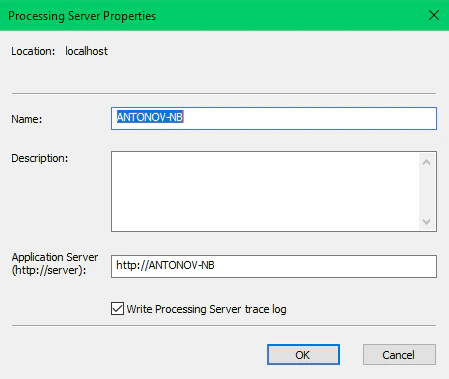
2. Click **Processing Server Properties** on the shortcut menu and select the **Write Processing Server trace log** option.
 ## Enable Processing Station logging
1. Launch the Processing Server Monitor.
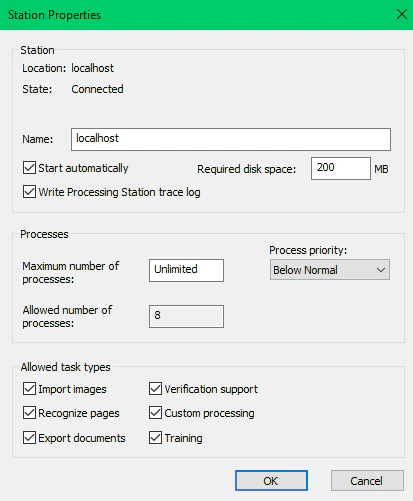
2. Click **Station Properties** on the shortcut menu and select the **Write Processing Station trace log** option.
## Enable Processing Station logging
1. Launch the Processing Server Monitor.
2. Click **Station Properties** on the shortcut menu and select the **Write Processing Station trace log** option.
 ## Set up logging using the registry
You can adjust Processing Server and Processing Station logging through the following registry key: `HKEY_LOCAL_MACHINE\SOFTWARE\ABBYY\FlexiCapture\12.0\FlexiBr`.
You can modify the following parameters:
* `LoggingManagerMaxLogFileSize` — maximum allowed size of one log file in bytes (1 MB by default).
* `LoggingManagerMaxOldLogsFilesCount` — maximum allowed number of log files (10 by default).
* `LoggingManagerMaxOldLogsFilesSize` — maximum total size of all log files in bytes (10 MB by default).
* `LoggingLevel` — level of logging detail from 1 (minimum detail) to 9 (maximum detail). `LoggingLevel` is set to 5 by default.
* `LoggingFilter` — the types of events that will be logged.\
Sample filter string: `+Licensing;+AppState;-*;+Monitoring`. This filter enables the Licensing and AppState logs. The Monitoring log is disabled by the `-*` mask.
## Set up logging using the registry
You can adjust Processing Server and Processing Station logging through the following registry key: `HKEY_LOCAL_MACHINE\SOFTWARE\ABBYY\FlexiCapture\12.0\FlexiBr`.
You can modify the following parameters:
* `LoggingManagerMaxLogFileSize` — maximum allowed size of one log file in bytes (1 MB by default).
* `LoggingManagerMaxOldLogsFilesCount` — maximum allowed number of log files (10 by default).
* `LoggingManagerMaxOldLogsFilesSize` — maximum total size of all log files in bytes (10 MB by default).
* `LoggingLevel` — level of logging detail from 1 (minimum detail) to 9 (maximum detail). `LoggingLevel` is set to 5 by default.
* `LoggingFilter` — the types of events that will be logged.\
Sample filter string: `+Licensing;+AppState;-*;+Monitoring`. This filter enables the Licensing and AppState logs. The Monitoring log is disabled by the `-*` mask.