> ## Documentation Index
> Fetch the complete documentation index at: https://docs.abbyy.com/llms.txt
> Use this file to discover all available pages before exploring further.
# Web Station error diagnostics
> Diagnose ABBYY FlexiCapture Web Station errors with and without HTTP codes, using the Developer console, Web Station and Fiddler logging, and license checks.
## Errors without HTTP error codes
If you see errors that do not contain an HTTP error code (such as 400 or 500) when working on a Web Station:
1. Press F12 to open the Developer console.
2. Go to the **Console** tab.
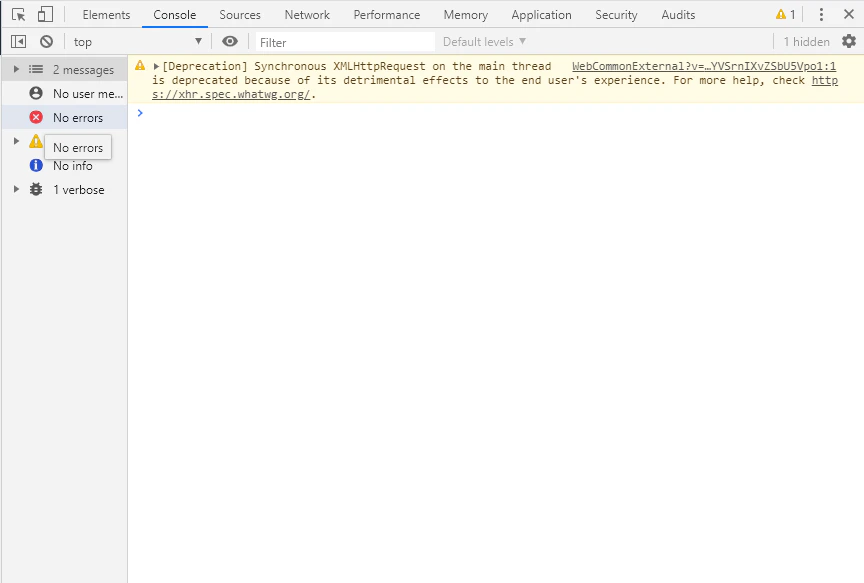 3. Copy the error list displayed in the console.
4. Enable logging for the Web Station that displays the error. For more information, see [Web Station logging](/flexi-capture/troubleshooting-guide/tg-logs-web-station).
5. Reproduce the error.
6. Contact ABBYY's technical support, providing the error list from the **Console** tab and the Web Station log files.
Examples of such errors:
* The document layout cannot be displayed completely or partially when taking a job.
* "Parameter cannot be null."
## Errors with HTTP error codes
If an error window containing an HTTP error code appears on the Web Station (for example, "Error 400: bad request" or "Error 500 while completing task"):
1. Check the Application Server system log for errors.
2. If the error cannot be reproduced reliably, enable logging on the Web Station that reports the error. For more information, see [Web Station logging](/flexi-capture/troubleshooting-guide/tg-logs-web-station).
3. If the error can be reproduced reliably, enable Fiddler logging. For more information, see [Fiddler logging](/flexi-capture/troubleshooting-guide/tg-logs-fiddler).
4. Contact ABBYY's technical support, providing the Web Station logs and the Fiddler logs for the time period when the error occurred.
## The "Cannot get license ticket" error on Web Stations
The "Cannot get license ticket" error can occur on a Web Station when you open a job or try to scan or add an image to a batch:
3. Copy the error list displayed in the console.
4. Enable logging for the Web Station that displays the error. For more information, see [Web Station logging](/flexi-capture/troubleshooting-guide/tg-logs-web-station).
5. Reproduce the error.
6. Contact ABBYY's technical support, providing the error list from the **Console** tab and the Web Station log files.
Examples of such errors:
* The document layout cannot be displayed completely or partially when taking a job.
* "Parameter cannot be null."
## Errors with HTTP error codes
If an error window containing an HTTP error code appears on the Web Station (for example, "Error 400: bad request" or "Error 500 while completing task"):
1. Check the Application Server system log for errors.
2. If the error cannot be reproduced reliably, enable logging on the Web Station that reports the error. For more information, see [Web Station logging](/flexi-capture/troubleshooting-guide/tg-logs-web-station).
3. If the error can be reproduced reliably, enable Fiddler logging. For more information, see [Fiddler logging](/flexi-capture/troubleshooting-guide/tg-logs-fiddler).
4. Contact ABBYY's technical support, providing the Web Station logs and the Fiddler logs for the time period when the error occurred.
## The "Cannot get license ticket" error on Web Stations
The "Cannot get license ticket" error can occur on a Web Station when you open a job or try to scan or add an image to a batch:
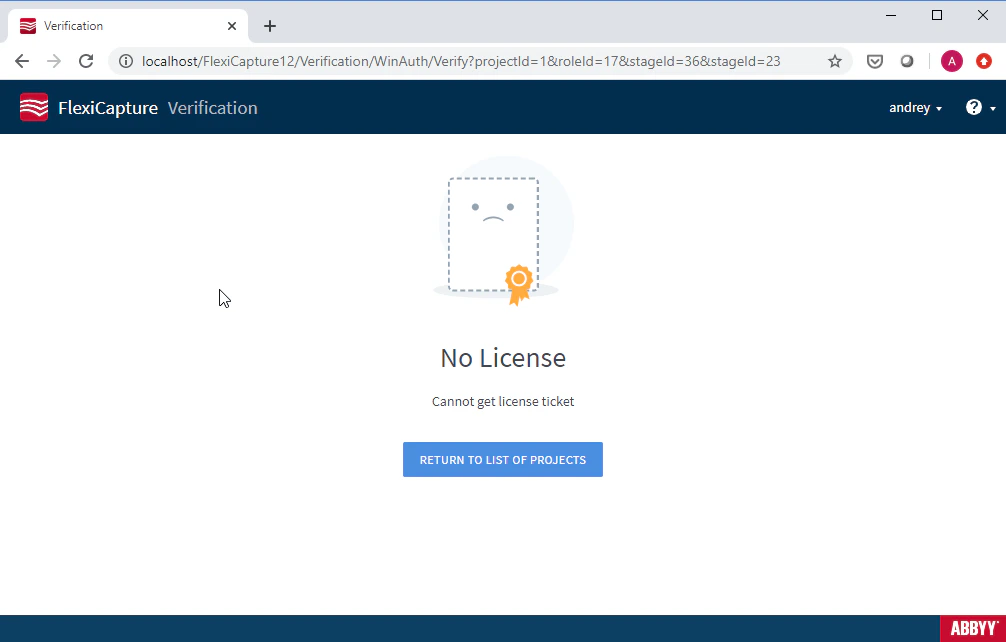 To resolve it, check that:
* The Processing Server is running.
* Free licenses are available. To check, launch the License Manager, select a license, and go to **Service → License Usage Statistic...** in the main menu.
To resolve it, check that:
* The Processing Server is running.
* Free licenses are available. To check, launch the License Manager, select a license, and go to **Service → License Usage Statistic...** in the main menu.
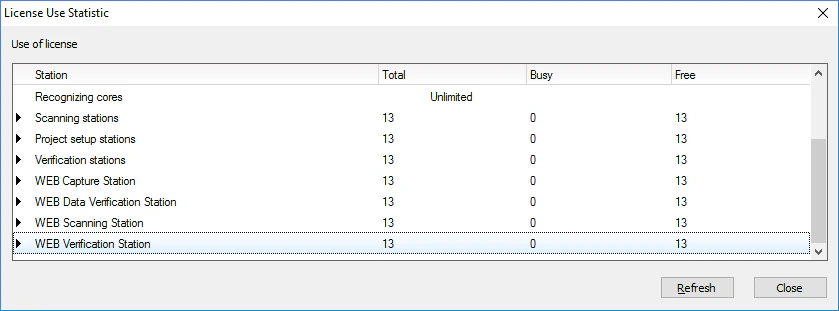 If all licenses are in use, check for frozen sessions that may be using them up: go to the **System Monitoring → Sessions** page in the Administration and Monitoring Console.