> ## Documentation Index
> Fetch the complete documentation index at: https://docs.abbyy.com/llms.txt
> Use this file to discover all available pages before exploring further.
# Download and install a Scanning Station
> Download and install the Scanning Station via ClickOnce, connect it to the ABBYY FlexiCapture Application Server, and configure authentication settings.
You can load documents into ABBYY FlexiCapture from a Scanning Station using ClickOnce technology.
A ClickOnce application will work fine over SSL, except when the browser raises a prompt about the SSL certificate. The prompt can be raised when there is something wrong with the certificate, such as when the certificate has expired. To make ClickOnce work over an SSL connection, make sure that the certificate is up-to-date, and that the certificate data is correct.
## Install the Scanning Station
Go to the [Personal page](/flexi-capture/web-stations/main) and click the **Install** button in the **Downloads** section.
Launch the downloaded file.
During the installation, you might receive a warning from the operating system's security system. Confirm the installation of the application.
The Scanning Station appears when installation ends. Open the **Tools → Options** dialog box, click the **FlexiCapture Server** tab, and check the server path.
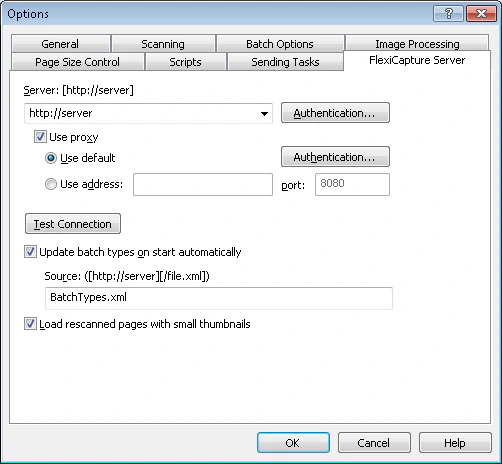 Windows authentication is used by default. Click the **Authentication** button if you want to change the type of authentication.
Click the **Test Connection** button to check the connection to the Application Server.
To update batch types automatically from the Application Server, select the **Update batch types on start automatically** option and set the path to the settings file in the **Source** field.
Click **OK**.
The Scanning Station is now set up.
Windows authentication is used by default. Click the **Authentication** button if you want to change the type of authentication.
Click the **Test Connection** button to check the connection to the Application Server.
To update batch types automatically from the Application Server, select the **Update batch types on start automatically** option and set the path to the settings file in the **Source** field.
Click **OK**.
The Scanning Station is now set up.