> ## Documentation Index
> Fetch the complete documentation index at: https://docs.abbyy.com/llms.txt
> Use this file to discover all available pages before exploring further.
# Restrict access to a tenant using an IP whitelist
> Restrict access to a tenant with the IP Whitelist feature in the ABBYY FlexiCapture 12 Authentication Module, enabled in the console or dbo.Tenant table.
This section is only available to users with ABBYY FlexiCapture administrator permissions.
To improve the security of your tenant, you can use a whitelist of IP addresses.
The **IP Whitelist** feature in the ABBYY FlexiCapture 12 Authentication Module can be set up to restrict access to a tenant from IP addresses that do not appear on a predefined whitelist. This feature is not enabled by default. For more information, see [Enable the IP Whitelist feature](#activation).
## Requirements and supported IP address formats
Note the following requirements:
* A list of default tenant IP addresses cannot be used as a whitelist.
* ABBYY FlexiCapture Authentication Module is required.
By default, only the IPv4 protocol is supported, in the following formats:
| Format | Example |
| ---------------------------------------------------------- | ----------------- |
| A specific IP address | `192.168.0.48` |
| A range of IP addresses in CIDR format | `192.168.0.48/24` |
| Access from a local computer running the Processing Server | `::1` |
If the computer running the Processing Server has both the IPv4 and IPv6 protocols enabled at the same time, you must also [specify the address of the IPv6 node in the whitelist](#ipv6).
## Enable the IP Whitelist feature
You can enable the IP Whitelist in either the **dbo.Tenant** table or the Administration and Monitoring Console.
### Enable the IP Whitelist in the dbo.Tenant table
To enable the IP Whitelist feature, set the fourth bit for the appropriate tenant in the **Flags** field of the **dbo.Tenant** table.
The following instructions use Microsoft SQL Server as an example.
Open Microsoft SQL Server Management Studio.
Do one of the following:
* Enter the following command:
```sql theme={null}
UPDATE Tenant SET Flags = Flags | 8 WHERE Name = MyTenant
```
* In the **Flags** field of the **dbo.Tenant** table, set the fourth bit for the required tenant.
Populate the IP whitelist in the **dbo.TenantWhiteIp** table:
* In the **TenantId** column, specify the ID of the tenant.
* In the **IP** column, specify the whitelisted IP address or IP range for that tenant.
You can find the ID of a tenant in the **dbo.Tenant** table.
### Enable the IP Whitelist in the Administration and Monitoring Console
Launch the Administration and Monitoring Console under the required tenant.
Go to **Settings** > **IP Whitelist**.
Select **Enable IP whitelisting**.
In the **Allowed IP address blocks** field, specify the allowed IP addresses or range of addresses in CIDR format.
When you specify IP addresses in CIDR format, the program automatically calculates the range of IP addresses.
Click **Save**.
Using the Administration and Monitoring Console, you can whitelist IP addresses only within tenants, not in the main environment. You must have the ABBYY FlexiCapture administrator or tenant administrator role to whitelist IP addresses.
## IPv6 protocol
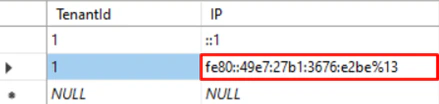
If the computer running the Processing Server has both the IPv4 and IPv6 protocols enabled, you must also specify the address of the machine that has IPv6 enabled. Alternatively, you can disable the IPv6 protocol.
For proxy connections, specify the IPv6 address of the proxy server in the IP whitelist.
The following screenshot shows a sample IPv6 whitelist:
 ## Get the IP whitelist using the ABBYY FlexiCapture API
To get the IP whitelist, use the [GetWhiteIPList](/flexi-capture/get-white-ip-list) method:
```text theme={null}
GetWhiteIPList("ID_Tenant" or "-1")
```
In the parentheses, specify either the ID of a particular tenant or `-1` to display the whitelisted addresses for all tenants.
The following PowerShell script shows a sample API call:
```powershell theme={null}
$url = "http://localhost"
$authUri = $url + '/FlexiCapture12/Server/AuthAPI/v1/WSDL'
$authSvc = New-WebServiceProxy -Uri $authUri -UseDefaultCredential
$test = $authSvc.GetWhiteIPList(-1)
$test
```
When executed, this script displays the whitelisted IP addresses.
## Get the IP whitelist using the ABBYY FlexiCapture API
To get the IP whitelist, use the [GetWhiteIPList](/flexi-capture/get-white-ip-list) method:
```text theme={null}
GetWhiteIPList("ID_Tenant" or "-1")
```
In the parentheses, specify either the ID of a particular tenant or `-1` to display the whitelisted addresses for all tenants.
The following PowerShell script shows a sample API call:
```powershell theme={null}
$url = "http://localhost"
$authUri = $url + '/FlexiCapture12/Server/AuthAPI/v1/WSDL'
$authSvc = New-WebServiceProxy -Uri $authUri -UseDefaultCredential
$test = $authSvc.GetWhiteIPList(-1)
$test
```
When executed, this script displays the whitelisted IP addresses.