> ## Documentation Index
> Fetch the complete documentation index at: https://docs.abbyy.com/llms.txt
> Use this file to discover all available pages before exploring further.
# Exemple 2. Étape 19 : Création d’un élément InvertedHeader
> Étape 19 de l’exemple 2 de FlexiLayout Studio : créer un élément Object Collection InvertedHeader pour détecter le texte inversé - texte clair sur fond sombre.
Le nom Cooking est en texte inversé (c’est-à-dire en texte clair sur fond sombre).
Pour créer l’élément InvertedHeader :
1. Créez un élément de type [Object Collection](/fr/flexi-capture/fls/template/object-collection) et nommez-le **InvertedHeader**.
2. Cliquez sur l’onglet Object Collection.
3. Sélectionnez l’option Inverted text dans le groupe **Type**.
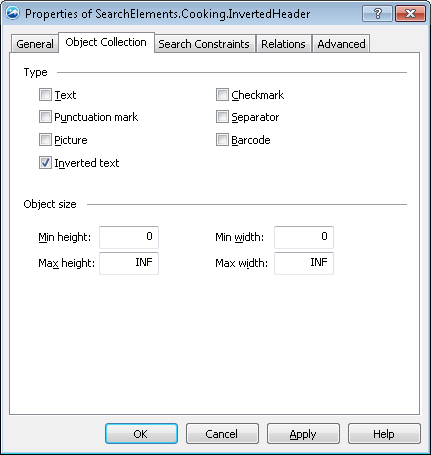 Essayez d’associer le FlexiLayout aux images de test et vérifiez que le programme repère correctement le texte inversé sur toutes les images.