> ## Documentation Index
> Fetch the complete documentation index at: https://docs.abbyy.com/llms.txt
> Use this file to discover all available pages before exploring further.
# ABBYY FlexiCaptureワークフローの設定
> Blue Prism向けに、ABBYY FlexiCaptureのプロジェクトプロパティで Unattended または Advanced のワークフロースキーマを選択し、必要に応じて Web Station と Verification を有効にします。
FCワークフローを設定するには、次の手順に従います。
1. **Project → Project Properties...** をクリックし、**General** タブの **Export root path** が空欄のままであることを確認します。
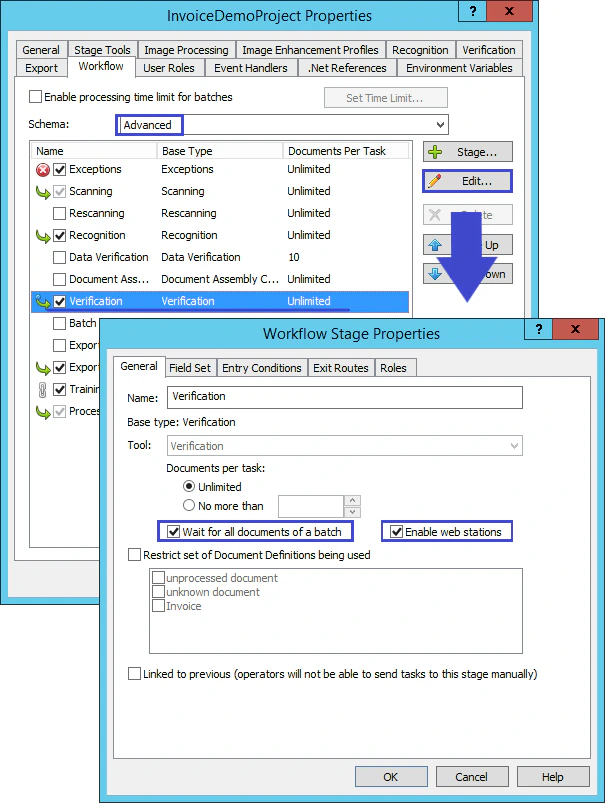
2. **Workflow** タブを開きます。[使用シナリオ](/ja/flexi-capture/connectors/blue-prism/bp-usage-scenarios)に応じて、適切なワークフローの種類を選択します。
* 無人モードでドキュメントを処理する場合は、**Schema** ドロップダウンリストから **Unattended** を選択し、**OK** をクリックします。
* エクスポート前に認識結果を確認する必要がある場合は、**Schema** ドロップダウンリストから **Advanced** を選択します。次に **Verification** を選択し、**Edit…** ボタンをクリックします。**Workflow Stage Properties** ダイアログで、**Wait for all documents of a batch** と **Enable web stations** を選択します。