> ## Documentation Index
> Fetch the complete documentation index at: https://docs.abbyy.com/llms.txt
> Use this file to discover all available pages before exploring further.
# ファイルコレクションセクションの作成
> pyCaseAttachments にバインドされた AJAX Container を含む Pega のファイルコレクションセクションを追加し、ユーザーがフローアクションで FlexiCapture のケースにファイルをアタッチできるようにします。
ファイルコレクションセクションを作成するには、次の手順に従います。
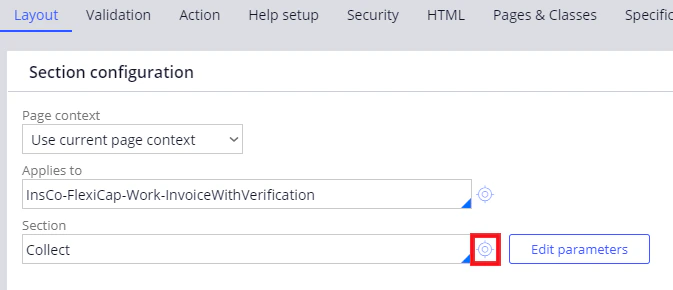
1. **Dev Studio** で、**Records → Process → Flow Action → Collect** をクリックし、続けて設定ボタンをクリックします。
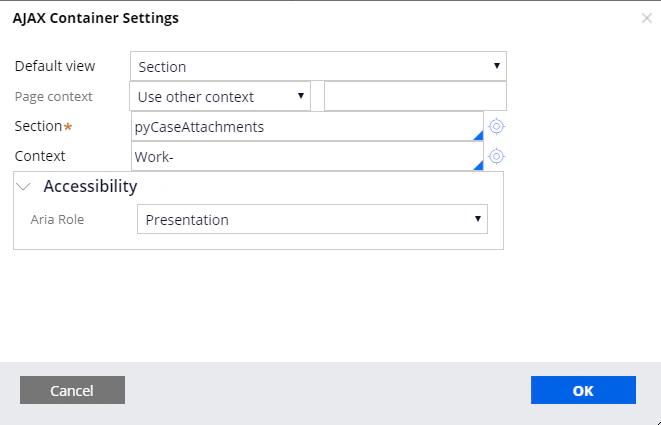
 2. **Design** タブで、デフォルトの動的レイアウトを削除し、**Layout → AJAX Container** を追加して、表示されるダイアログで次の設定を指定します。
* **Default view** – *Section*
* **Page context** – *Use other context*
* **Section** – *pyCaseAttachment*s
* **Context** – *Work-*
2. **Design** タブで、デフォルトの動的レイアウトを削除し、**Layout → AJAX Container** を追加して、表示されるダイアログで次の設定を指定します。
* **Default view** – *Section*
* **Page context** – *Use other context*
* **Section** – *pyCaseAttachment*s
* **Context** – *Work-*
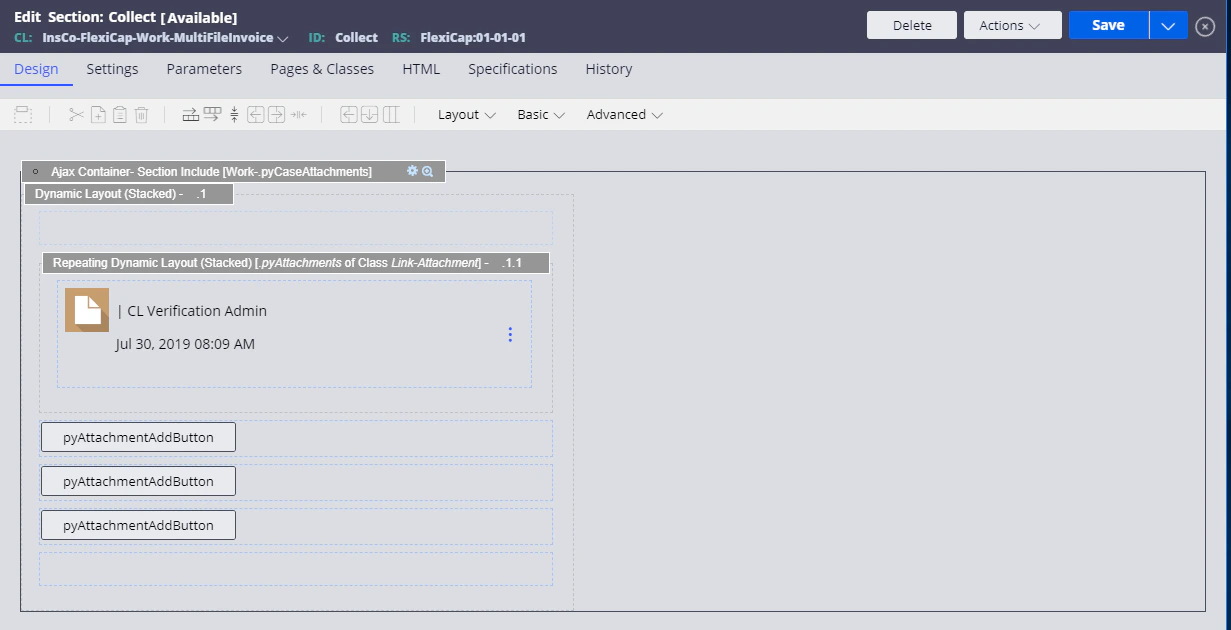
 3. **OK** をクリックします。**Design** タブは次のように表示されます。