> ## Documentation Index
> Fetch the complete documentation index at: https://docs.abbyy.com/llms.txt
> Use this file to discover all available pages before exploring further.

# 複数ドキュメント処理ケースの作成

> Pega の複数ドキュメントケースを設定します。FlexiCapture のデータモデルの field に加え、Send for processing、検証、結果取得の各ステージを設定します。

ケースの作成方法の詳細については、[ワークフローを使用したケースの作成](/ja/flexi-capture/connectors/pega/pega-add-case-type)を参照してください。

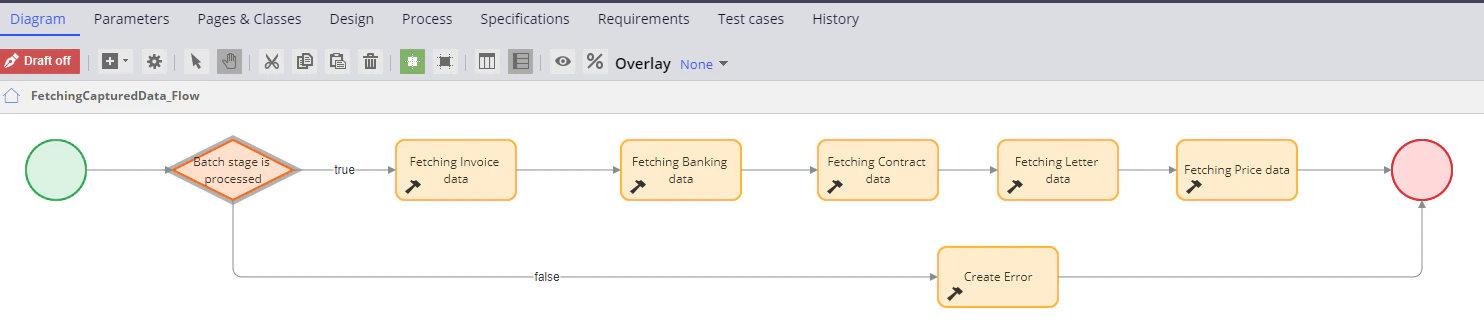
複数のドキュメントを処理するように設定されたワークフローは、次のようになります。

<Frame>
  <img src="https://mintcdn.com/abbyy/jk6a9TGm7KRcVxRI/images/flexi-capture/connectors/Pega88.png?fit=max&auto=format&n=jk6a9TGm7KRcVxRI&q=85&s=8b2bc38a75a09517d614ba533bfc9517" alt="Batch ステージが処理されたかどうかを判定する分岐を含む FetchingCapturedData_Flow プロセスの図。true パスでは Fetching Invoice、Banking、Contract、Letter、Price data の各ステップに進み、false パスでは Create Error ステップに進みます。" width="1484" height="325" data-path="images/flexi-capture/connectors/Pega88.png" />
</Frame>

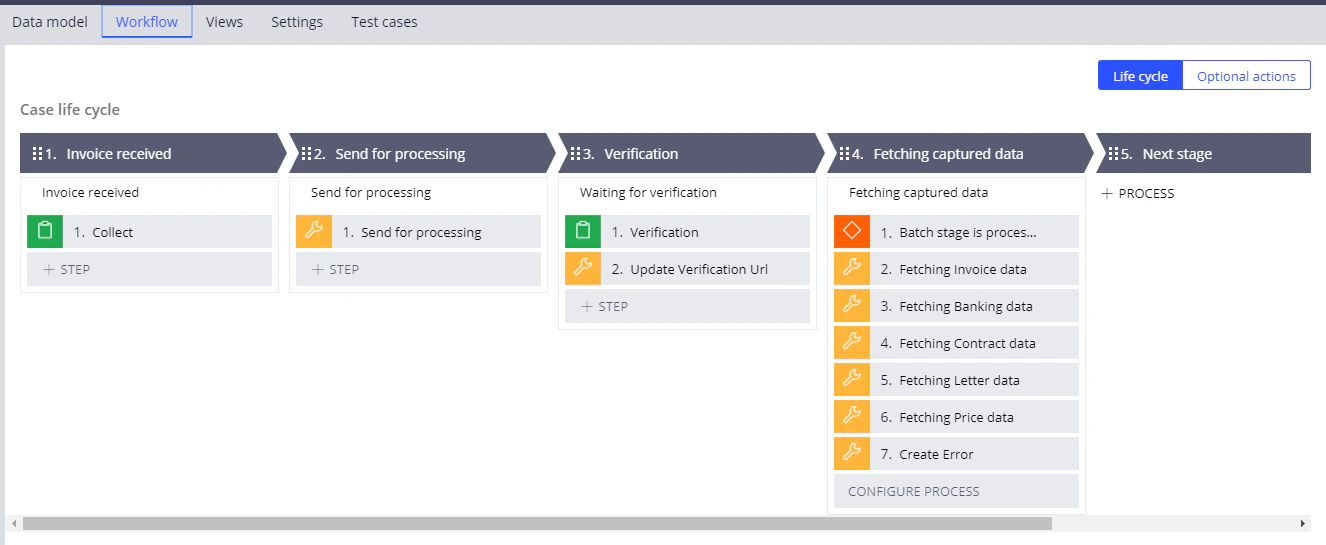
検証を含む複数ドキュメント処理ケースの場合、**Workflow** タブは次のようになります。
<Frame>
  <img src="https://mintcdn.com/abbyy/jk6a9TGm7KRcVxRI/images/flexi-capture/connectors/Pega83.png?fit=max&auto=format&n=jk6a9TGm7KRcVxRI&q=85&s=c72da61d1156ba655dfdc72e8a7afc3e" alt="Pega Dev Studio の Workflow タブのスクリーンショット。Invoice received、Send for processing、Verification、Fetching captured data の各ステージとそのステップを含む複数ドキュメントケースのライフサイクルを示しています。" width="1326" height="545" data-path="images/flexi-capture/connectors/Pega83.png" />
</Frame>

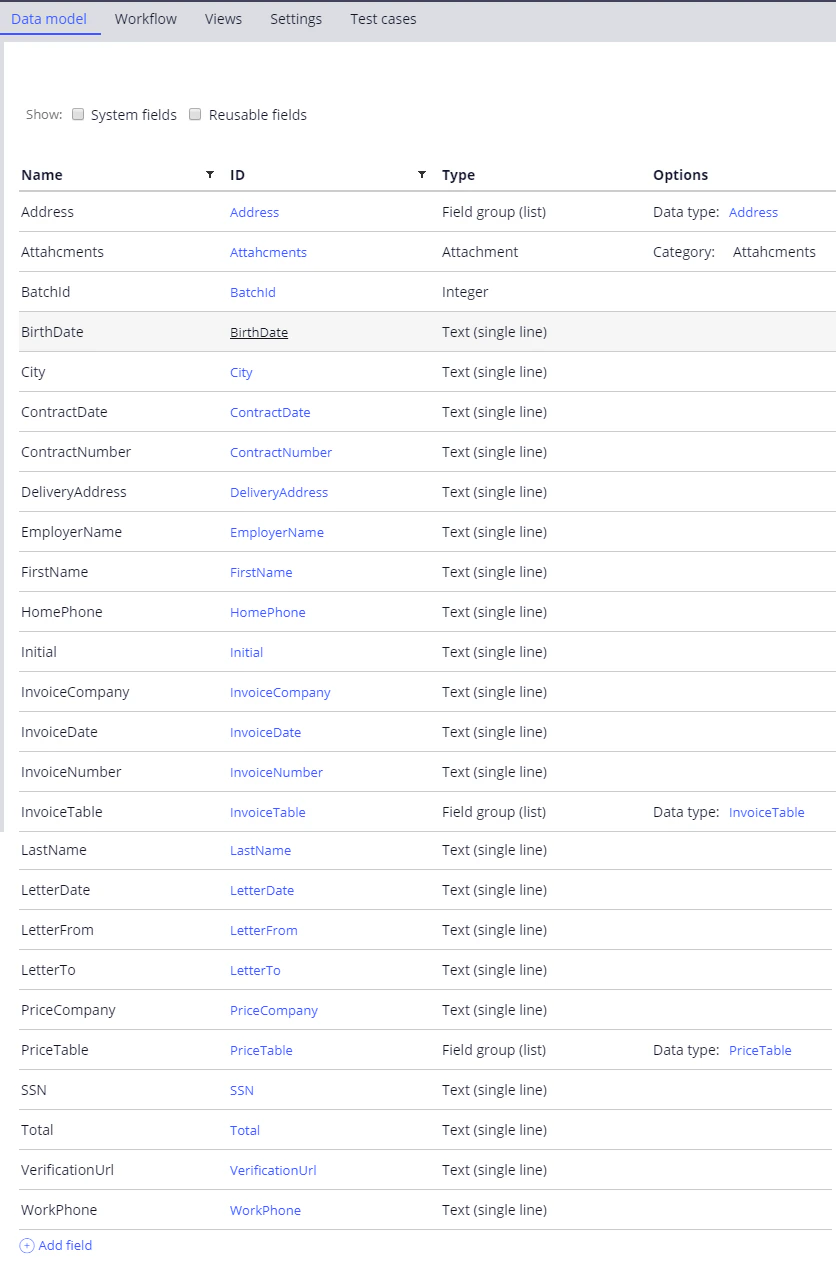
**Data Model** タブには、次のフィールドが必要です (必須の *Attachments*、*BatchId*、および *VerificationUrl* フィールドに加えて) 。

| **名前**                                                                                   | **ID**          | **型**            | **オプション**          |
| ---------------------------------------------------------------------------------------- | --------------- | ---------------- | ------------------ |
| [Address](/ja/flexi-capture/connectors/pega/pega-many-docs-data-types#address)           | Address         | field グループ (リスト) | データ型: Address      |
| BirthDate                                                                                | BirthDate       | Text             |                    |
| City                                                                                     | City            | Text             |                    |
| ContractDate                                                                             | ContractDate    | Text             |                    |
| ContractNumber                                                                           | ContractNumber  | Text             |                    |
| DeliveryAddress                                                                          | DeliveryAddress | Text             |                    |
| EmployerName                                                                             | EmployerName    | Text             |                    |
| FirstName                                                                                | FirstName       | Text             |                    |
| HomePhone                                                                                | HomePhone       | Text             |                    |
| Initial                                                                                  | Initial         | Text             |                    |
| InvoiceCompany                                                                           | InvoiceCompany  | Text             |                    |
| InvoiceDate                                                                              | InvoiceDate     | Text             |                    |
| InvoiceNumber                                                                            | InvoiceNumber   | Text             |                    |
| [InvoiceTable](/ja/flexi-capture/connectors/pega/pega-many-docs-data-types#invoicetable) | InvoiceTable    | field グループ (リスト) | データ型: InvoiceTable |
| LastName                                                                                 | LastName        | Text             |                    |
| LetterDate                                                                               | LetterDate      | Text             |                    |
| LetterFrom                                                                               | LetterFrom      | Text             |                    |
| LetterTo                                                                                 | LetterTo        | Text             |                    |
| PriceCompany                                                                             | PriceCompany    | Text             |                    |
| [PriceTable](/ja/flexi-capture/connectors/pega/pega-many-docs-data-types#pricetable)     | PriceTable      | field グループ (リスト) | データ型: PriceTable   |
| SSN                                                                                      | SSN             | Text             |                    |
| Total                                                                                    | Total           | Text             |                    |
| WorkPhone                                                                                | WorkPhone       | Text             |                    |
<Frame>
  <img src="https://mintcdn.com/abbyy/jk6a9TGm7KRcVxRI/images/flexi-capture/connectors/Pega84.png?fit=max&auto=format&n=jk6a9TGm7KRcVxRI&q=85&s=d9d07ff0dcd505e0b5c12a1eff303fcf" alt="Pega Dev Studio の Data model タブのスクリーンショット。必須の Attachments、BatchId、VerificationUrl フィールドに加え、Address、InvoiceTable、PriceTable の field グループを含む、複数ドキュメントケースのフィールド一覧全体を示しています。" width="836" height="1278" data-path="images/flexi-capture/connectors/Pega84.png" />
</Frame>

<div id="configuring-a-stage-that-will-submit-a-document-for-processing">
  ## 文書を処理に送信するステージの設定
</div>

詳細な手順については、[ワークフローステージの設定](/ja/flexi-capture/connectors/pega/pega-stages-config) および [Utility ステップ](/ja/flexi-capture/connectors/pega/pega-stages-config#2) のセクションを参照してください。

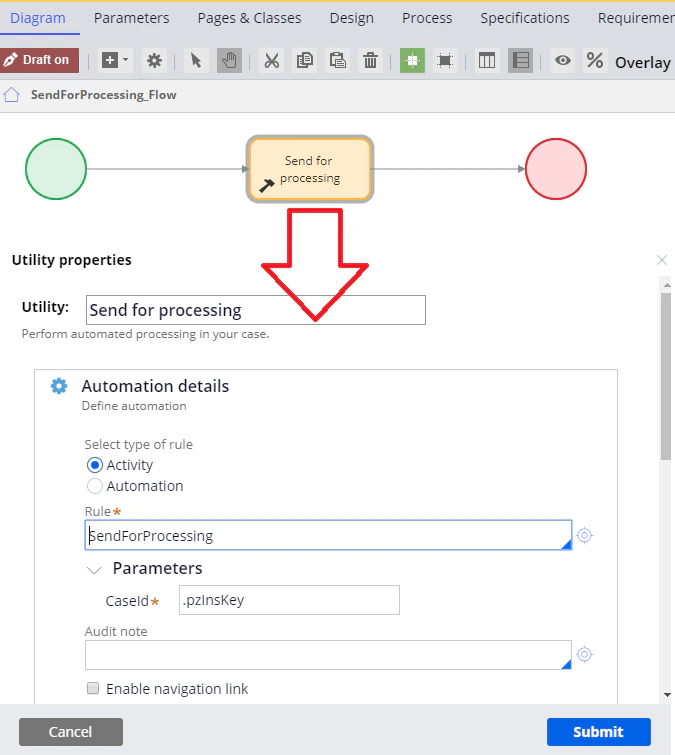
1. 設定モードで *Send for processing* ステージを開き、*Edit details* ステップを *Utility* ステップに置き換えて、このステップに次の名前を指定します: *Send for processing*。
2. *Utility* ステップを開き、*SendForProcessing* アクティビティ を呼び出します。この アクティビティ の作成方法の詳細については、[SendForProcessing](/ja/flexi-capture/connectors/pega/pega-send-for-processing-2) を参照してください。

<Note>
  **Rule** field の右側にある設定ボタンをクリックすると、アクティビティ の作成を開始できます。あるいは、**Rule** field に指定されている *pyUtilityStub* の値はそのままにしておき、アクティビティ set を作成した後でこのステップに戻ることもできます。
</Note>

3. **CaseId** field に、次の値を指定します: *.pzInsKey.*

<Frame>
  <img src="https://mintcdn.com/abbyy/jk6a9TGm7KRcVxRI/images/flexi-capture/connectors/Pega85.png?fit=max&auto=format&n=jk6a9TGm7KRcVxRI&q=85&s=ea23edd699135673d844c74e698ec27a" alt="Pega Dev Studio で、Send for processing ユーティリティが CaseId Parameter に .pzInsKey を指定して SendForProcessing アクティビティを呼び出していることを示す、SendForProcessing_Flow 図と Utility ステップのプロパティのスクリーンショット。" width="675" height="755" data-path="images/flexi-capture/connectors/Pega85.png" />
</Frame>

<div id="configuring-a-verification-stage">
  ## 検証ステージの設定
</div>

詳細な手順については、[ワークフローステージの設定](/ja/flexi-capture/connectors/pega/pega-stages-config)および[Utility ステップ](/ja/flexi-capture/connectors/pega/pega-stages-config#2)のセクションを参照してください。

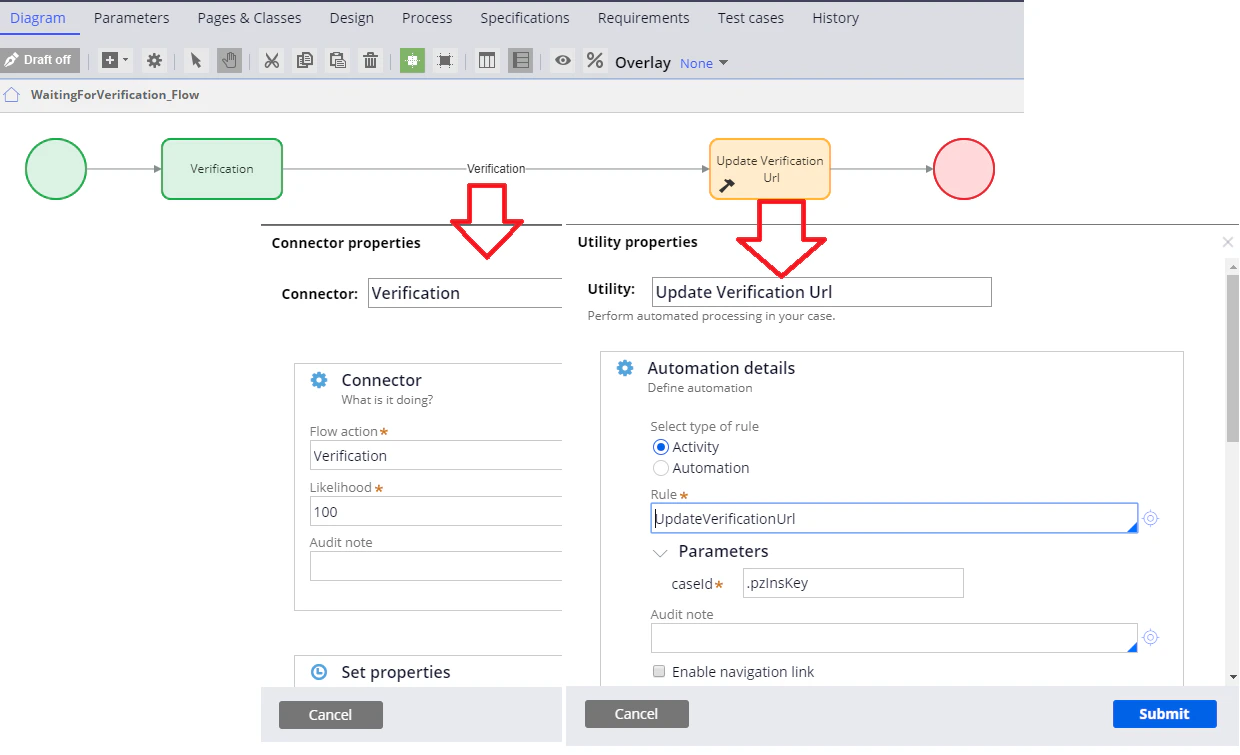
1. 設定モードで*Verification*ステージを開き、*Utility*ステップを追加して、名前を*Update Verification Url*に設定します。
2. *Edit details*ステップの名前を*Verification*に変更します。
3. *Update Verification Url*ステップを開き、*UpdateVerificationUrl*アクティビティを呼び出します。複数ドキュメントのケース用アクティビティの作成方法について詳しくは、[UpdateVerificationUrl](/ja/flexi-capture/connectors/pega/pega-update-verification-url-2)を参照してください。
4. **Verification flow action**コネクタを使用して、*Verification*ステップと*Update Verification Url*ステップを接続します。flow actionの作成方法について詳しくは、[フローアクションの作成](/ja/flexi-capture/connectors/pega/pega-flow-action)を参照してください。
5. **CaseId**fieldに、次の値を指定します: *.pzInsKey.*

<Frame>
  <img src="https://mintcdn.com/abbyy/jk6a9TGm7KRcVxRI/images/flexi-capture/connectors/Pega86.png?fit=max&auto=format&n=jk6a9TGm7KRcVxRI&q=85&s=d9c5d0f0955745e6268784e52466dc3a" alt="Verification コネクタのプロパティと、caseId Parameterに .pzInsKey を指定して UpdateVerificationUrl アクティビティを呼び出す Update Verification Url Utility ステップが表示された、Pega Dev Studio の WaitingForVerification_Flow ダイアグラムのスクリーンショット。" width="1240" height="755" data-path="images/flexi-capture/connectors/Pega86.png" />
</Frame>

<div id="configuring-a-stage-that-will-fetch-the-processing-results">
  ## 処理結果を取得するステージの設定
</div>

より詳しい手順については、[ワークフローステージの設定](/ja/flexi-capture/connectors/pega/pega-stages-config)、[Utility ステップ](/ja/flexi-capture/connectors/pega/pega-stages-config#2)、および [Decision ステップ](/ja/flexi-capture/connectors/pega/pega-stages-config#3) の各セクションを参照してください。

1. 設定モードで *Fetching captured data* ステージを開き、*Edit details* ステップを削除します。

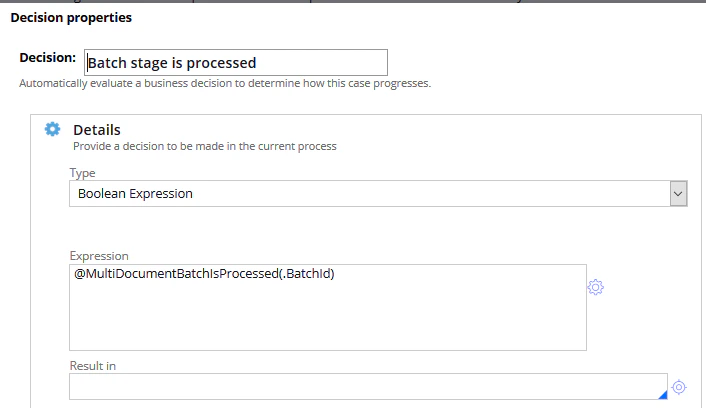
2. *Decision* ステップを追加し、名前を *Batch stage is processed* にします。

3. ステップを開き、**Type** fieldで *Boolean Expression* を選択します。

4. **Expression** fieldに、*@MultiDocumentBatchIsProcessed(.BatchId)* 条件を入力または設定します。この関数の作成方法の詳細については、[MultiDocumentBatchIsProcessed](/ja/flexi-capture/connectors/pega/pega-func-multiple-docs#multidocumentbatchisprocessed) を参照してください。

   <Frame>
     <img src="https://mintcdn.com/abbyy/jk6a9TGm7KRcVxRI/images/flexi-capture/connectors/Pega87.png?fit=max&auto=format&n=jk6a9TGm7KRcVxRI&q=85&s=16e26aa3cc0a820919e90df95679d5e0" alt="Pega Dev Studio の Decision ステップのプロパティを示すスクリーンショット。Batch stage is processed の decision が表示され、Boolean Expression が選択され、@MultiDocumentBatchIsProcessed(.BatchId) の expression が入力されています。" width="706" height="408" data-path="images/flexi-capture/connectors/Pega87.png" />
   </Frame>

5. **Submit** をクリックします。

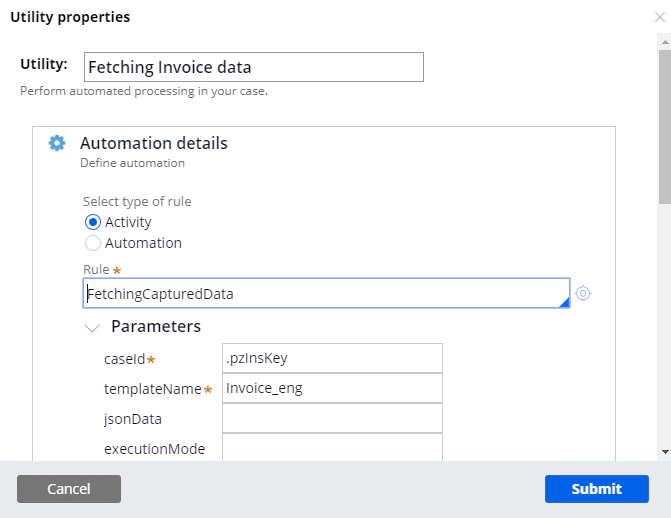
6. *true* 分岐用に *Fetching Invoice data* という名前の *Utility* ステップを作成し、*FetchingCapturedData* アクティビティを呼び出します。このアクティビティの作成方法の詳細については、[FetchingCapturedData](/ja/flexi-capture/connectors/pega/pega-fetching-captured-data-2) を参照してください。

7. **caseId** fieldに *.pzInsKey* を、**templateName** fieldに *Invoice\_eng* を入力します。
   <Frame>
     <img src="https://mintcdn.com/abbyy/jk6a9TGm7KRcVxRI/images/flexi-capture/connectors/Pega89.png?fit=max&auto=format&n=jk6a9TGm7KRcVxRI&q=85&s=fe72d6ba3c1deab9d30e22e987e57ee7" alt="Pega Dev Studio の Utility ステップのプロパティを示すスクリーンショット。Fetching Invoice data ステップが FetchingCapturedData アクティビティを呼び出しており、caseId に .pzInsKey、templateName に Invoice_eng が設定されています。" width="671" height="518" data-path="images/flexi-capture/connectors/Pega89.png" />
   </Frame>

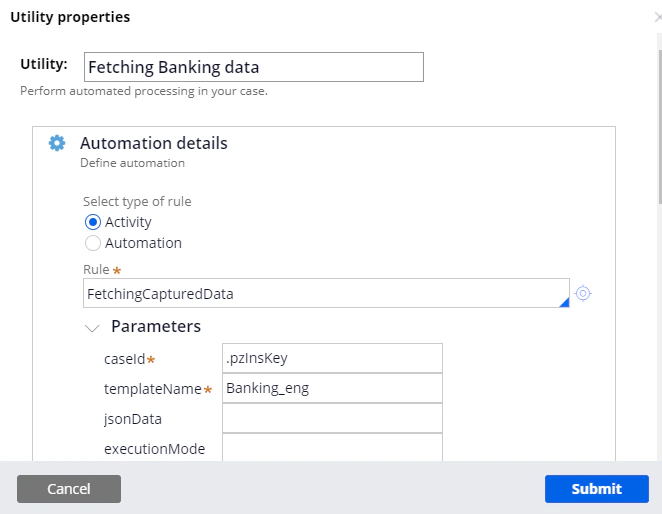
8. *true* 分岐用に *Fetching Banking data* という名前の *Utility* ステップを作成し、*FetchingCapturedData* アクティビティを呼び出します。

9. **caseId** fieldに *.pzInsKey* を、**templateName** fieldに *Banking\_eng* を入力します。
   <Frame>
     <img src="https://mintcdn.com/abbyy/jk6a9TGm7KRcVxRI/images/flexi-capture/connectors/Pega90.png?fit=max&auto=format&n=jk6a9TGm7KRcVxRI&q=85&s=f907e68cfbbb480b1e577fc6e7f9b5e6" alt="Pega Dev Studio の Utility ステップのプロパティを示すスクリーンショット。Fetching Banking data ステップが FetchingCapturedData アクティビティを呼び出しており、caseId に .pzInsKey、templateName に Banking_eng が設定されています。" width="662" height="514" data-path="images/flexi-capture/connectors/Pega90.png" />
   </Frame>

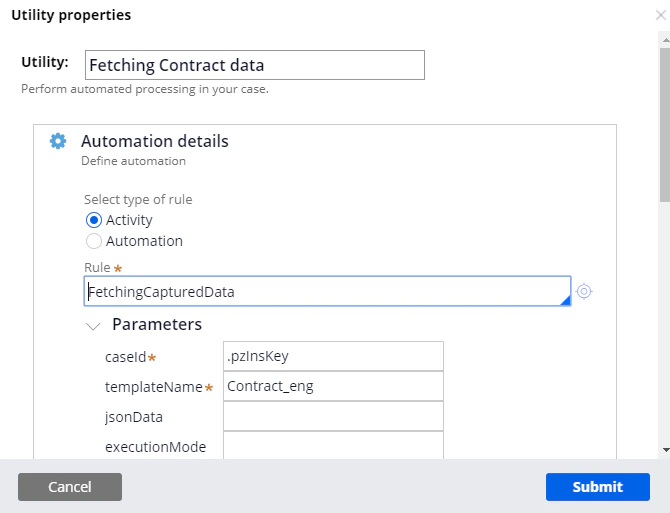
10. *true* 分岐用に *Fetching Contract data* という名前の *Utility* ステップを作成し、*FetchingCapturedData* アクティビティを呼び出します。

11. **caseId** fieldに *.pzInsKey* を、**templateName** fieldに *Contract\_eng* を入力します。
    <Frame>
      <img src="https://mintcdn.com/abbyy/jk6a9TGm7KRcVxRI/images/flexi-capture/connectors/Pega91.png?fit=max&auto=format&n=jk6a9TGm7KRcVxRI&q=85&s=7cf524056421bcb34463fdd2f526b85d" alt="Pega Dev Studio の Utility ステップのプロパティを示すスクリーンショット。Fetching Contract data ステップが FetchingCapturedData アクティビティを呼び出しており、caseId に .pzInsKey、templateName に Contract_eng が設定されています。" width="670" height="513" data-path="images/flexi-capture/connectors/Pega91.png" />
    </Frame>

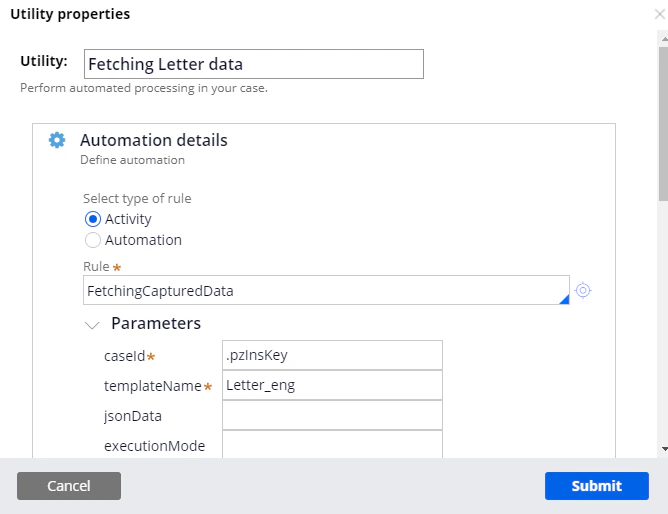
12. *true* 分岐用に *Fetching Letter data* という名前の *Utility* ステップを作成し、*FetchingCapturedData* アクティビティを呼び出します。

13. **caseId** fieldに *.pzInsKey* を、**templateName** fieldに *Letter\_eng* を入力します。
    <Frame>
      <img src="https://mintcdn.com/abbyy/jk6a9TGm7KRcVxRI/images/flexi-capture/connectors/Pega92.png?fit=max&auto=format&n=jk6a9TGm7KRcVxRI&q=85&s=8c0950a0562dab52bbb01c5bd74c3564" alt="Pega Dev Studio の Utility ステップのプロパティを示すスクリーンショット。Fetching Letter data ステップが FetchingCapturedData アクティビティを呼び出しており、caseId に .pzInsKey、templateName に Letter_eng が設定されています。" width="668" height="514" data-path="images/flexi-capture/connectors/Pega92.png" />
    </Frame>

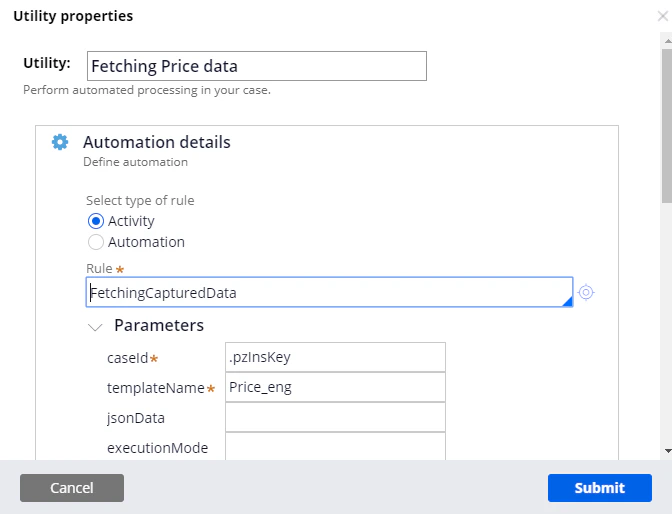
14. *true* 分岐用に *Fetching Price data* という名前の *Utility* ステップを作成し、*FetchingCapturedData* アクティビティを呼び出します。

15. **caseId** fieldに *.pzInsKey* を、**templateName** fieldに *Price\_eng* を入力します。
    <Frame>
      <img src="https://mintcdn.com/abbyy/jk6a9TGm7KRcVxRI/images/flexi-capture/connectors/Pega93.png?fit=max&auto=format&n=jk6a9TGm7KRcVxRI&q=85&s=9548c0e6cbe49f3d80c12dc2bfacaefe" alt="Pega Dev Studio の Utility ステップのプロパティを示すスクリーンショット。Fetching Price data ステップが FetchingCapturedData アクティビティを呼び出しており、caseId に .pzInsKey、templateName に Price_eng が設定されています。" width="672" height="514" data-path="images/flexi-capture/connectors/Pega93.png" />
    </Frame>

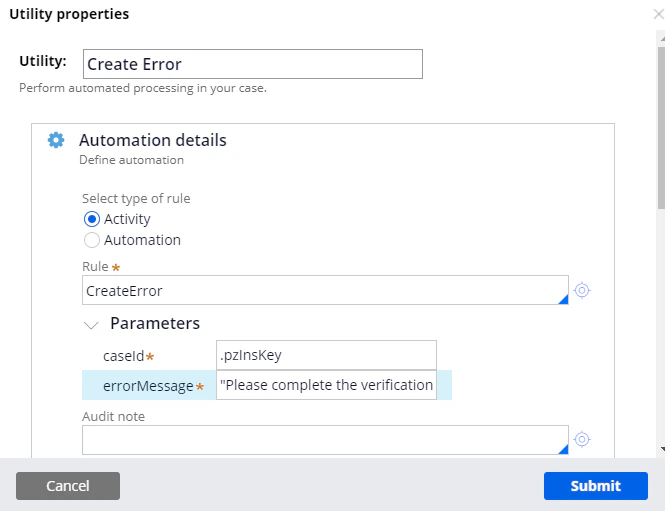
16. *false* 分岐用に *Create Error* という名前の *Utility* ステップを作成し、*CreateError* アクティビティを呼び出します。このアクティビティの作成方法の詳細については、[CreateError](/ja/flexi-capture/connectors/pega/pega-create-error-2) を参照してください。

17. **caseId** fieldに *.pzInsKey* を入力します。**errorMessage** fieldに、次のテキストを入力します: *"続行する前に検証タスクを完了してください。"*
<Frame>
  <img src="https://mintcdn.com/abbyy/jk6a9TGm7KRcVxRI/images/flexi-capture/connectors/Pega94.png?fit=max&auto=format&n=jk6a9TGm7KRcVxRI&q=85&s=97bb6c2b7fd900fd62827f477d98647f" alt="Pega Dev Studio で Utility ステップのプロパティを表示しているスクリーンショット。Create Error ステップが CreateError アクティビティを呼び出し、caseId に .pzInsKey、errorMessage パラメーターに検証用のリマインダーテキストが設定されている。" width="665" height="511" data-path="images/flexi-capture/connectors/Pega94.png" />
</Frame>