> ## Documentation Index
> Fetch the complete documentation index at: https://docs.abbyy.com/llms.txt
> Use this file to discover all available pages before exploring further.

# 単一ドキュメント処理ケースの作成

> Pega の単一ドキュメントケースを設定します。データモデルの field を定義し、FlexiCapture アクティビティを呼び出す送信処理および結果取得の stage を設定します。

ケースの作成方法の詳細については、[ワークフローを使用したケースの作成](/ja/flexi-capture/connectors/pega/pega-add-case-type)を参照してください。

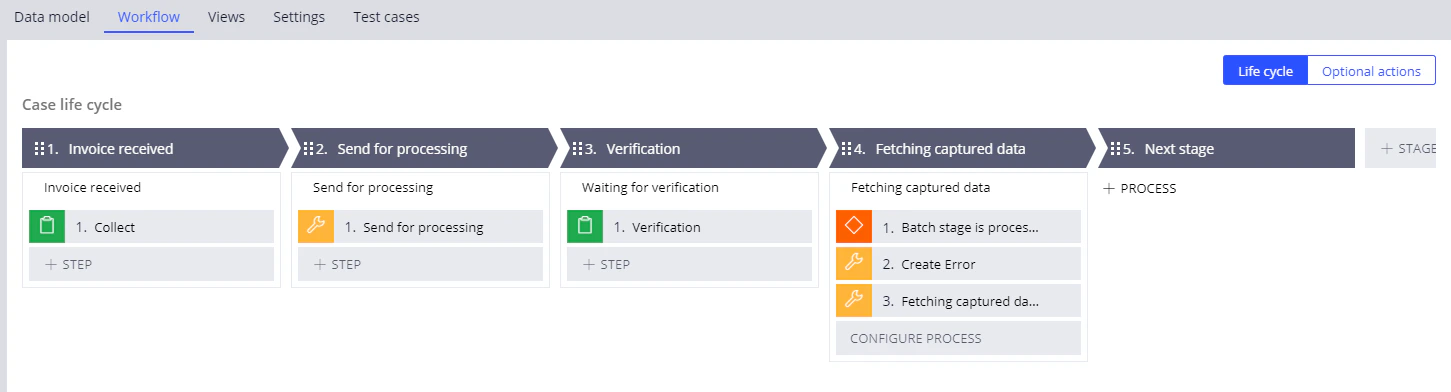
検証を含む単一ドキュメント処理ケースでは、**Workflow** タブは次のようになります。

<Frame>
  <img src="https://mintcdn.com/abbyy/Xgx3EG8BZs5YQjIJ/images/flexi-capture/connectors/Pega205.png?fit=max&auto=format&n=Xgx3EG8BZs5YQjIJ&q=85&s=3e28d23d9369da415b291449df6c8b09" alt="Invoice received、Send for processing、Verification、Fetching captured data の各 stage とその step を含む単一ドキュメントケースのライフサイクルを示す Pega Dev Studio の Workflow タブのスクリーンショット。" width="1451" height="392" data-path="images/flexi-capture/connectors/Pega205.png" />
</Frame>

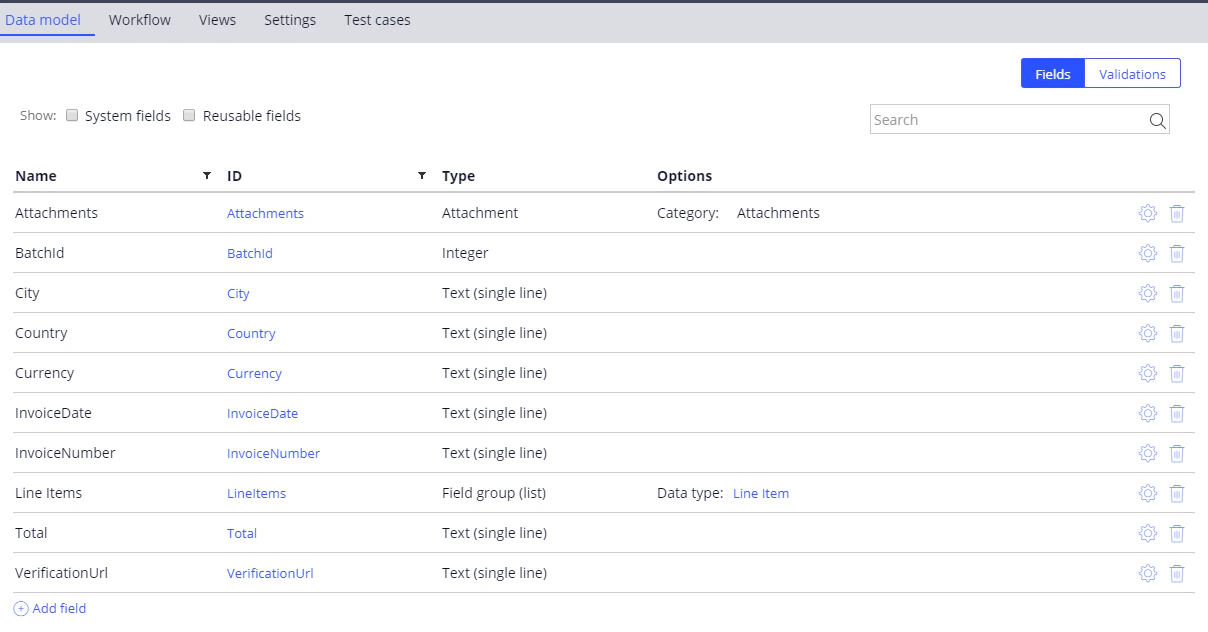
**Data Model** タブには、必須の *Attachments*、*BatchId*、*VerificationUrl* の各 field に加えて、次の field が必要です。

| **名前**                                                         | **ID**        | **型**            | **オプション**       |
| -------------------------------------------------------------- | ------------- | ---------------- | --------------- |
| City                                                           | City          | Text             |                 |
| Country                                                        | Country       | Text             |                 |
| Currency                                                       | Currency      | Text             |                 |
| InvoiceDate                                                    | InvoiceDate   | Text             |                 |
| InvoiceNumber                                                  | InvoiceNumber | Text             |                 |
| [明細](/ja/flexi-capture/connectors/pega/pega-one-doc-data-type) | LineItems     | field グループ (リスト) | データ型: Line Item |
| Total                                                          | Total         | Text             |                 |
<Frame>
  <img src="https://mintcdn.com/abbyy/jk6a9TGm7KRcVxRI/images/flexi-capture/connectors/Pega70.png?fit=max&auto=format&n=jk6a9TGm7KRcVxRI&q=85&s=37589c7d9d1a4f9727182f3aa0a70f78" alt="必須の Attachments、BatchId、VerificationUrl の各 field とともに、単一ドキュメントケースの City、Country、Currency、InvoiceDate、InvoiceNumber、Line Items、Total の各 field を示す Pega Dev Studio の Data model タブのスクリーンショット。" width="1208" height="632" data-path="images/flexi-capture/connectors/Pega70.png" />
</Frame>

<div id="configuring-a-stage-that-will-submit-a-document-for-processing">
  ## 文書を処理に送信するステージの設定
</div>

詳しい手順については、[ワークフローステージの設定](/ja/flexi-capture/connectors/pega/pega-stages-config)および[Utility ステップ](/ja/flexi-capture/connectors/pega/pega-stages-config#2)のセクションを参照してください。

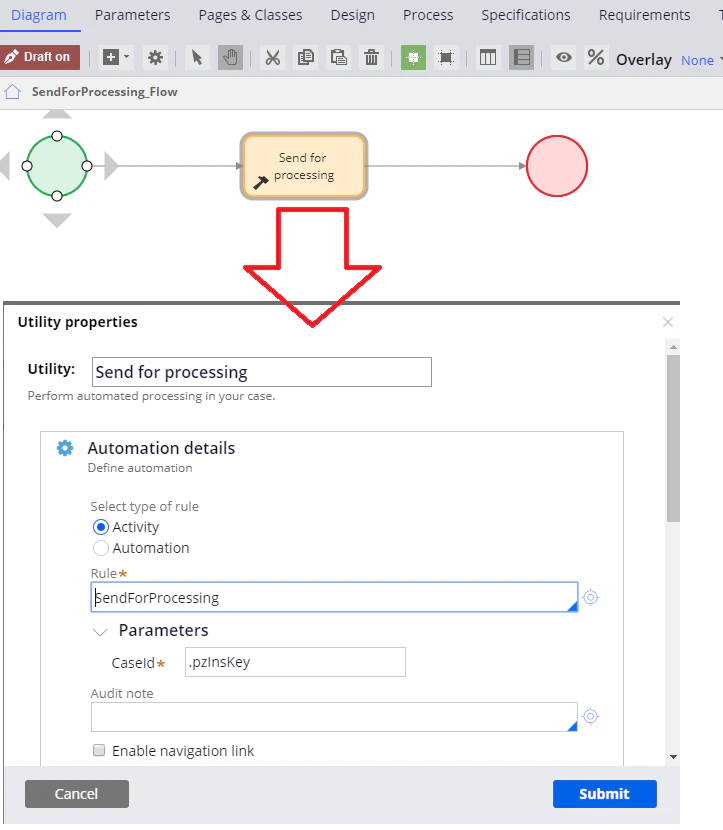
1. 設定モードで *Send for processing* ステージを開き、*Edit details* ステップを *Utility* ステップに置き換え、ステップ名に *Send for processing* を指定します。
2. *Utility* ステップを開き、*SendForProcessing* アクティビティを呼び出します。このアクティビティの作成方法の詳細については、[SendForProcessing](/ja/flexi-capture/connectors/pega/pega-send-for-processing-1)を参照してください。

<Note>
  **Rule** field の右側にある設定ボタンをクリックすると、アクティビティの作成を開始できます。あるいは、**Rule** field に指定されている *pyUtilityStub* の値をそのまま残し、アクティビティセットを作成した後でこのステップに戻ることもできます。
</Note>

3. **CaseId** field に次の値を指定します: *.pzInsKey.*

<Frame>
  <img src="https://mintcdn.com/abbyy/jk6a9TGm7KRcVxRI/images/flexi-capture/connectors/Pega71.png?fit=max&auto=format&n=jk6a9TGm7KRcVxRI&q=85&s=b60210b78092299c8f1fcc20b18c8717" alt="CaseId パラメーターに .pzInsKey を指定して SendForProcessing アクティビティを呼び出す Send for processing ユーティリティを示した、Pega Dev Studio の SendForProcessing_Flow 図と Utility ステップのプロパティのスクリーンショット。" width="723" height="830" data-path="images/flexi-capture/connectors/Pega71.png" />
</Frame>

<div id="configuring-a-stage-that-will-fetch-the-processing-results">
  ## 処理結果を取得するステージの設定
</div>

詳細な手順については、[ワークフローステージの設定](/ja/flexi-capture/connectors/pega/pega-stages-config) および [Utility ステップ](/ja/flexi-capture/connectors/pega/pega-stages-config#2) のセクションを参照してください。

<Frame>
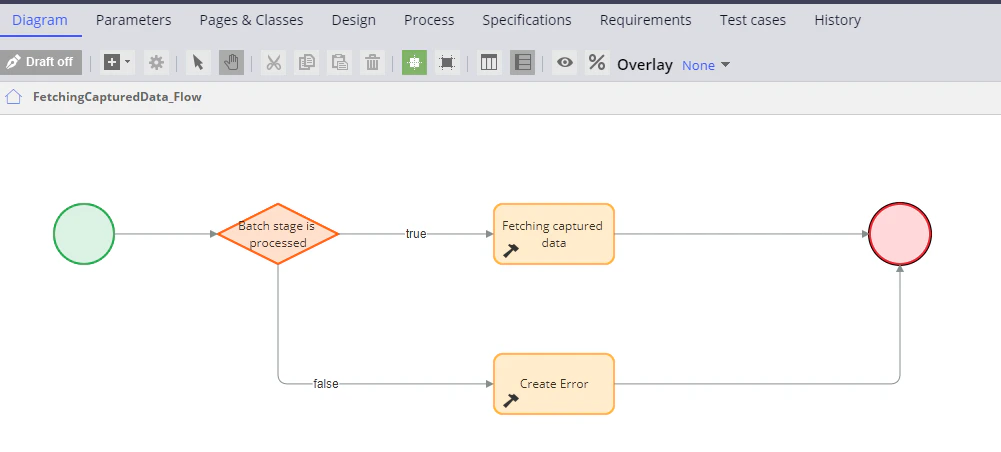
  <img src="https://mintcdn.com/abbyy/jk6a9TGm7KRcVxRI/images/flexi-capture/connectors/Pega72.png?fit=max&auto=format&n=jk6a9TGm7KRcVxRI&q=85&s=180052018dbe66167fa36c496c4d25b8" alt="Pega Dev Studio の FetchingCapturedData_Flow プロセス図。Batch stage is processed の判定ステージから、true パスでは Fetching captured data ステップに、false パスでは Create Error ステップに分岐していることを示しています。" width="1001" height="452" data-path="images/flexi-capture/connectors/Pega72.png" />
</Frame>

1. 設定モードで *Fetching captured data* ステージを開き、*Edit details* ステップを削除します。

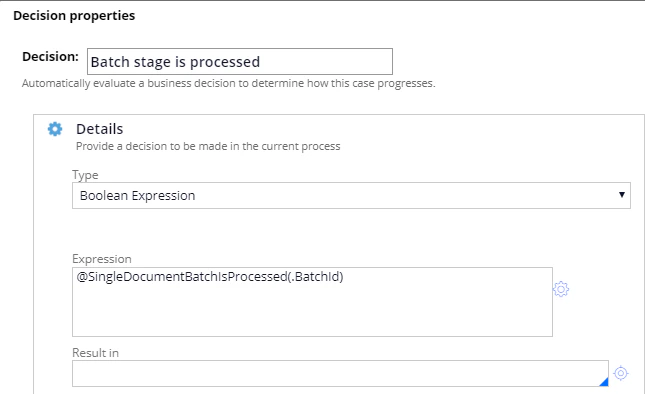
2. *Decision* ステップを追加し、*Batch stage is processed* という名前を付けます。

3. このステップを開き、**Type** field で **Boolean Expression** を選択します。**Expression** field で *@SingleDocumentBatchIsProcessed(.BatchId)* 条件を指定します。この関数の作成について詳しくは、[SingleDocumentBatchIsProcessed](/ja/flexi-capture/connectors/pega/pega-func-one-doc#singledocumentbatchisprocessed) を参照してください。
   <Frame>
     <img src="https://mintcdn.com/abbyy/jk6a9TGm7KRcVxRI/images/flexi-capture/connectors/Pega73.png?fit=max&auto=format&n=jk6a9TGm7KRcVxRI&q=85&s=2068be2edb4b8dad824adac45456f3ca" alt="Pega Dev Studio の Decision ステップのプロパティ画面。Batch stage is processed の判定で Boolean Expression が選択され、@SingleDocumentBatchIsProcessed(.BatchId) 式が入力されています。" width="645" height="394" data-path="images/flexi-capture/connectors/Pega73.png" />
   </Frame>

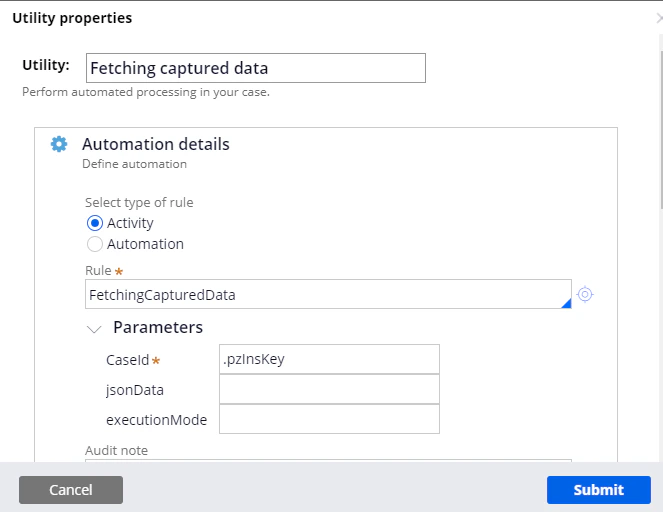
4. *Utility* ステップの *true* 分岐に、*Fetching captured data* という名前のステップを追加します。これを行うには、*Utility* ステップを開き、[FetchingCapturedData](/ja/flexi-capture/connectors/pega/pega-fetching-captured-data-1) アクティビティ を呼び出します。次に、**CaseId** field で、次の値を指定します: *.pzInsKey*。
   <Frame>
     <img src="https://mintcdn.com/abbyy/jk6a9TGm7KRcVxRI/images/flexi-capture/connectors/Pega74.png?fit=max&auto=format&n=jk6a9TGm7KRcVxRI&q=85&s=a11d916997e641f5e16b7c6ed2d06ca0" alt="Pega Dev Studio の Utility ステップのプロパティ画面。Fetching captured data ステップで FetchingCapturedData アクティビティ が呼び出され、CaseId パラメーターに .pzInsKey が設定されています。" width="663" height="512" data-path="images/flexi-capture/connectors/Pega74.png" />
   </Frame>

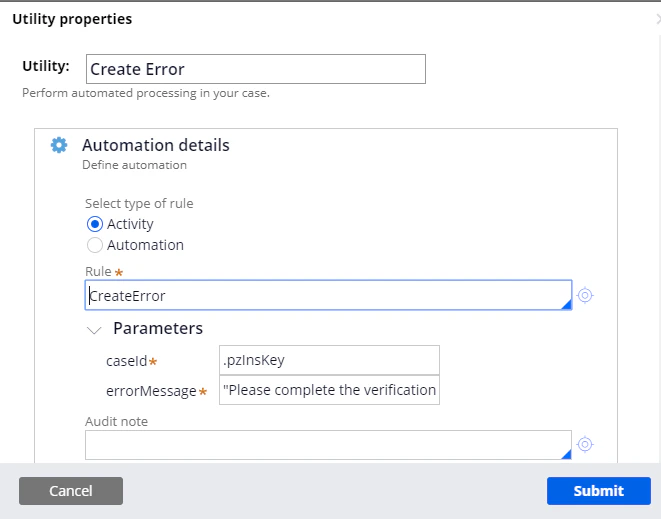
5. *Utility* ステップの *false* 分岐に、*Create Error* という名前のステップを追加します。これを行うには、*Utility* ステップを開き、[CreateError](/ja/flexi-capture/connectors/pega/pega-create-error-1) アクティビティ\*.\* を呼び出します。次に、*CaseId* パラメーターfield で、次の値を指定します: *.pzInsKey*。**errorMessage** field に、次のテキストを入力します: *"続行する前に検証タスクを完了してください。"*
<Frame>
  <img src="https://mintcdn.com/abbyy/jk6a9TGm7KRcVxRI/images/flexi-capture/connectors/Pega75.png?fit=max&auto=format&n=jk6a9TGm7KRcVxRI&q=85&s=b87a53b138baa7f6cef86116e843a1b6" alt="Pega Dev Studio の Utility ステップのプロパティ画面。Create Error ステップで CreateError アクティビティ が呼び出され、caseId に .pzInsKey、errorMessage パラメーターに検証を促すテキストが設定されています。" width="661" height="519" data-path="images/flexi-capture/connectors/Pega75.png" />
</Frame>