> ## Documentation Index
> Fetch the complete documentation index at: https://docs.abbyy.com/llms.txt
> Use this file to discover all available pages before exploring further.
# Set up the Alteryx connector
> Add ABBYY Vantage tools to an Alteryx Designer workflow and configure the connection to ABBYY Vantage, including proxy settings.
## Add tools to your workflow
To add tools to your workflow, navigate to the **ABBYY Vantage** tab of the **Tool Palette** in Alteryx Designer and drag the tools onto the workflow canvas, or right-click the canvas to access an insert menu.
 By default, the maximum time limit for processing a single input data table row in each tool is 30 minutes.
## Configure the connection
The connection settings in this section apply to the **Use Skill**, **Get Status**, and **Get Result** tools. Configure the connection properties for each tool individually.
In the workflow, select the ABBYY Vantage tool you want to configure and navigate to the **Configuration** window on the left. Fill in the following fields:
* **Server URL** – The address of the server where ABBYY Vantage is deployed
* **Client Id** – Public identifier
* **Client Secret** – Application secret
* **Tenant** – (Optional) The ABBYY Vantage tenant name or tenant identifier. Specify a tenant identifier if your user is registered in several tenants simultaneously.
By default, the maximum time limit for processing a single input data table row in each tool is 30 minutes.
## Configure the connection
The connection settings in this section apply to the **Use Skill**, **Get Status**, and **Get Result** tools. Configure the connection properties for each tool individually.
In the workflow, select the ABBYY Vantage tool you want to configure and navigate to the **Configuration** window on the left. Fill in the following fields:
* **Server URL** – The address of the server where ABBYY Vantage is deployed
* **Client Id** – Public identifier
* **Client Secret** – Application secret
* **Tenant** – (Optional) The ABBYY Vantage tenant name or tenant identifier. Specify a tenant identifier if your user is registered in several tenants simultaneously.
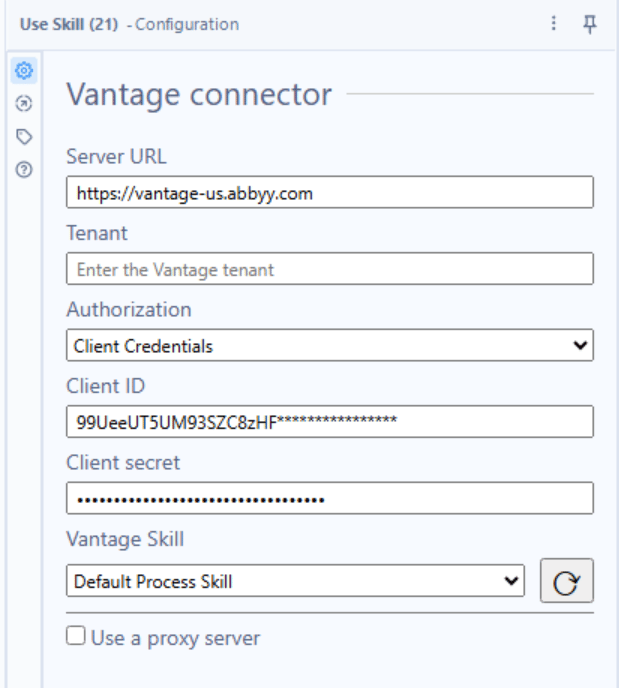 After configuring the **Use Skill** tool, click the refresh button to the right of the **Vantage Skill** drop-down list. A list of available skills is retrieved. Select the skill you intend to use from the drop-down list.
### Proxy settings
You can configure connector requests to route through a proxy server at runtime. The supported proxy authentication types are Basic, NTLM, IP authentication, and transparent proxy.
To use a proxy server, select the **Use a proxy server** checkbox in the **Configuration** window. Fill in the proxy connection settings in the following fields, or select **Use a system default proxy** to use the proxy configured in the **Internet Options** of your computer.
After configuring the **Use Skill** tool, click the refresh button to the right of the **Vantage Skill** drop-down list. A list of available skills is retrieved. Select the skill you intend to use from the drop-down list.
### Proxy settings
You can configure connector requests to route through a proxy server at runtime. The supported proxy authentication types are Basic, NTLM, IP authentication, and transparent proxy.
To use a proxy server, select the **Use a proxy server** checkbox in the **Configuration** window. Fill in the proxy connection settings in the following fields, or select **Use a system default proxy** to use the proxy configured in the **Internet Options** of your computer.
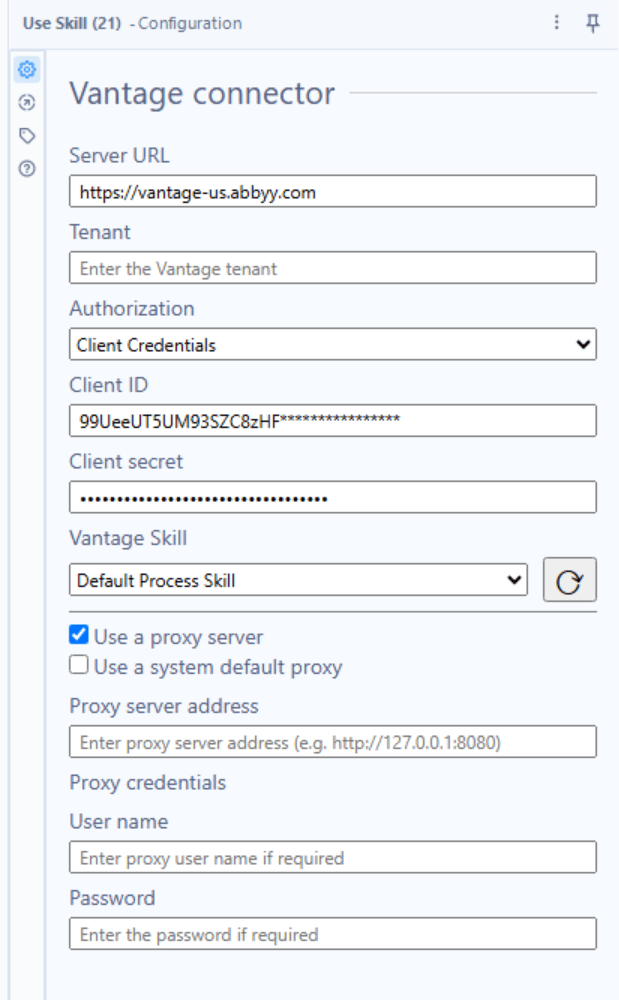 If you use NTLM authentication, the **User name** and **Password** proxy credential fields are optional. If left empty, the credentials of the user running the Alteryx process will be used.
## Typical workflow
A common usage pattern for the connector tools:
1. Run the **Use Skill** tool, passing file paths in the **Input** anchor. For each data table row, the tool creates a separate transaction in Vantage and outputs a list of transaction identifiers.
2. Run the **Get Status** tool to check whether each transaction has been processed. If a transaction is still processing, run **Get Status** again after a delay using a macro. Once the status is `Processed`, pass the transaction identifier to **Get Result**.
3. Run the **Get Result** tool to download processing results to an output folder.
4. Optionally, run the **Parse Fields** tool to convert the JSON result files into an Alteryx data table of extracted field values.
For an end-to-end example, see the [Sample process](/vantage/connectors/alteryx/sample-process).
If you use NTLM authentication, the **User name** and **Password** proxy credential fields are optional. If left empty, the credentials of the user running the Alteryx process will be used.
## Typical workflow
A common usage pattern for the connector tools:
1. Run the **Use Skill** tool, passing file paths in the **Input** anchor. For each data table row, the tool creates a separate transaction in Vantage and outputs a list of transaction identifiers.
2. Run the **Get Status** tool to check whether each transaction has been processed. If a transaction is still processing, run **Get Status** again after a delay using a macro. Once the status is `Processed`, pass the transaction identifier to **Get Result**.
3. Run the **Get Result** tool to download processing results to an output folder.
4. Optionally, run the **Parse Fields** tool to convert the JSON result files into an Alteryx data table of extracted field values.
For an end-to-end example, see the [Sample process](/vantage/connectors/alteryx/sample-process).