> ## Documentation Index
> Fetch the complete documentation index at: https://docs.abbyy.com/llms.txt
> Use this file to discover all available pages before exploring further.
# Get Result tool
> Get Result downloads processing results from ABBYY Vantage for transactions with Processed status and saves them to an output folder.
The **Get Result** tool retrieves processing results from ABBYY Vantage and saves them to a local folder.
**Get Result** runs only for transactions with the `Processed` status. Run **Get Status** first and filter its output by `Status = "Processed"` before passing transactions to **Get Result**.
In the folder specified in the **OutputPath** column, a subfolder named after the transaction identifier is created for each transaction. Within that subfolder, a separate folder is created for each document in the transaction, using the document identifier as the folder name. Each document folder contains files with the processing results.
Due to a path length limitation, the absolute path to the output folder must not be longer than 260 characters. This limit includes the transaction folder and document folder names created by the **Get Result** tool (36 characters each).
## Connection settings
The **Get Result** tool includes the connection settings described in [Configure the connection](/vantage/connectors/alteryx/setup#configure-the-connection).
## Input anchor
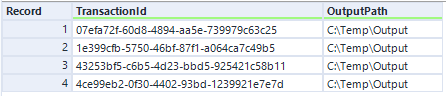
| Column | Type | Description |
| ------------- | ---------- | ---------------------------------------------------------- |
| TransactionId | V\_WString | The identifier of the transaction to retrieve results for. |
| OutputPath | V\_WString | The path to the folder where result files are stored. |
Input example:
 ## Output anchor
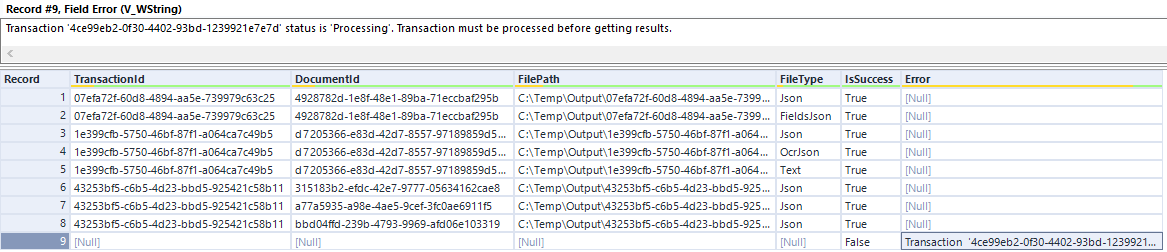
| Column | Type | Description |
| ------------- | ---------- | ----------------------------------------------------------------------------------------------------------------------------------- |
| TransactionId | V\_WString | The identifier of the transaction. |
| DocumentId | V\_WString | The identifier of the document in the transaction. |
| FilePath | V\_WString | The path to the result file. |
| FileType | V\_WString | The type of the result file. Possible values: `Json`, `FieldsJson`, `OcrJson`, `Txt`, `Xml`, `Xlsx`, `Docx`, `Pdf`, `FieldPicture`. |
| IsSuccess | Bool | Indicates whether the results were successfully retrieved. |
| Error | V\_WString | Specifies the error message that occurred while receiving transaction results (when the transaction status is not `Processed`). |
Output example:
## Output anchor
| Column | Type | Description |
| ------------- | ---------- | ----------------------------------------------------------------------------------------------------------------------------------- |
| TransactionId | V\_WString | The identifier of the transaction. |
| DocumentId | V\_WString | The identifier of the document in the transaction. |
| FilePath | V\_WString | The path to the result file. |
| FileType | V\_WString | The type of the result file. Possible values: `Json`, `FieldsJson`, `OcrJson`, `Txt`, `Xml`, `Xlsx`, `Docx`, `Pdf`, `FieldPicture`. |
| IsSuccess | Bool | Indicates whether the results were successfully retrieved. |
| Error | V\_WString | Specifies the error message that occurred while receiving transaction results (when the transaction status is not `Processed`). |
Output example:
 ## Result file types by skill
The result files available depend on the skill applied to the document.
| Skill | Result file formats |
| -------------------- | ------------------------------------------------------------------------------------ |
| Document Skill | `Json`, `FieldsJson` |
| Classification Skill | `Json` |
| OCR Skill | `OcrJson`, `Txt`, `Xml`, `Xlsx`, `Docx`, `Pdf` (depending on skill settings) |
| Process Skill | All enabled formats, depending on the export settings in the skill's Output activity |
When using a Classification Skill, Document Skill, or OCR Skill, all transaction input files are assembled into one document in Vantage. When using a Process Skill, multiple result documents can be obtained.
By default, when a Process Skill is used, ABBYY Vantage creates a separate document for each input file in the transaction. Documents can be of different classes but are processed within one transaction. You can also specify custom document assembly settings using the Assemble activity in your Process Skill.
## Related topics
* [Use Skill tool](/vantage/connectors/alteryx/tools/use-skill)
* [Get Status tool](/vantage/connectors/alteryx/tools/get-status)
* [Parse Fields tool](/vantage/connectors/alteryx/tools/parse-fields)
## Result file types by skill
The result files available depend on the skill applied to the document.
| Skill | Result file formats |
| -------------------- | ------------------------------------------------------------------------------------ |
| Document Skill | `Json`, `FieldsJson` |
| Classification Skill | `Json` |
| OCR Skill | `OcrJson`, `Txt`, `Xml`, `Xlsx`, `Docx`, `Pdf` (depending on skill settings) |
| Process Skill | All enabled formats, depending on the export settings in the skill's Output activity |
When using a Classification Skill, Document Skill, or OCR Skill, all transaction input files are assembled into one document in Vantage. When using a Process Skill, multiple result documents can be obtained.
By default, when a Process Skill is used, ABBYY Vantage creates a separate document for each input file in the transaction. Documents can be of different classes but are processed within one transaction. You can also specify custom document assembly settings using the Assemble activity in your Process Skill.
## Related topics
* [Use Skill tool](/vantage/connectors/alteryx/tools/use-skill)
* [Get Status tool](/vantage/connectors/alteryx/tools/get-status)
* [Parse Fields tool](/vantage/connectors/alteryx/tools/parse-fields)