> ## Documentation Index
> Fetch the complete documentation index at: https://docs.abbyy.com/llms.txt
> Use this file to discover all available pages before exploring further.
# Get Status tool
> Get Status retrieves the processing status of ABBYY Vantage transactions from a list of transaction identifiers.
The **Get Status** tool retrieves the processing status of transactions from ABBYY Vantage.
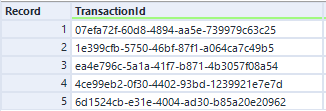
Pass a data table containing one or more rows in the **Input** anchor. Each row should contain one transaction identifier. The tool returns the statuses of all transactions.
To poll for status until a transaction is processed, include **Get Status** inside a macro. See the [Sample process](/vantage/connectors/alteryx/sample-process) for an example.
## Connection settings
The **Get Status** tool includes the connection settings described in [Configure the connection](/vantage/connectors/alteryx/setup#configure-the-connection).
## Input anchor
| Column | Type | Description |
| ------------- | ---------- | -------------------------------------------------------------------- |
| TransactionId | V\_WString | The identifier of the transaction created by the **Use Skill** tool. |
Input example:
 ## Output anchor
| Column | Type | Description |
| ---------------- | ---------- | -------------------------------------------------------------------------------------------------------------------------------------------------------------------- |
| TransactionId | V\_WString | The identifier of the transaction. |
| Status | V\_WString | The status of the transaction. Possible values: `New`, `Processing`, `Processed`, `Failed`, `Canceled`. |
| ManualReviewLink | V\_WString | A link to the ABBYY Vantage Manual Review Client where the transaction results can be reviewed. Available only if the Process Skill used contains a Review activity. |
| isSuccess | Bool | Indicates whether the status was successfully retrieved. |
| Error | V\_WString | Specifies the error message that occurred while processing the transaction (when the transaction status is `Failed`). |
Output example:
## Output anchor
| Column | Type | Description |
| ---------------- | ---------- | -------------------------------------------------------------------------------------------------------------------------------------------------------------------- |
| TransactionId | V\_WString | The identifier of the transaction. |
| Status | V\_WString | The status of the transaction. Possible values: `New`, `Processing`, `Processed`, `Failed`, `Canceled`. |
| ManualReviewLink | V\_WString | A link to the ABBYY Vantage Manual Review Client where the transaction results can be reviewed. Available only if the Process Skill used contains a Review activity. |
| isSuccess | Bool | Indicates whether the status was successfully retrieved. |
| Error | V\_WString | Specifies the error message that occurred while processing the transaction (when the transaction status is `Failed`). |
Output example:
 ## Related topics
* [Use Skill tool](/vantage/connectors/alteryx/tools/use-skill)
* [Get Result tool](/vantage/connectors/alteryx/tools/get-result)
* [Sample process](/vantage/connectors/alteryx/sample-process)
## Related topics
* [Use Skill tool](/vantage/connectors/alteryx/tools/use-skill)
* [Get Result tool](/vantage/connectors/alteryx/tools/get-result)
* [Sample process](/vantage/connectors/alteryx/sample-process)