> ## Documentation Index
> Fetch the complete documentation index at: https://docs.abbyy.com/llms.txt
> Use this file to discover all available pages before exploring further.
# Use Skill tool
> Use Skill creates ABBYY Vantage transactions for processing documents and returns transaction identifiers for downstream tools.
The **Use Skill** tool creates transactions for processing documents using an ABBYY Vantage skill. It is typically the first Vantage tool in an Alteryx workflow.
The tool supports two modes depending on the column passed in its **Input** anchor:
* **DirectoryPath mode** – Pass the location of a folder containing input files. For all files located directly in the folder, the tool creates one transaction in ABBYY Vantage. Pass multiple rows to create a separate transaction for each folder.
* **Files mode** – Pass the location of individual files and their parameters. This mode lets you set separate file parameters for each document in the transaction.
## Connection settings
The **Use Skill** tool includes the connection settings described in [Configure the connection](/vantage/connectors/alteryx/setup#configure-the-connection), plus an additional **Vantage Skill** setting for selecting the skill to use for document processing.
## Input anchor
| Column | Type | Description |
| ----------------------------------- | ---------- | -------------------------------------------------------------------------------------------- |
| DirectoryPath | V\_WString | The location of the folder that contains the file(s) you want to process as one transaction. |
| Files | V\_WString | The location of the file(s) you want to process and their parameters. |
| Transaction Registration Parameters | V\_WString | A set of transaction registration parameters. This column is optional. |
### DirectoryPath mode
Pass a folder path in the **DirectoryPath** column. All files located directly in the specified folder are added to the transaction as one group. Files in subfolders are not included.
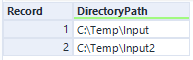
Pass multiple rows to create a separate transaction for each folder:
 ### Files mode
Pass file paths and parameters in the **Files** column using the following format:
```text theme={null}
File="";=""
```
The semicolon character (`;`) acts as a separator between different files and between files and their parameters. Use `FileParamName` to set a named file parameter for the document.
For example, to add `Invoice_01.tif` and `Invoice_02.tif` to a transaction with **Created** and **Size** parameters for each document:
### Files mode
Pass file paths and parameters in the **Files** column using the following format:
```text theme={null}
File="";=""
```
The semicolon character (`;`) acts as a separator between different files and between files and their parameters. Use `FileParamName` to set a named file parameter for the document.
For example, to add `Invoice_01.tif` and `Invoice_02.tif` to a transaction with **Created** and **Size** parameters for each document:
 Do not include `=` or `;` characters in file paths or registration parameter values, as these characters act as separators by default.
### Transaction registration parameters
Pass transaction-level parameters in the **Transaction Registration Parameters** column using the format:
```text theme={null}
TransactionParamName="transaction parameter value"
```
Separate multiple parameters with a semicolon (`;`). For example, to pass the source type and computer name:
Do not include `=` or `;` characters in file paths or registration parameter values, as these characters act as separators by default.
### Transaction registration parameters
Pass transaction-level parameters in the **Transaction Registration Parameters** column using the format:
```text theme={null}
TransactionParamName="transaction parameter value"
```
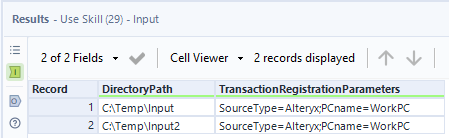
Separate multiple parameters with a semicolon (`;`). For example, to pass the source type and computer name:
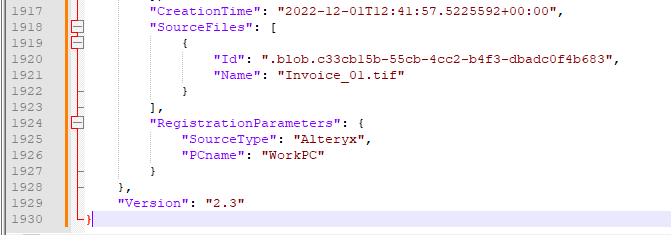
 Transaction and file registration parameters are visible in Vantage Skill Monitor and are included in the exported JSON file:
 ## Output anchor
| Column | Type | Description |
| ------------- | ---------- | ----------------------------------------------------------------------------------------------------------------------------------------------------------------- |
| TransactionId | V\_WString | The identifier of the created transaction. This ID is passed to the **Get Status** and **Get Result** tools to get the transaction status and processing results. |
| isSuccess | Bool | Indicates whether the transaction was successfully created. |
| Error | V\_WString | Specifies the error message that occurred while creating a transaction. |
Output example:
## Output anchor
| Column | Type | Description |
| ------------- | ---------- | ----------------------------------------------------------------------------------------------------------------------------------------------------------------- |
| TransactionId | V\_WString | The identifier of the created transaction. This ID is passed to the **Get Status** and **Get Result** tools to get the transaction status and processing results. |
| isSuccess | Bool | Indicates whether the transaction was successfully created. |
| Error | V\_WString | Specifies the error message that occurred while creating a transaction. |
Output example:
 ABBYY Vantage allows uploading transactions of up to 2 GB in size. To speed up document processing, keep individual file sizes to a maximum of 30 MB.
## Related topics
* [Get Status tool](/vantage/connectors/alteryx/tools/get-status)
* [Get Result tool](/vantage/connectors/alteryx/tools/get-result)
* [Parse Fields tool](/vantage/connectors/alteryx/tools/parse-fields)
ABBYY Vantage allows uploading transactions of up to 2 GB in size. To speed up document processing, keep individual file sizes to a maximum of 30 MB.
## Related topics
* [Get Status tool](/vantage/connectors/alteryx/tools/get-status)
* [Get Result tool](/vantage/connectors/alteryx/tools/get-result)
* [Parse Fields tool](/vantage/connectors/alteryx/tools/parse-fields)