> ## Documentation Index
> Fetch the complete documentation index at: https://docs.abbyy.com/llms.txt
> Use this file to discover all available pages before exploring further.

# Guide

> Guide to manually installing and using the ABBYY Vantage Connector for Microsoft Power Automate

export const VantageRegion = ({children}) => {
  const STORAGE_KEY = "abbyy.vantage.region";
  const REGIONS = [{
    code: "eu",
    label: "Europe"
  }, {
    code: "us",
    label: "North America"
  }, {
    code: "au",
    label: "Australia / Asia-Pacific"
  }];
  const [region, setRegion] = useState("eu");
  const [open, setOpen] = useState(false);
  const containerRef = useRef(null);
  const dropdownRef = useRef(null);
  function safeGetSavedRegion() {
    try {
      const saved = typeof window !== "undefined" ? window.localStorage.getItem(STORAGE_KEY) : null;
      const valid = new Set(REGIONS.map(r => r.code));
      return saved && valid.has(saved) ? saved : "eu";
    } catch {
      return "eu";
    }
  }
  function safeSetSavedRegion(code) {
    try {
      if (typeof window !== "undefined") {
        window.localStorage.setItem(STORAGE_KEY, code);
      }
    } catch {}
  }
  function dispatchRegionChanged(code) {
    try {
      if (typeof window !== "undefined") {
        window.dispatchEvent(new CustomEvent("abbyy:region-changed", {
          detail: {
            code
          }
        }));
      }
    } catch {}
  }
  function replaceRegionInString(text, currentRegion) {
    if (typeof text !== "string") return text;
    const hostRegex = /https:\/\/vantage-(eu|us|au)\.abbyy\.com/gi;
    const tokenRegex = /https:\/\/vantage-\[region\]\.abbyy\.com/gi;
    const bareHostRegex = /vantage-(eu|us|au)\.abbyy\.com/gi;
    const bareTokenRegex = /vantage-\[region\]\.abbyy\.com/gi;
    return text.replace(hostRegex, `https://vantage-${currentRegion}.abbyy.com`).replace(tokenRegex, `https://vantage-${currentRegion}.abbyy.com`).replace(bareHostRegex, `vantage-${currentRegion}.abbyy.com`).replace(bareTokenRegex, `vantage-${currentRegion}.abbyy.com`);
  }
  useEffect(() => {
    setRegion(safeGetSavedRegion());
  }, []);
  useEffect(() => {
    const root = containerRef.current;
    if (!root) return;
    const anchors = root.querySelectorAll("a[href]");
    anchors.forEach(a => {
      const href = a.getAttribute("href");
      if (href) {
        const next = replaceRegionInString(href, region);
        if (next !== href) {
          a.setAttribute("href", next);
        }
      }
    });
    const walker = typeof document !== "undefined" ? document.createTreeWalker(root, NodeFilter.SHOW_TEXT, null) : null;
    if (walker) {
      const toUpdate = [];
      let node = walker.nextNode();
      while (node) {
        const updated = replaceRegionInString(node.nodeValue, region);
        if (updated !== node.nodeValue) {
          toUpdate.push([node, updated]);
        }
        node = walker.nextNode();
      }
      toUpdate.forEach(([textNode, value]) => {
        textNode.nodeValue = value;
      });
    }
  }, [region, children]);
  useEffect(() => {
    const root = containerRef.current;
    if (!root) return;
    const anchors = root.querySelectorAll("a[href]");
    anchors.forEach(a => {
      a.style.fontWeight = "600";
      a.style.textDecoration = "underline";
      a.style.textUnderlineOffset = "2px";
    });
  }, [region, children]);
  useEffect(() => {
    const onRegionChanged = evt => {
      const code = evt && evt.detail && evt.detail.code;
      if (!code || code === region) return;
      setRegion(code);
    };
    if (typeof window !== "undefined") {
      window.addEventListener("abbyy:region-changed", onRegionChanged);
    }
    return () => {
      if (typeof window !== "undefined") {
        window.removeEventListener("abbyy:region-changed", onRegionChanged);
      }
    };
  }, [region]);
  useEffect(() => {
    const onClickAway = e => {
      if (!dropdownRef.current) return;
      if (!dropdownRef.current.contains(e.target)) {
        setOpen(false);
      }
    };
    document.addEventListener("click", onClickAway, true);
    return () => document.removeEventListener("click", onClickAway, true);
  }, []);
  const onSelect = code => {
    setRegion(code);
    safeSetSavedRegion(code);
    dispatchRegionChanged(code);
    setOpen(false);
  };
  const current = REGIONS.find(r => r.code === region) || REGIONS[0];
  return <div className="not-prose">
      <div className="mb-4 inline-flex items-center gap-2" ref={dropdownRef}>
        <span className="text-sm text-zinc-950/80 dark:text-white/80">Tenant Region:</span>
        <div className="relative">
          <button type="button" aria-haspopup="listbox" aria-expanded={open ? "true" : "false"} onClick={() => setOpen(v => !v)} className="h-8 px-3 rounded-md bg-zinc-900/5 dark:bg-white/5 border border-zinc-950/20 dark:border-white/20 text-sm inline-flex items-center gap-2">
            <span className="text-zinc-950 dark:text-white">{current.label}</span>
            <svg width="8" height="24" viewBox="0 -9 3 24" className="transition-transform text-gray-400 overflow-visible dark:text-gray-600 ml-auto" style={{
    transform: open ? "rotate(270deg)" : "rotate(90deg)"
  }}>
              <path d="M0 0L3 3L0 6" fill="none" stroke="currentColor" strokeWidth="1.5" strokeLinecap="round"></path>
            </svg>
          </button>
          {open ? <div role="listbox" className="absolute z-50 left-full top-0 ml-2 w-56 rounded-xl border border-zinc-950/20 dark:border-white/20 bg-white dark:bg-zinc-900 shadow-lg p-2">
              {REGIONS.map(r => {
    const selected = r.code === region;
    return <button key={r.code} type="button" role="option" aria-selected={selected ? "true" : "false"} onClick={() => onSelect(r.code)} className={"w-full flex items-center justify-between px-3 py-2 rounded-lg text-sm hover:bg-zinc-950/5 dark:hover:bg-white/10 text-zinc-950 dark:text-white" + (selected ? " font-medium" : "")}>
                    <span style={selected ? {
      color: "#ff2038"
    } : undefined}>{r.label}</span>
                    <span className={selected ? "ml-3" : "ml-3 invisible"} style={selected ? {
      color: "#ff2038"
    } : undefined}>✓</span>
                  </button>;
  })}
            </div> : null}
        </div>
      </div>
      <div ref={containerRef} className="prose dark:prose-invert max-w-none">{children}</div>
    </div>;
};

The ABBYY Vantage connector for Microsoft Power Automate allows developers to add data extraction and document classification functionality to automation flows. This is a redistributable package for manual installation.

## Prerequisites

<Note>
  A premium Power Automate license is required to use this connector.
</Note>

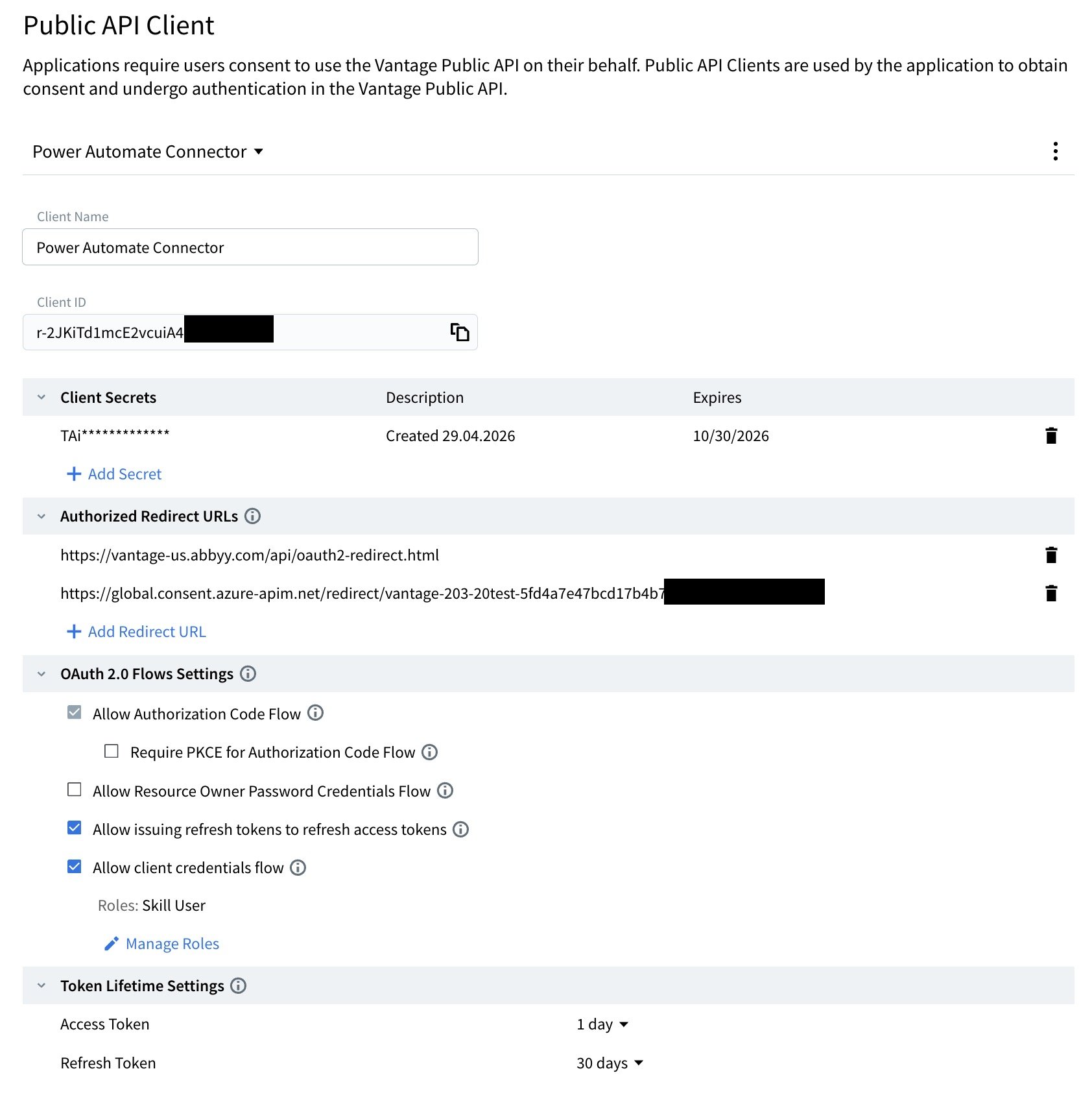
You will need a Vantage tenant with a [Public API Client](/vantage/documentation/tenant-admin/tenant-management/configure-client) configured. Specific settings for this connector:

* **Authorized Redirect URL**: Obtained from Power Automate further in this setup guide. Keep the abbyy.com redirect URL.
* **Client ID**: Your Public API Client ID.
* **Client Secret**: Your Client Secret.
* Disable **Require PKCE for Authorization Code Flow**.
* Enable **Allow issuing refresh tokens to refresh access tokens**.
* Enable **Allow client credentials flow**. For Role(s), `Skill User` is recommended.

<Accordion title="Example configured API Client">
  <img src="https://mintcdn.com/abbyy/YpqdJk1A1n7Rrt8K/images/vantage/developer/connectors/ms-powerautomate/public-api-client.jpg?fit=max&auto=format&n=YpqdJk1A1n7Rrt8K&q=85&s=d425aa3ac98d861d817edb2811d6023c" alt="ABBYY Vantage Public API client screen" width="1684" height="1688" data-path="images/vantage/developer/connectors/ms-powerautomate/public-api-client.jpg" />
</Accordion>

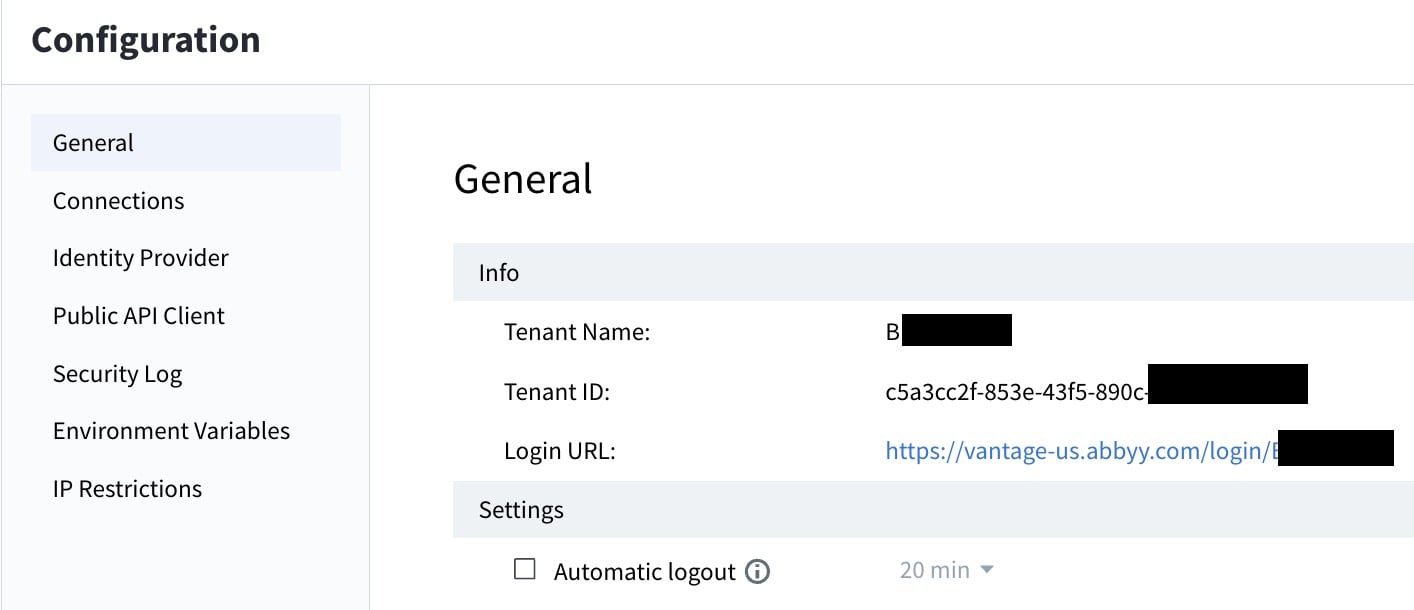
You will need the Vantage Tenant ID during the security configuration step.

<Accordion title="Finding the Tenant ID">
  <Steps>
    <Step title="Open the tenant configuration">
      In Vantage, click **Configuration** in the left pane.
    </Step>

    <Step title="Copy the Tenant ID">
      Click **General** and find the **Tenant ID** field.

      <img src="https://mintcdn.com/abbyy/YpqdJk1A1n7Rrt8K/images/vantage/developer/connectors/ms-powerautomate/finding-tenant-id.jpg?fit=max&auto=format&n=YpqdJk1A1n7Rrt8K&q=85&s=9797a2c9bf66dfa4ba7e4319c9717f4b" alt="ABBYY Vantage Tenant Configuration screen" width="1414" height="610" data-path="images/vantage/developer/connectors/ms-powerautomate/finding-tenant-id.jpg" />
    </Step>
  </Steps>
</Accordion>

## Installing the Connector

First, [download the connector](https://www.abbyy.com/marketplace/assets/host/abbyy/connector/microsoft-power-automate/) from the ABBYY Marketplace.

1. Open Microsoft Power Automate then select **Data > Custom connectors** from the menu on the left. You may need to select **More** to find the option.

2. Click **+ New custom connector** and select **Import an OpenAPI file**.

3. Enter a name for the connector such as "ABBYY Vantage."

4. Browse for the `ABBYY-Vantage-ProcessingAPI.swagger.json` file and open it.

### Configure General Information

1. \[Optional] Upload a connector icon using the ABBYY Vantage logo (`Vantage-Square-icon.png`) included in the connector download.

2. Change the **Host** URL to your Vantage server address. The same host address should be used in the **Authorization URL** and **Token URL** fields.

<VantageRegion>
  ```
  vantage-us.abbyy.com
  ```
</VantageRegion>

### Configure Security

Set **Authentication type** to **OAuth 2.0** and fill in the following fields using the values from your Vantage Public API Client:

* **Client ID**: Your Public API Client ID.
* **Client secret**: Your Public API Client secret.
* **Authorization URL**: `https://vantage-[region].abbyy.com/auth2/[tenant-id]/connect/authorize`
* **Token URL**: `https://vantage-[region].abbyy.com/auth2/[tenant-id]/connect/token`
* **Refresh URL**: `https://vantage-[region].abbyy.com/auth2/[tenant-id]/connect/token`
* **Scope**: `openid permissions global.wildcard offline_access`

To finalize the security configuration:

1. Click **Create Connector** at the top of the page to create the connector and generate the Redirect URL.

2. Copy the Redirect URL. In your Vantage Public API Client under **Authorized Redirect URLs**, click **Add Redirect URL** and paste the URL.

3. In your Vantage Public API Client under **OAuth 2.0 Flows Settings**:
   * Disable **Require PKCE for Authorization Code Flow**.
   * Enable **Allow issuing refresh tokens to refresh access tokens**.

## Create a Connection

On the **Test** tab, choose **New Connection**. A pop-up login window opens. Enter your ABBYY Vantage username and password and be sure to choose the same account that contains the Public API Client for Microsoft Power Automate.

## Test the Connection

After successfully logging into your Vantage account, the new connection appears in the Connections list. Verify that the connector is functioning properly by testing an operation. Select `ListAllAvailableSkills` from the Operations list and click **Test operation**. If it doesn't work, review the previous steps to ensure all fields have been configured correctly.

## Import Demo Flows

See [Sample Process](/vantage/connectors/ms-powerautomate/sample-process) details.

## Modifying Flows

You can modify a demo flow or create your own. If you need to work with a specific data set from a JSON-based response, you can modify the JSON schema. To get the JSON schema, open the Swagger UI and call the required method. The Swagger UI is available at:

<VantageRegion>
  ```
  https://vantage-[region].abbyy.com/api/index.html?urls.primaryName=publicapi%2Fv1
  ```
</VantageRegion>

## Next Steps

View the [release notes](/vantage/connectors/ms-powerautomate/release-notes) for the Microsoft Power Automate connector.