> ## Documentation Index
> Fetch the complete documentation index at: https://docs.abbyy.com/llms.txt
> Use this file to discover all available pages before exploring further.
# Process documents in a Pega case
> Create and run a Pega case that sends a document to ABBYY Vantage and retrieves the transaction status and extracted field results.
After you configure the case type and the connection, create a case to see how documents are processed in ABBYY Vantage.
## Create and run a case
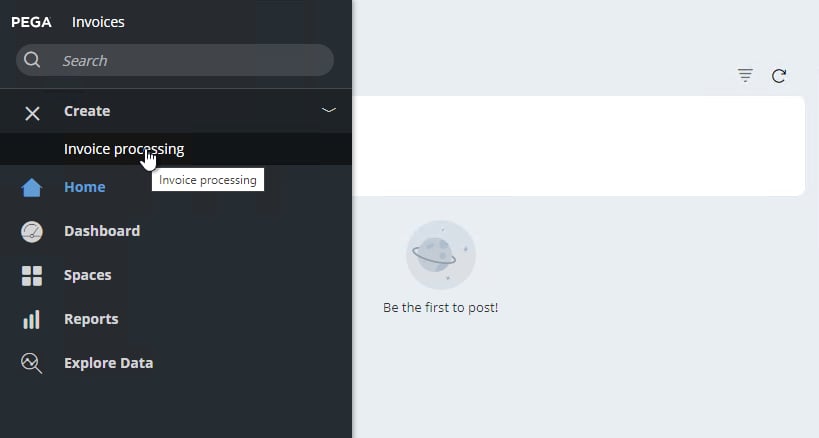
In Pega Dev Studio, choose either your Pega application (**Invoices** as shown in the screenshot) or **Abbyy Vantage Sample**. Click **Launch Portal > User Portal**.
 Create a case of the case type you configured (for example, Invoice processing).
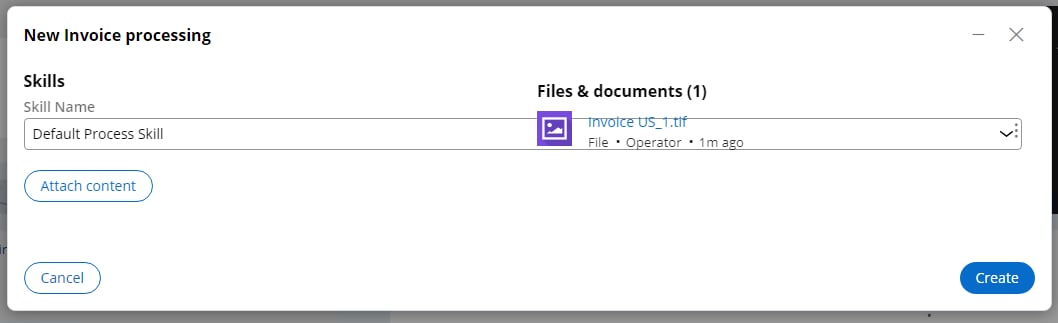
 In the window that opens, upload the document image. You can use the sample images in the connector distribution archive, such as `Invoice US_1.tif`. In the **Skills** drop-down list, select **Default Process Skill**, and then click **Create**.
 If you cannot get a list of skills, review [Configure a connection to ABBYY Vantage](/vantage/connectors/pega/configure-connection) to check that your connection settings are correct.
## Get the transaction status
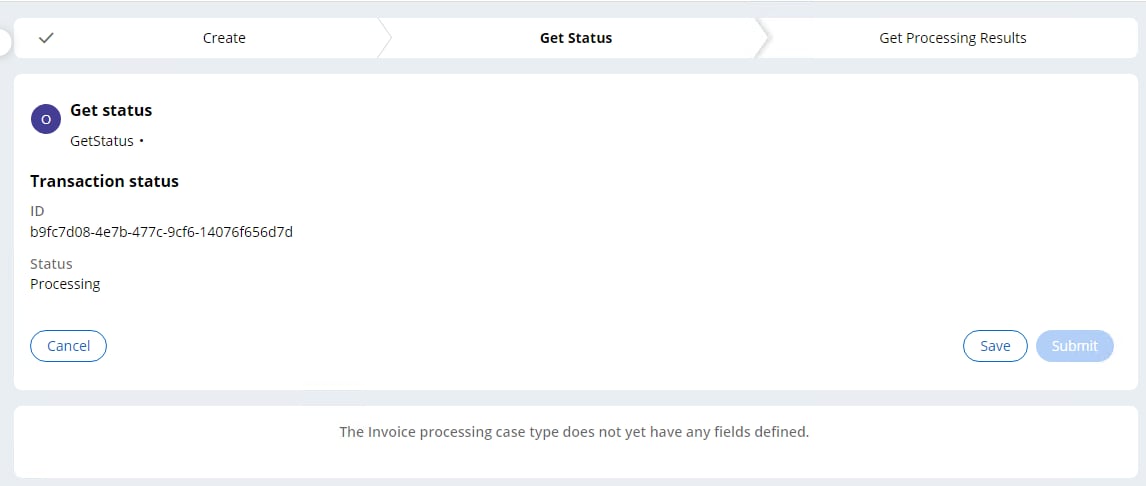
Your new case appears with a transaction identifier and a transaction status.
If you cannot get a list of skills, review [Configure a connection to ABBYY Vantage](/vantage/connectors/pega/configure-connection) to check that your connection settings are correct.
## Get the transaction status
Your new case appears with a transaction identifier and a transaction status.
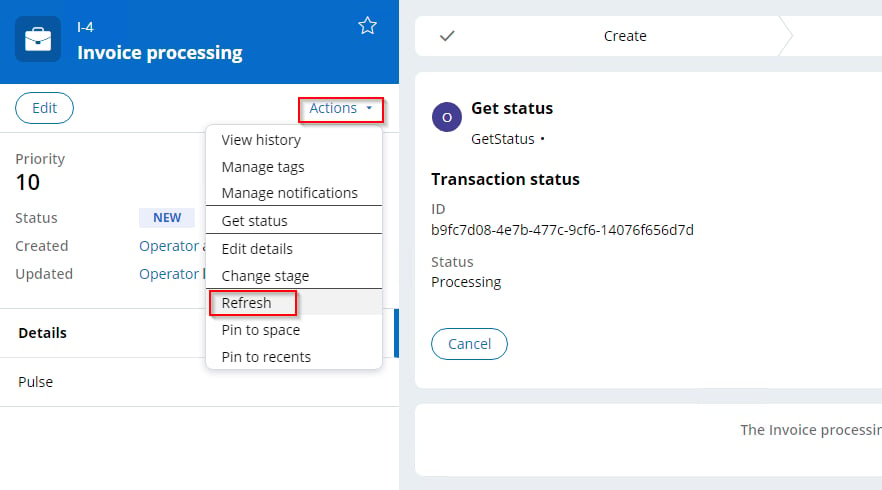
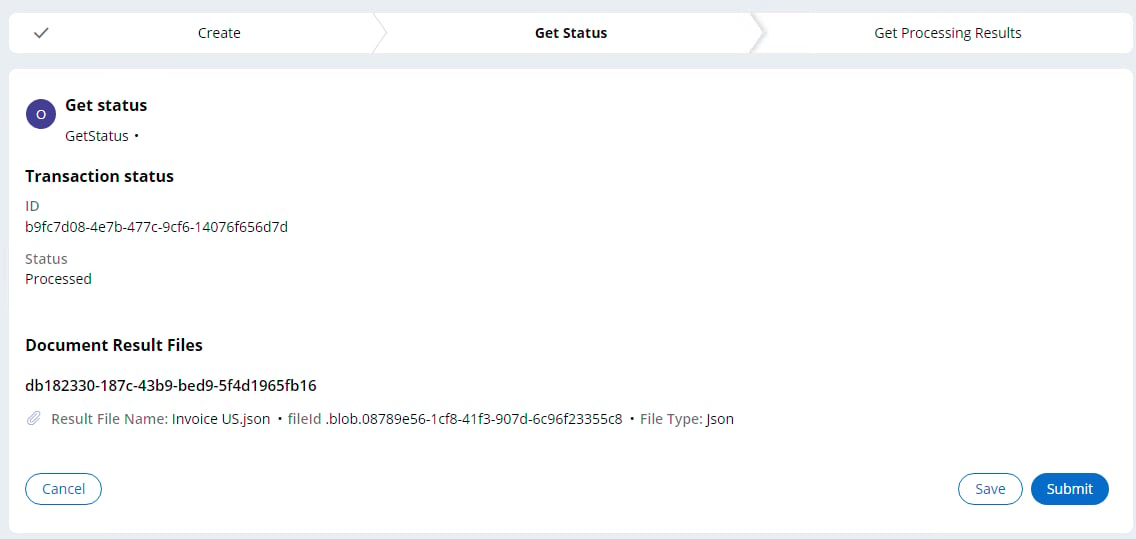
 On the **Get Status** stage, click **Actions > Refresh**. This sends a request to get the transaction status. Wait for the transaction to be processed, and then refresh the case again.
 Once the transaction reaches the **Processed** status, the **Get Status** page displays the status, a list of documents, and result files for each document. Click **Submit** to continue to the next stage.
 ## Get the processing results
On the **Get Processing Results** stage, a form displays all the data extracted from your document. The form is created dynamically. To see other extracted fields, process the `BankStatement.tif` sample image in a new case.
## Get the processing results
On the **Get Processing Results** stage, a form displays all the data extracted from your document. The form is created dynamically. To see other extracted fields, process the `BankStatement.tif` sample image in a new case.
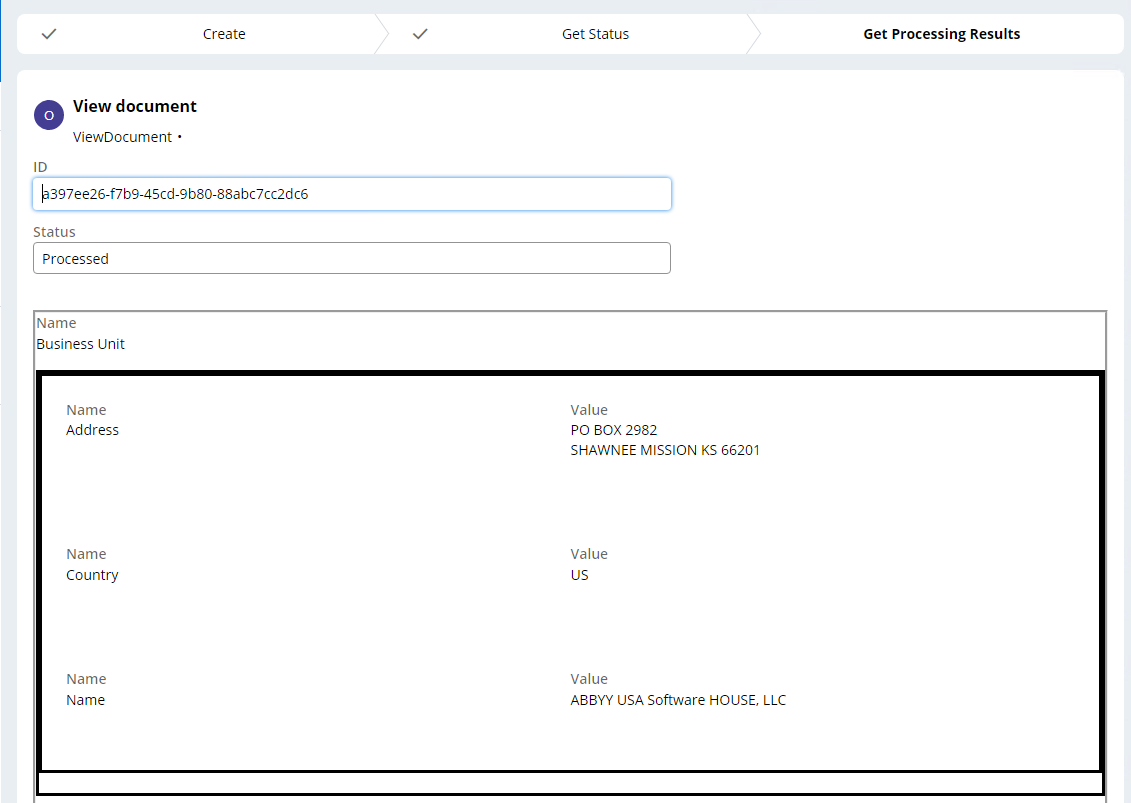 The Data Transform rules parse the JSON file downloaded from ABBYY Vantage. The file with the FileType `Json` is used to get the fields.
The **Get Processing Results** stage displays the data extracted for the first document in a transaction only, and classification results are not shown on this stage. To work with all documents in a transaction and get classification data, set up an additional configuration.
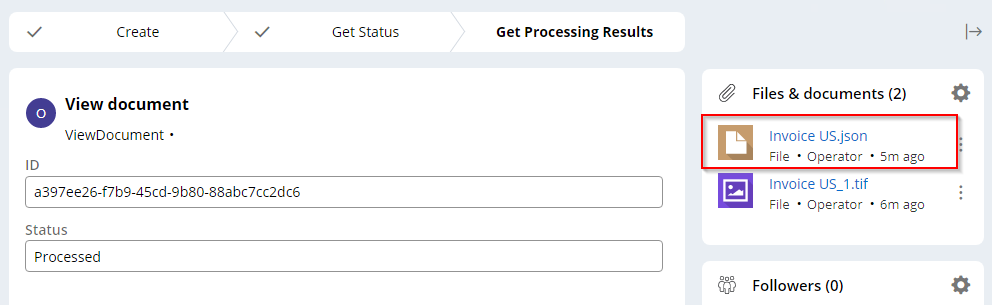
If needed, refresh the case again by clicking **Actions > Refresh** on the **Get Processing Results** stage. The files downloaded from ABBYY Vantage are then added to the case attachments.
The Data Transform rules parse the JSON file downloaded from ABBYY Vantage. The file with the FileType `Json` is used to get the fields.
The **Get Processing Results** stage displays the data extracted for the first document in a transaction only, and classification results are not shown on this stage. To work with all documents in a transaction and get classification data, set up an additional configuration.
If needed, refresh the case again by clicking **Actions > Refresh** on the **Get Processing Results** stage. The files downloaded from ABBYY Vantage are then added to the case attachments.
 If your ABBYY Vantage skill contains a Review activity, you can get a review link on the **Get Status** stage.
## Result files by skill type
The result files downloaded from ABBYY Vantage vary depending on the skill applied to the document.
| Skill | Result file formats |
| -------------------- | ------------------------------------------------------------------------------------- |
| Document skill | `Json`, `FieldsJson` |
| Classification skill | `Json` |
| OCR skill | `OcrJson`, `Txt`, `Xml`, `Xlsx`, `Docx`, `Pdf` (depending on skill settings) |
| Process skill | All enabled formats (depending on the export settings in the skill's Output activity) |
## Next steps
For the REST rules that call the ABBYY Vantage public API, see [Connect REST rules](/vantage/connectors/pega/connect-rest-rules).
If your ABBYY Vantage skill contains a Review activity, you can get a review link on the **Get Status** stage.
## Result files by skill type
The result files downloaded from ABBYY Vantage vary depending on the skill applied to the document.
| Skill | Result file formats |
| -------------------- | ------------------------------------------------------------------------------------- |
| Document skill | `Json`, `FieldsJson` |
| Classification skill | `Json` |
| OCR skill | `OcrJson`, `Txt`, `Xml`, `Xlsx`, `Docx`, `Pdf` (depending on skill settings) |
| Process skill | All enabled formats (depending on the export settings in the skill's Output activity) |
## Next steps
For the REST rules that call the ABBYY Vantage public API, see [Connect REST rules](/vantage/connectors/pega/connect-rest-rules).