> ## Documentation Index
> Fetch the complete documentation index at: https://docs.abbyy.com/llms.txt
> Use this file to discover all available pages before exploring further.
# Install the UiPath connector
> Install the ABBYY Vantage Connector for UiPath NuGet package in UiPath Studio and convert Windows-legacy projects to Windows compatibility.
ABBYY Vantage Connector for UiPath is a set of activities that run inside your UiPath workflow. The activities are delivered as a **NuGet package**.
To install the package:
Run `ABBYYVantageConnectorForUiPath..exe` and follow the instructions of the Installation Wizard. During the installation, specify the connector installation folder. By default, it is set to `C:\Program Files\ABBYY Vantage Connector for UiPath`.
In UiPath Studio, open an existing project or create a new one.
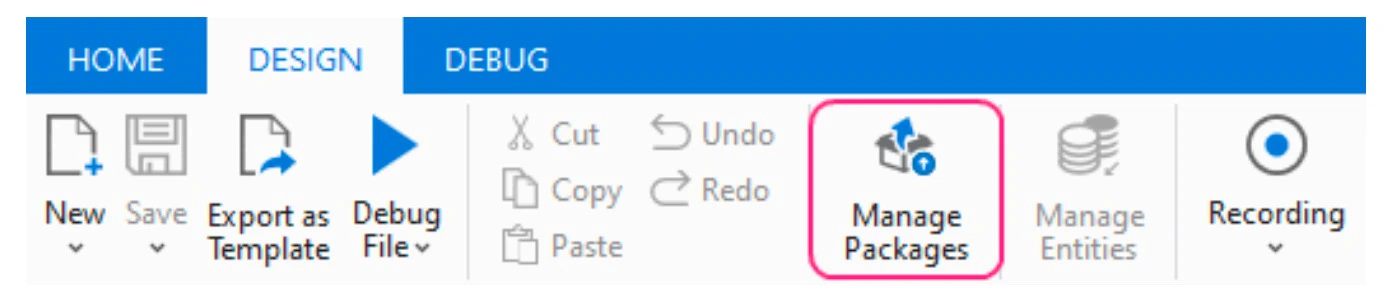
On the ribbon, click **Manage Packages** on the **Design** tab.
 Make sure the **nuget.org** package source is enabled. This package source is required in order to install some dependencies for the connector package.
If you already have a configured package source and want to use it, skip the next step.
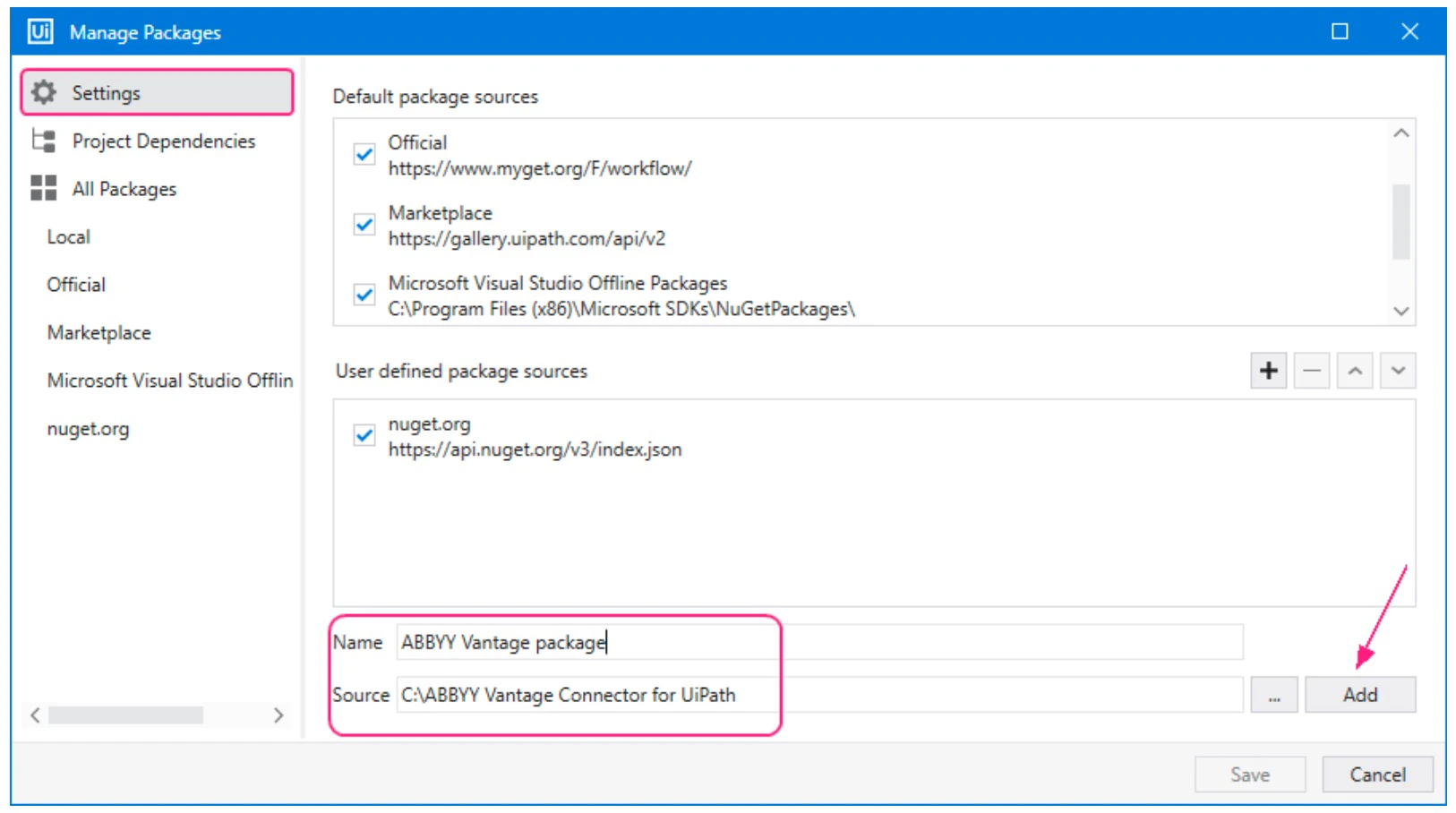
Go to the **Settings** tab of the **Manage Packages** window and create a new package source:
1. Enter a name for the new package source.
2. Specify the path to the folder where you intend to place the connector NuGet packages.
3. Click **Add** to confirm the settings.
Make sure the **nuget.org** package source is enabled. This package source is required in order to install some dependencies for the connector package.
If you already have a configured package source and want to use it, skip the next step.
Go to the **Settings** tab of the **Manage Packages** window and create a new package source:
1. Enter a name for the new package source.
2. Specify the path to the folder where you intend to place the connector NuGet packages.
3. Click **Add** to confirm the settings.
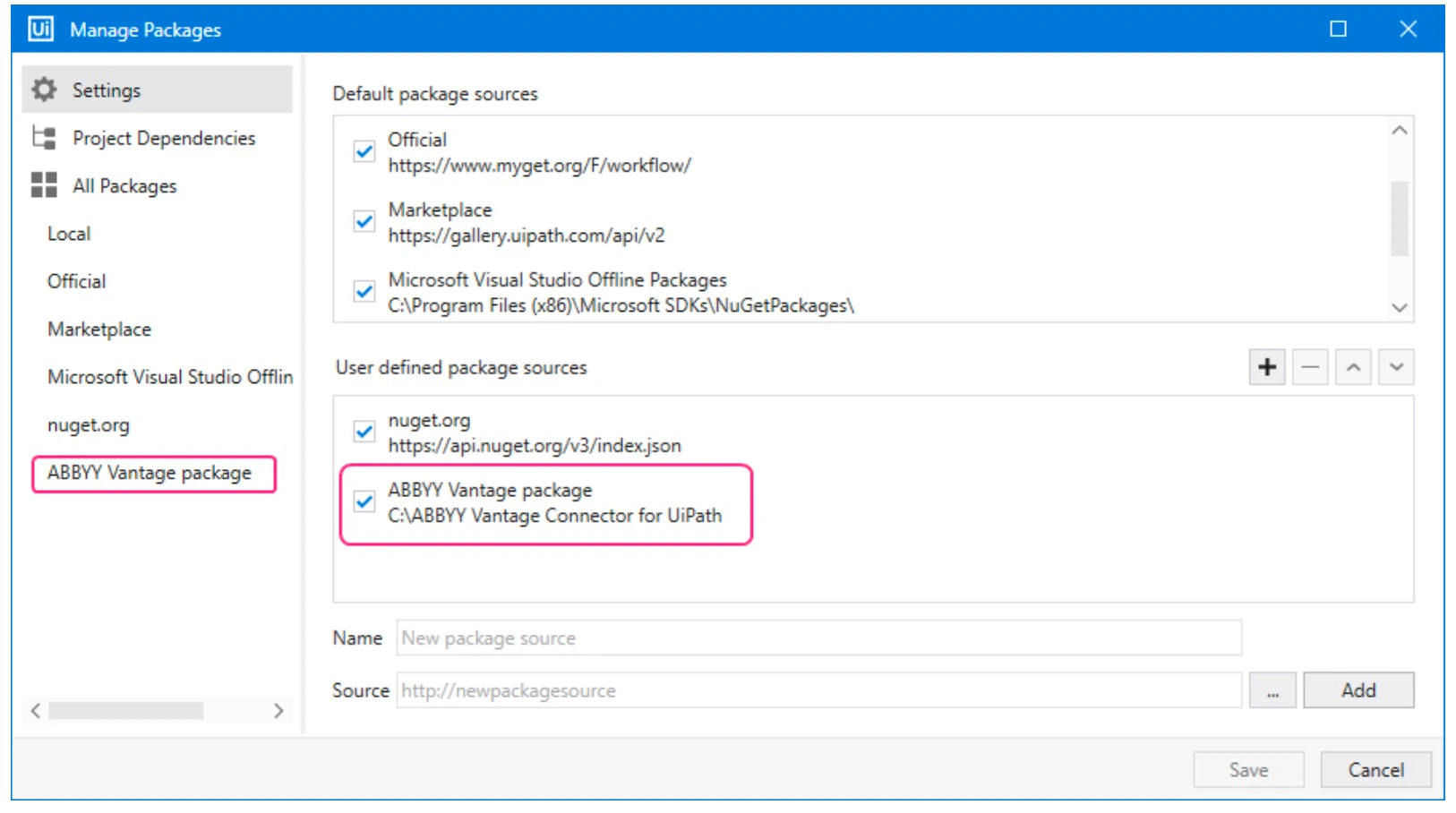
 The new package source is displayed in the **User defined package sources** area and in the left pane of the **Manage Packages** window.
 Copy all the NuGet packages of the ABBYY Vantage Connector for UiPath from the installation folder to your package source folder. The NuGet packages are located in the **UiPath Activities** subfolder of the installation folder created during the installer step (the default location is `C:\Program Files\ABBYY Vantage Connector for UiPath\UiPath Activities`).
Once the NuGet connector packages are in the available package source, you can install the connector package to the project dependencies.
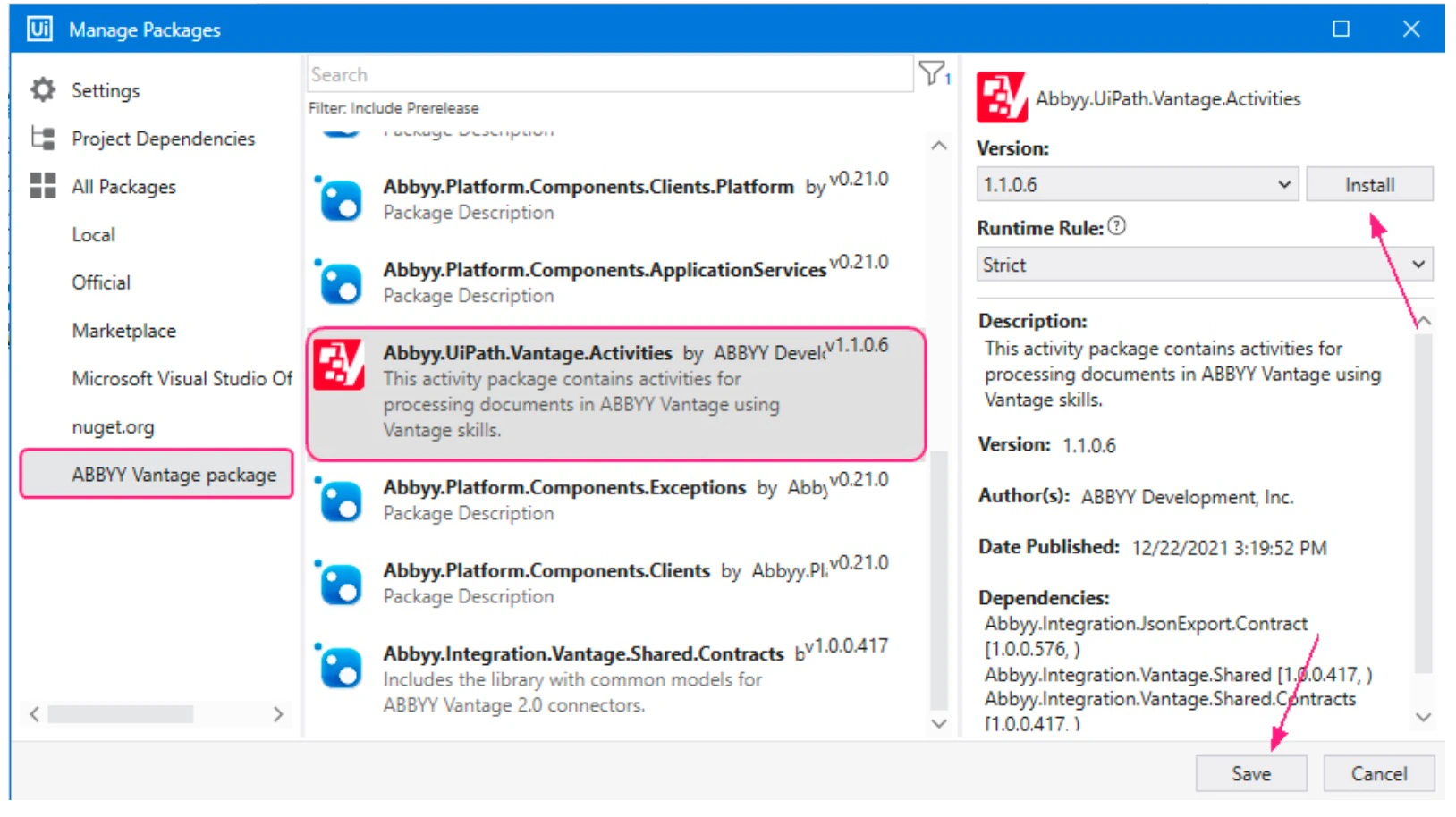
In the **Manage Packages** window, navigate to the **All Packages** section and do the following:
1. Click the newly created package source category.
2. Select **Abbyy.UiPath.Vantage.Activities** from the list of available packages and click **Install**. The **License Acceptance** window will display licensing terms for each third-party package you install.
3. Click **View License** to read the license terms.
4. Click **I Accept** to agree with the license terms and install the packages, then click **Save**.
Copy all the NuGet packages of the ABBYY Vantage Connector for UiPath from the installation folder to your package source folder. The NuGet packages are located in the **UiPath Activities** subfolder of the installation folder created during the installer step (the default location is `C:\Program Files\ABBYY Vantage Connector for UiPath\UiPath Activities`).
Once the NuGet connector packages are in the available package source, you can install the connector package to the project dependencies.
In the **Manage Packages** window, navigate to the **All Packages** section and do the following:
1. Click the newly created package source category.
2. Select **Abbyy.UiPath.Vantage.Activities** from the list of available packages and click **Install**. The **License Acceptance** window will display licensing terms for each third-party package you install.
3. Click **View License** to read the license terms.
4. Click **I Accept** to agree with the license terms and install the packages, then click **Save**.
 Once installed, the Vantage activities appear in the **ABBYY Vantage** section of the list of activities available for your project.
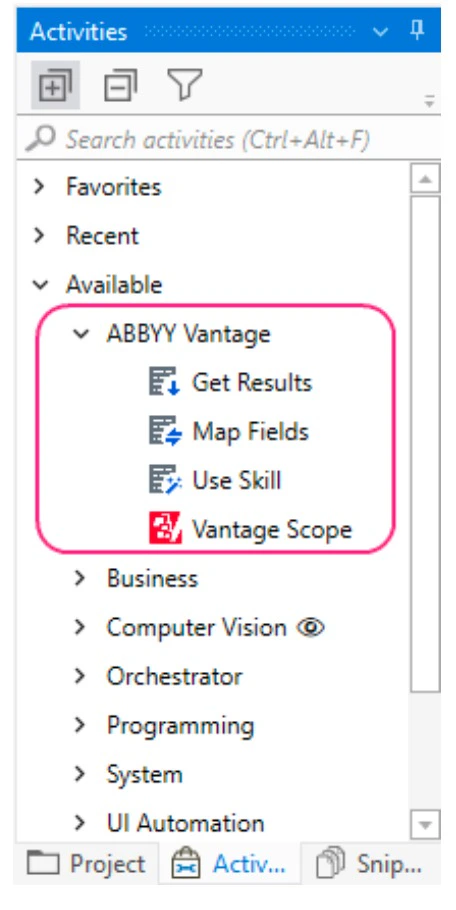 For detailed instructions on installing packages, see the [UiPath Studio Guide](https://docs.uipath.com/studio/docs/managing-activities-packages).
## Convert legacy projects
We recommend that you convert Windows-legacy projects to Windows compatibility.
To convert a project to Windows compatibility, you need to upgrade the version of the ABBYY Vantage Connector for UiPath. To do this, perform all the install steps above except the *Create a new package source* step.
The default compatibility for new projects is now Windows compatibility. To convert Windows-legacy projects to Windows compatibility, perform the following procedure for each Windows-legacy project:
In UiPath Studio, open the Windows-legacy project.
Click the **Convert to Windows** link in the message that appears under the ribbon.
For detailed instructions on installing packages, see the [UiPath Studio Guide](https://docs.uipath.com/studio/docs/managing-activities-packages).
## Convert legacy projects
We recommend that you convert Windows-legacy projects to Windows compatibility.
To convert a project to Windows compatibility, you need to upgrade the version of the ABBYY Vantage Connector for UiPath. To do this, perform all the install steps above except the *Create a new package source* step.
The default compatibility for new projects is now Windows compatibility. To convert Windows-legacy projects to Windows compatibility, perform the following procedure for each Windows-legacy project:
In UiPath Studio, open the Windows-legacy project.
Click the **Convert to Windows** link in the message that appears under the ribbon.
 The **Convert to Windows** dialog box opens.
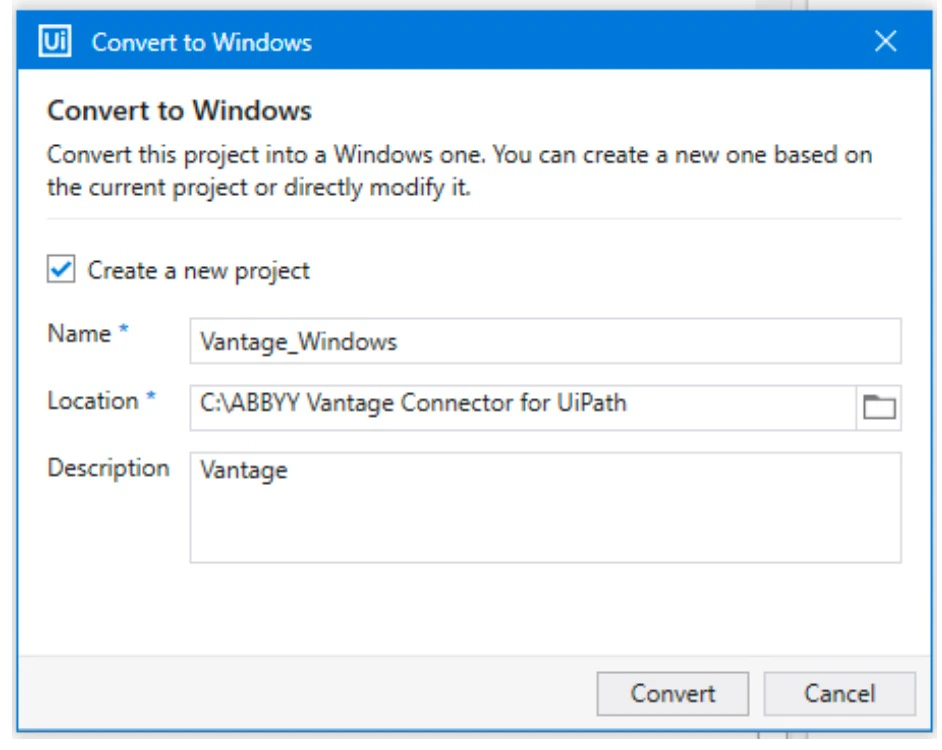 Specify how the Windows-legacy project will be converted to Windows:
* To create a copy of the current project using Windows compatibility and keep the original Windows-legacy project, select **Create a new project**. Enter the name of the project, its desired location, and optionally a description for the new project.
* To update the existing project and convert it to Windows compatibility, deselect the **Create a new project** option. If you deselect this option, the changes made to the project cannot be undone.
Click **Convert**. For more information about converting Windows-legacy projects to Windows compatibility, see the [UiPath Studio Guide](https://docs.uipath.com/studio/standalone/2025.10/user-guide/about-the-windows-legacy-compatibility).
Specify how the Windows-legacy project will be converted to Windows:
* To create a copy of the current project using Windows compatibility and keep the original Windows-legacy project, select **Create a new project**. Enter the name of the project, its desired location, and optionally a description for the new project.
* To update the existing project and convert it to Windows compatibility, deselect the **Create a new project** option. If you deselect this option, the changes made to the project cannot be undone.
Click **Convert**. For more information about converting Windows-legacy projects to Windows compatibility, see the [UiPath Studio Guide](https://docs.uipath.com/studio/standalone/2025.10/user-guide/about-the-windows-legacy-compatibility).