> ## Documentation Index
> Fetch the complete documentation index at: https://docs.abbyy.com/llms.txt
> Use this file to discover all available pages before exploring further.
# Sample process for the UiPath connector
> Run the bundled sample process to see how the ABBYY Vantage Connector for UiPath handles a multi-file transaction, maps extracted fields, and logs results.
The sample process ships with the connector. It walks through an end-to-end UiPath workflow that:
* Passes input files to ABBYY Vantage.
* Creates a multi-file transaction with transaction- and file-level registration parameters.
* Processes the results across multiple documents in a single transaction.
The sample process comes with Windows compatibility.
You can run this process and see how one person's Bank Statement and Utility Bill documents are processed in a single transaction using the connector. The default location of the sample process is `C:\Users\Public\ABBYY Vantage Connector for UiPath\SampleWorkflow\Vantage`.
The workflow will get input images from the predefined input location (`\SampleWorkflow\Vantage\Input images`) and send them to ABBYY Vantage for processing. Once the processing is complete, some of the processing results will be saved to `\SampleWorkflow\Vantage\Results` and others will appear in the workflow log in the **Output** panel.
## Workflow outputs
### Files saved to disk
The following processing results are saved to `\SampleWorkflow\Vantage\Results`:
* A subfolder with the name equal to the transaction ID is created.
* In the transaction folder, a **ResultFiles** subfolder is created for all export files from all documents of the transaction. Each file name has a prefix containing the identifier of the document.
* Next to the **ResultFiles** folder, text files are created for the classification confidence values and full-text recognition result (`ClassificationConfidences` and `DocumentFullText` parameters) of each document. Each file name has a prefix containing the identifier of the document.
In this sample, `DocumentFullText` returns the default placeholder rather than full-text recognition results, because the Default Process skill the sample uses isn't configured to export TXT.
To get real full-text results, duplicate the Default Process skill, enable TXT export in its **Output** activity, publish the copy, and reference it from the **Use Skill** activity.
The TXT file containing the classification confidence values is just an example of how the **Classification Confidences** value received by the **Get Results** activity can be processed. You do not need to save results to TXT files.
### Workflow log output
The **Get Results** activity displays the following processing results in the workflow log in the **Output** panel:
* Document Class
* Is Classification Confident
* Values of UiPath variables (individual document field values, mapped in the **Map Fields** activities and filled when the process runs)
The process contains two **Map Fields** activities, each for a different document type.
Per document type, the following fields are displayed in the log:
* **Bank Statement** – **Bank Name**, **Account Owner Name**, and **Ending Balance of the Period**
* **Utility Bill** – **Customer Name**, **Issuer Name**, **Bill Date**, **Current Charges**, and the **Description** column from the **LineItems** table
For more details about getting processing results, see the [Get Results activity](/vantage/connectors/uipath/activities/get-results).
## Run the sample process
Copy the folder containing the sample process (`C:\Users\Public\ABBYY Vantage Connector for UiPath\SampleWorkflow`) into any folder accessible to the user running UiPath Studio.
In UiPath Studio, open the `Main.xaml` file.
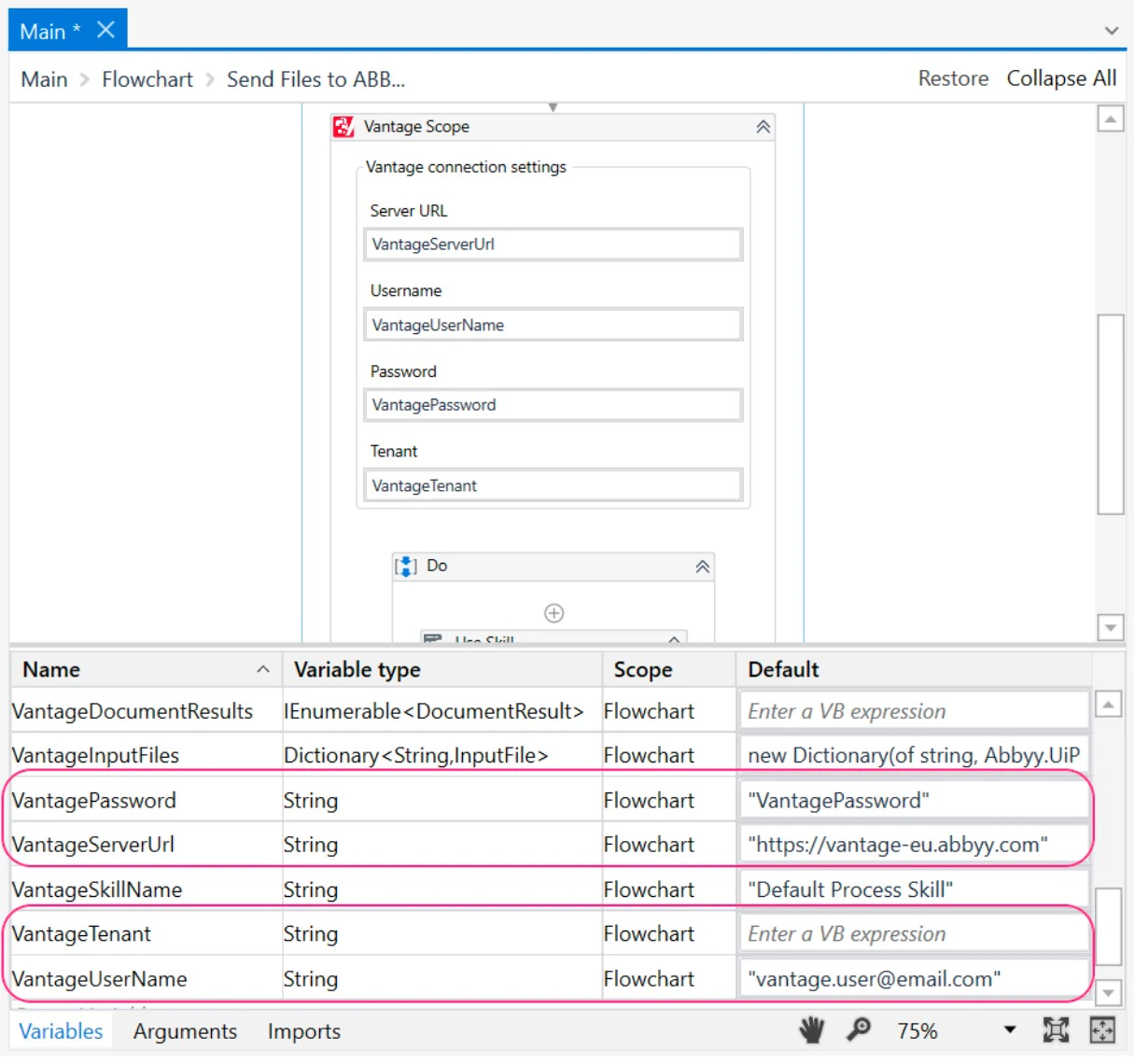
In the **Design** tab, double-click the **Send Files to ABBYY Vantage** sequence and open the **Variables** panel. Specify the address of the ABBYY Vantage server and the credentials that were used to register your ABBYY Vantage account:
* `VantageServerUrl`
* `VantageUserName`
* `VantagePassword`
* `VantageTenant` (if your user is in multiple tenants)
 Click **Debug File** > **Run File** or press **Ctrl+F5**. The workflow sends documents to ABBYY Vantage for processing.