> ## Documentation Index
> Fetch the complete documentation index at: https://docs.abbyy.com/llms.txt
> Use this file to discover all available pages before exploring further.
# Fuzzy Interval Editor
> Visual editor for specifying fuzzy intervals graphically — Distance and Integer modes, slope adjustment, and Left/Right boundary controls.
Advanced Designer offers a visual editor to make specifying fuzzy intervals easier. You can open the **Fuzzy Interval Editor** from the **Properties** pane for a **Character String** element in advanced mode by pressing the `fuzzy_int` button.
## Fuzzy Interval Editor dialog box
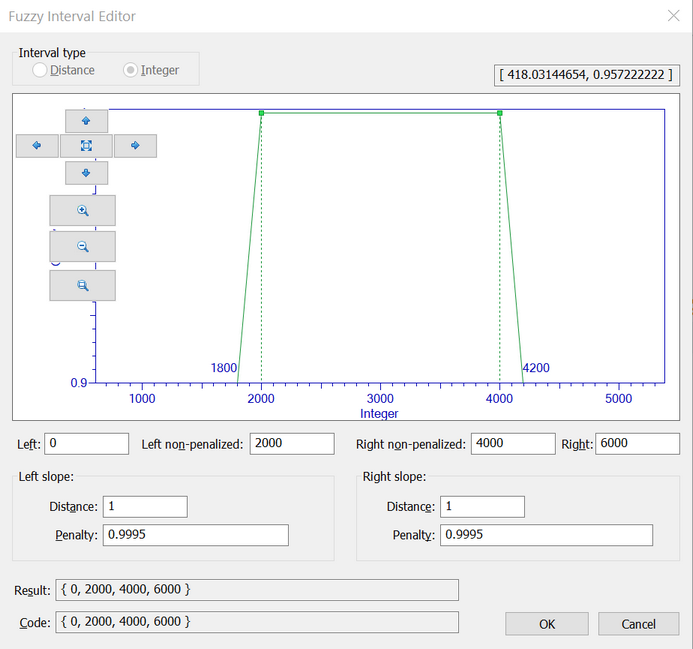 This dialog box displays a graph representation of the fuzzy interval. The vertical axis measures the quality of the hypothesis and the horizontal axis measures the linear dimensions or the number of characters. Coordinates of the intersection of the fuzzy interval borders with the horizontal axis are also displayed on the graph.
The **Zoom in** and **Zoom out** buttons change the horizontal and vertical scales synchronously. You can also zoom in on a selected image area using the **Zoom selected area** button. The arrow buttons allow you to move the area in the corresponding direction. To fit the interval, click **Fit interval** button.
The fields below the graph contain the numerical values of the interval. You can specify the interval either by editing the graph with your mouse or by entering the desired numerical values in the corresponding fields.
The visual fuzzy interval editor operates in two modes:
1. Fuzzy intervals for units of measurement, which may be fractional. In this case, select **Distance** under **Interval type**.
2. Fuzzy intervals for positive integers, such as string length in characters. In this case, select **Integer** under **Interval type**.
### Edit the graph
You can change the interval by moving the green markers to the right or to the left with your mouse. You can also change the angle of the slopes. Certain restrictions apply: you cannot move the left marker to the right of the right marker, etc. The corresponding numerical values will be displayed in the fields below the graph.
### Change the numerical values directly
The **Left**, **Left non-penalized**, **Right**, and **Right non-penalized** fields correspond to the representation of the fuzzy interval in the program. **Left** and **Right** are the extreme points, **Left non-penalized** and **Right non-penalized** are the non-penalized points. The **Left slope** and **Right slope** groups set the slope of the sides of the graph, which represent the penalty coefficient for deviating by a **Distance** from the non-penalized point. Changing a slope moves the corresponding extreme point without changing the non-penalized point. Changing an extreme and non-penalized point results in changes in the corresponding slope. When you edit fields, the depiction and the values of the dependent fields are changed accordingly.
This dialog box displays a graph representation of the fuzzy interval. The vertical axis measures the quality of the hypothesis and the horizontal axis measures the linear dimensions or the number of characters. Coordinates of the intersection of the fuzzy interval borders with the horizontal axis are also displayed on the graph.
The **Zoom in** and **Zoom out** buttons change the horizontal and vertical scales synchronously. You can also zoom in on a selected image area using the **Zoom selected area** button. The arrow buttons allow you to move the area in the corresponding direction. To fit the interval, click **Fit interval** button.
The fields below the graph contain the numerical values of the interval. You can specify the interval either by editing the graph with your mouse or by entering the desired numerical values in the corresponding fields.
The visual fuzzy interval editor operates in two modes:
1. Fuzzy intervals for units of measurement, which may be fractional. In this case, select **Distance** under **Interval type**.
2. Fuzzy intervals for positive integers, such as string length in characters. In this case, select **Integer** under **Interval type**.
### Edit the graph
You can change the interval by moving the green markers to the right or to the left with your mouse. You can also change the angle of the slopes. Certain restrictions apply: you cannot move the left marker to the right of the right marker, etc. The corresponding numerical values will be displayed in the fields below the graph.
### Change the numerical values directly
The **Left**, **Left non-penalized**, **Right**, and **Right non-penalized** fields correspond to the representation of the fuzzy interval in the program. **Left** and **Right** are the extreme points, **Left non-penalized** and **Right non-penalized** are the non-penalized points. The **Left slope** and **Right slope** groups set the slope of the sides of the graph, which represent the penalty coefficient for deviating by a **Distance** from the non-penalized point. Changing a slope moves the corresponding extreme point without changing the non-penalized point. Changing an extreme and non-penalized point results in changes in the corresponding slope. When you edit fields, the depiction and the values of the dependent fields are changed accordingly.