> ## Documentation Index
> Fetch the complete documentation index at: https://docs.abbyy.com/llms.txt
> Use this file to discover all available pages before exploring further.
# Step 2. Configure the document processing flow
> Set up the workflow with classification, IF, Extraction Rules, and Fast Learning activities.
The documents fall into two layout classes, each with its own set of Extraction Rules. The skill also needs to support standard Vantage training. Configure the processing flow accordingly.
Go to the **Activities** tab.
First, we need to determine the document class. Click the `Classify By Text and Image` activity on the **Activities** pane — it will be added to the workflow.
When you add this activity, a new field is created in the skill structure to record the classification results. The field is hidden and not editable, but you can rename it in the **Activity Properties** pane on the **Activities** tab. Rename the field to "Layout".
Documents should be routed to different activities based on classification results.
1. Click the `Classify By Text and Image` activity in the workflow.
2. In the pop-up window, select the `IF` item. It will be added to the workflow after the `Classify By Text and Image` activity.
Instead of using the `IF` activity, you can create a workflow item containing two `Extraction Rules` activities and select the "Layout" field as a source field so that its values serve as conditions for choosing which activity will be applied to each document. For more information about this option, see [Several sets of Extraction Rules within a single activity](/vantage/documentation/advanced-designer/activities/extraction-rules-several-sets).
Add the activities for extracting data from documents of different classes.
1. Select the `Extraction Rules` activity as the next item. Rename it to "Sick Note DE" — this activity will extract data from the German documents.
2. Click the `IF` activity and add another `Extraction Rules` activity. Rename it to "Sick Note BE-NL". This handles Belgian and Dutch documents (variants inside this class can be handled by a single activity).
The `IF` activity should now be connected to both `Extraction Rules` activities and to **Finish**.
The `Fast Learning` activity enables further skill training during production via Online Learning.
1. Click "Sick Note BE-NL" in the processing flow.
2. In the pop-up window, select the `Fast Learning` activity. It is added after "Sick Note BE-NL", but "Sick Note DE" is still connected to **Finish**.
3. Hover over the arrow connecting "Sick Note DE" and **Finish**. The arrow turns orange.
4. Drag and drop this arrow onto the `Fast Learning` activity.
5. Hover over the arrow connecting the `IF` activity and **Finish**. Drag and drop this arrow onto the `Fast Learning` activity as well.
All documents are now forwarded to the `Fast Learning` activity.
Your final setup should look like this:
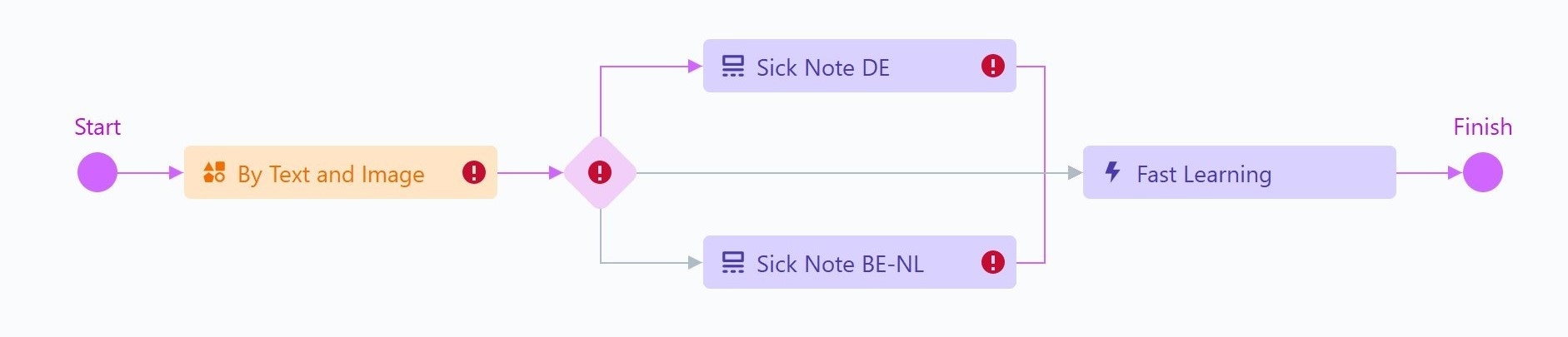 The exclamation marks indicate that the activities haven't yet been configured. We'll configure them in the next steps.
## What's next
Upload training documents, assign classes, and train the classification activity.
Back to the tutorial introduction.
The exclamation marks indicate that the activities haven't yet been configured. We'll configure them in the next steps.
## What's next
Upload training documents, assign classes, and train the classification activity.
Back to the tutorial introduction.