> ## Documentation Index
> Fetch the complete documentation index at: https://docs.abbyy.com/llms.txt
> Use this file to discover all available pages before exploring further.
# Step 5. Configure the Fast Learning activity
> Define the data form, label fields on German sick notes, and train the Fast Learning activity.
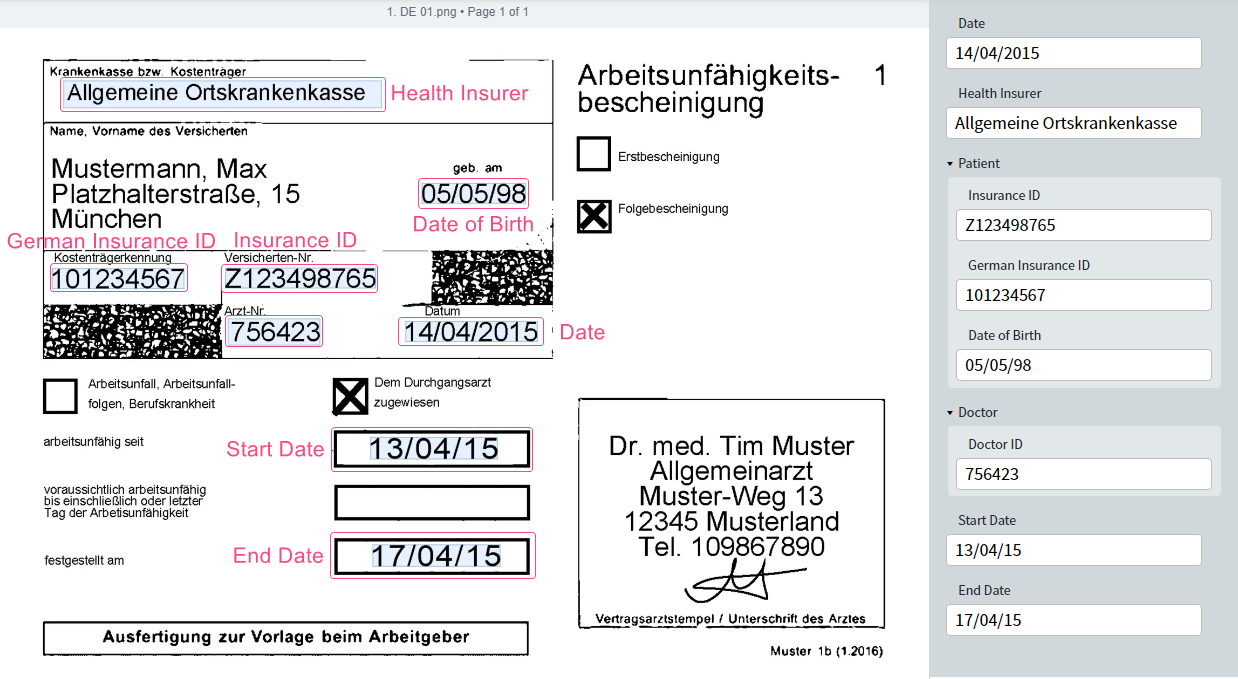
German documents share a similar layout, so the Fast Learning activity handles some of the common fields directly.
We will use this method to extract the following data:
* Date when the sick note was issued.
* The first day of sickness and the last day of the sick leave.
* The name of the health insurance company.
* Doctor's ID.
* The following data for the patient:
* Insurance ID
* German insurance ID
* Date of birth
 1. Double-click the Fast Learning activity in the pipeline.
2. Go to the **Fields** tab. You will see a window similar to the Document Skill Editor in Vantage.
3. Select the first German document.
1. Click the icon to add a text field on the data form.
2. Select the region containing the issue date on the document image. The field is filled with the text from the region.
3. Double-click the field name and change it to "Date".
4. Click the icon to the right of the field name and change the field type to **Date**.
5. Open Advanced field settings and select the **Day-Month-Year** option in the **Acceptable orders of components** section.
6. Click **Save**.
Repeat the previous step for the "Start Date" and "End Date" fields.
For the "Health Insurer" field, repeat only the first three sub-steps (add text field, select region, rename) — no date-type configuration is needed.
1. Click the icon to create a group. Rename it to "Patient".
2. Expand the "Patient" group and click the **First group item** placeholder. Select the region for the field and rename it to "Insurance ID".
3. Create and label the fields "German Insurance ID" and "Date of Birth" in the "Patient" group. Configure the "Date of Birth" field options the same way as the "Date" field (Date type, Day-Month-Year order).
Following the same pattern as the Patient group, create a "Doctor" group and label the "Doctor ID" field inside it.
1. Select the next German document in the document set on the left side of the page.
2. Label the fields you created.
3. Repeat for all German documents in the document set.
Click **Train Activity**. After training finishes, the achieved accuracy is displayed in the header of the **Results** tab.
If the accuracy is too low, go to the **Results** tab and fix the extraction issues. This process is similar to fixing extraction issues for a Document skill in Vantage. Remember to retrain the activity to update the extraction results.
Fast Learning isn't suitable for the remaining fields:
* The patient's name and address share a single field. The name occupies one or two lines, and the address may be missing.
* Checkmark locations for the sick note type vary across documents.
These factors degrade Fast Learning accuracy or prevent it from locating the field at all.
## What's next
Separate the German and Belgian-Dutch documents into their own training sets.
Back to the tutorial introduction.
1. Double-click the Fast Learning activity in the pipeline.
2. Go to the **Fields** tab. You will see a window similar to the Document Skill Editor in Vantage.
3. Select the first German document.
1. Click the icon to add a text field on the data form.
2. Select the region containing the issue date on the document image. The field is filled with the text from the region.
3. Double-click the field name and change it to "Date".
4. Click the icon to the right of the field name and change the field type to **Date**.
5. Open Advanced field settings and select the **Day-Month-Year** option in the **Acceptable orders of components** section.
6. Click **Save**.
Repeat the previous step for the "Start Date" and "End Date" fields.
For the "Health Insurer" field, repeat only the first three sub-steps (add text field, select region, rename) — no date-type configuration is needed.
1. Click the icon to create a group. Rename it to "Patient".
2. Expand the "Patient" group and click the **First group item** placeholder. Select the region for the field and rename it to "Insurance ID".
3. Create and label the fields "German Insurance ID" and "Date of Birth" in the "Patient" group. Configure the "Date of Birth" field options the same way as the "Date" field (Date type, Day-Month-Year order).
Following the same pattern as the Patient group, create a "Doctor" group and label the "Doctor ID" field inside it.
1. Select the next German document in the document set on the left side of the page.
2. Label the fields you created.
3. Repeat for all German documents in the document set.
Click **Train Activity**. After training finishes, the achieved accuracy is displayed in the header of the **Results** tab.
If the accuracy is too low, go to the **Results** tab and fix the extraction issues. This process is similar to fixing extraction issues for a Document skill in Vantage. Remember to retrain the activity to update the extraction results.
Fast Learning isn't suitable for the remaining fields:
* The patient's name and address share a single field. The name occupies one or two lines, and the address may be missing.
* Checkmark locations for the sick note type vary across documents.
These factors degrade Fast Learning accuracy or prevent it from locating the field at all.
## What's next
Separate the German and Belgian-Dutch documents into their own training sets.
Back to the tutorial introduction.