> ## Documentation Index
> Fetch the complete documentation index at: https://docs.abbyy.com/llms.txt
> Use this file to discover all available pages before exploring further.
# Step 8. Configure the Sick Note BE-NL activity
> Configure the Extraction Rules activity for Dutch and Belgian sick notes using Date, Key value, Character String, Object Collection, Paragraph, and Region elements.
With the German activity configured, set up the second Extraction Rules activity for Dutch and Belgian sick notes.
Dutch and Belgian sick notes have a different structure from the German documents and vary widely across the class, so Fast Learning isn't viable here. Some fields are unique to these documents — you'll add them to the data form as you configure the activity.
Start with fields that appear on every document, then extend the form for the new ones.
Switch activities without closing the **Activity Editor** by clicking the current activity name next to the skill name and selecting "Sick Note BE-NL" from the drop-down. Then select the first document in the set.
### Extracting the issue date
Dates in these documents can be easily extracted using the **Date** element, so this time we will use the search element that was created automatically for this field.
1. Open the **Manage Fields** dialog on the **Fields** tab and select a "Date" field to be used in this activity. Click **Save**.
2. Go to the **Search Elements** tab. A search element of type **Date** has been created for the "Date" field and mapped automatically.
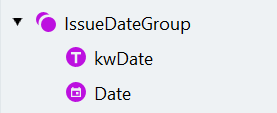
1. Create a **Group** search element called "IssueDateGroup" and make it optional.
2. Add a **Static Text** element called "kwDate" inside the group — this finds the label that helps locate the actual date.
3. Since this document class contains documents in Dutch or French, enter the label text options on separate lines in the **Text to find** dialog: "Date" on the first line and "Datum" on the second line.
4. Disable the **Search for parts of words** option.
Drag and drop the "Date" search element into the group and place it under the "kwDate" element.
1. Delete the **Nearest to** relation that was automatically added when the element was created.
2. Select the "kwDate" element as the one nearest to the element being searched for.
3. The date can be located to the right of the keyword or below it. Specify the search area below the "kwDate" element.
4. The search area should also include the line on which the keyword is located. Click the bottom boundary icon to the right of the element name and select **Top Boundary of Region**. The lines may be uneven, so set the **Below** value to -10 to extend the search area slightly above the line.
Click **Match** to make sure the date is located correctly.
The search element structure should look like this:
 ### Extracting the sickness dates
We'll extract these dates using **Key value** elements. The **Key value** element allows to search both for a static text label and the value. However, it doesn't allow too much variation in the value location and properties.
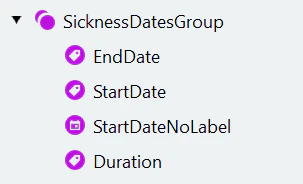
1. Create a **Group** element called "SicknessDatesGroup". Make the element optional.
2. The static text for the start date can sometimes be omitted, so first we'll search for the end date. Create and configure a **Key value** element called "EndDate":
a. Enter the lines "au", "jusqu'au", and "tot en met" in the **Text to find** field.
b. Disable the **Gap between key and value** option.
c. Set the value type to **Date**.
1. Copy and paste the "EndDate" element. Rename it to "StartDate".
2. Adjust the **Text to find**. This time we will look for the word "du" or "van".
3. Click **Match** and make sure Advanced Designer has found the dates correctly.
Select the second document in the set (called "BE-NL 02.png"). You will see that it contains information about the sick leave duration in addition to the dates. In addition, the start date doesn't have a label on this document.
First, we'll configure an additional element to extract the start date.
a. Create a **Date** element called "StartDateNoLabel".
b. Set the **Date format** to Day, month, year.
c. Specify the search area for the element to the left of "EndDate".
d. We want to find the date located on the same line as the end date. Specify that the element should be located above and below "EndDate". Then, change the element boundary from which to search by clicking the bottom-boundary and top-boundary icons near the corresponding relations. The search area should be located below the top of the "EndDate" and above its bottom. Such settings will limit the search area to the line on which the "EndDate" is located.
e. We don't have to search for this element if the "StartDate" element was found. In the **Under what conditions** area of the **Properties** pane, click the plus icon to the right of **Do not find element if**.
f. In the drop-down menu, select **Other Element Is Found...** and then select the "StartDate" element.
g. Return to the "StartDate" element. If it's not found, the hypothesis quality for the following elements will decrease, and the corresponding regions won't be passed to the fields. To avoid this, go to the **Under what conditions** area of the **Properties** pane and set the **Min. hypothesis quality** for this element to 1.
1. Create a **Key value** element called "Duration".
2. Paste the strings "durée de :" and "Gedurand" in the **Text to find** field.
3. Disable the **Gap between key and value** option.
4. Set the value type to **Character String** and edit the character set. It should only contain digits.
5. Set maximum character count to 3.
6. Click **Match** and make sure that the value was successfully found.
The search element structure should look like this:
### Extracting the sickness dates
We'll extract these dates using **Key value** elements. The **Key value** element allows to search both for a static text label and the value. However, it doesn't allow too much variation in the value location and properties.
1. Create a **Group** element called "SicknessDatesGroup". Make the element optional.
2. The static text for the start date can sometimes be omitted, so first we'll search for the end date. Create and configure a **Key value** element called "EndDate":
a. Enter the lines "au", "jusqu'au", and "tot en met" in the **Text to find** field.
b. Disable the **Gap between key and value** option.
c. Set the value type to **Date**.
1. Copy and paste the "EndDate" element. Rename it to "StartDate".
2. Adjust the **Text to find**. This time we will look for the word "du" or "van".
3. Click **Match** and make sure Advanced Designer has found the dates correctly.
Select the second document in the set (called "BE-NL 02.png"). You will see that it contains information about the sick leave duration in addition to the dates. In addition, the start date doesn't have a label on this document.
First, we'll configure an additional element to extract the start date.
a. Create a **Date** element called "StartDateNoLabel".
b. Set the **Date format** to Day, month, year.
c. Specify the search area for the element to the left of "EndDate".
d. We want to find the date located on the same line as the end date. Specify that the element should be located above and below "EndDate". Then, change the element boundary from which to search by clicking the bottom-boundary and top-boundary icons near the corresponding relations. The search area should be located below the top of the "EndDate" and above its bottom. Such settings will limit the search area to the line on which the "EndDate" is located.
e. We don't have to search for this element if the "StartDate" element was found. In the **Under what conditions** area of the **Properties** pane, click the plus icon to the right of **Do not find element if**.
f. In the drop-down menu, select **Other Element Is Found...** and then select the "StartDate" element.
g. Return to the "StartDate" element. If it's not found, the hypothesis quality for the following elements will decrease, and the corresponding regions won't be passed to the fields. To avoid this, go to the **Under what conditions** area of the **Properties** pane and set the **Min. hypothesis quality** for this element to 1.
1. Create a **Key value** element called "Duration".
2. Paste the strings "durée de :" and "Gedurand" in the **Text to find** field.
3. Disable the **Gap between key and value** option.
4. Set the value type to **Character String** and edit the character set. It should only contain digits.
5. Set maximum character count to 3.
6. Click **Match** and make sure that the value was successfully found.
The search element structure should look like this:
 1. Open the **Manage Fields** dialog and create a new text field called "Duration". Change its data type to Number.
2. Select the "Start Date" and "End Date" fields to be used in this activity. Click **Save**.
3. Map the fields:
| Name | Search element |
| :--------- | :------------- |
| End Date | EndDate |
| Duration | Duration |
| Start Date | *See below* |
For the "Start Date" field, there are two search elements that may provide a region to this field. We will use code to check if each of the elements was found and pass the corresponding region to the field. Select **Code** in the **Get region from** list and paste the following code in the Code Editor:
```text theme={null}
if SicknessDatesGroup.StartDate.IsFound then OutputRegion = SicknessDatesGroup.StartDate.Rect;
else if SicknessDatesGroup.StartDateNoLabel.IsFound then OutputRegion = SicknessDatesGroup.StartDateNoLabel.Rect;
```
4. Delete the elements that were automatically created when enabling the fields.
### Extracting the patient's data
The patient's data in these documents is less structured than in the German sick notes. Many pieces of data may be missing. The only part that is always present is the patient's full name.
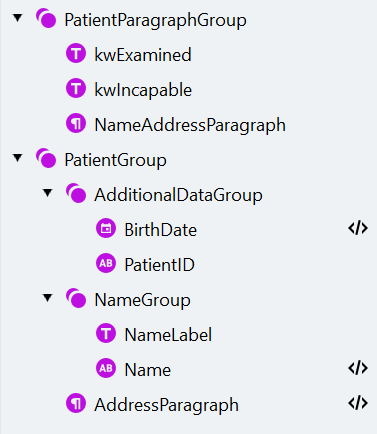
1. Create a **Group** element called "PatientParagraphGroup". Make the element optional.
2. The patient's data is preceded by the sentence where the doctor states that he has examined the patient. To locate this statement, we'll search for the words that occur in this sentence. Create a **Static Text** element called "kwExamined" (**Text to find**: "interrogé" or "ondervraagd").
3. The patient's data is followed by the conclusion where the doctor states what the patient is incapable of. To locate this conclusion, create a **Static Text** element called "kwIncapable" (**Text to find**: "incapable", "niet in staat", "onbekwaam", "déclare que :").
4. The paragraph containing the patient's data is located between the two keywords we have just found. Create a **Paragraph** element with the following settings:
| Property | Value |
| :----------------- | :--------------------------------------------------------------- |
| Name | NameAddressParagraph |
| Minimum line count | 1 |
| Maximum line count | 4 |
| Minimum line width | 200 |
| Search area | Below "kwExamined", Above "kwIncapable", Nearest to "kwExamined" |
5. Click **Match**.
1. Create an optional group called "PatientGroup" to extract data from the paragraph.
2. First, we'll extract additional data that is easy to find and is present on some documents. Create an optional group called "AdditionalDataGroup" inside the "PatientGroup" group.
3. To extract the patient's birth date, create a **Date** element called "BirthDate". Adjust its **Min. hypothesis quality** so that this element can be extracted successfully if data is missing from the document.
4. Use the code editor to specify the search area inside the "NameAddressParagraph":
```text theme={null}
RSA: PatientParagraphGroup.NameAddressParagraph.Rects;
```
5. In some cases the patient's name is followed by a numerical ID that consists of 11 digits and is usually enclosed in brackets. To extract this ID, create a **Character String** element with the following settings:
| Property | Value |
| :------------------------ | :------------------ |
| Name | PatientID |
| Method | Regular Expression |
| Regular Expression | `("("\|)N{11}(")")` |
| Character count | `{11, 11, 13, 13}` |
| Search for parts of words | Disabled |
The **Regular Expression Editor** uses specific syntax. For more information, see the [Character String](/vantage/documentation/advanced-designer/activities/extraction-rules/character-string) topic or click **Syntax help** in the editor.
1. Create an optional group called "NameGroup" inside the "PatientGroup" group.
2. First, we want to exclude the label that occurs on some documents. Create a **Static Text** element called "NameLabel" (**Text to find**: "Nom, prénom du patient :" or "Patiente"). Enable the **Match case** option and change the **Min. hypothesis quality** to 1.
3. We consider that a name consists of 2 or 3 capitalized words, so we will search for it using a regular expression. Create a **Character String** element with the following settings:
| Property | Value |
| :----------------------------------------------- | :---------------------------------------------------------------- |
| Name | Name |
| Method | Regular Expression |
| Regular Expression | `(([A-Z])(C\|"-"){1-}s)` |
| Allowed errors | 0% |
| Word count | `{2, 2, 3, 3}` |
| Search for parts of words | Disabled |
| Search area | Nearest to the top page edge, Exclude "PatientID" and "NameLabel" |
| **Search Conditions** section of the Code Editor | `RSA: PatientParagraphGroup.NameAddressParagraph.Rects;` |
If present, the patient's address is located within the "NameAddressParagraph" below all previously found elements. In the "PatientGroup" group, create a **Paragraph** search element with the following settings:
| Property | Value |
| :----------------------------------------------- | :------------------------------------------------------- |
| Name | AddressParagraph |
| Search area | Below "Name", "BirthDate", "AdditionalDataGroup" |
| **Search Conditions** section of the Code Editor | `RSA: PatientParagraphGroup.NameAddressParagraph.Rects;` |
The search element structure should look like this:
1. Open the **Manage Fields** dialog and create a new text field called "Duration". Change its data type to Number.
2. Select the "Start Date" and "End Date" fields to be used in this activity. Click **Save**.
3. Map the fields:
| Name | Search element |
| :--------- | :------------- |
| End Date | EndDate |
| Duration | Duration |
| Start Date | *See below* |
For the "Start Date" field, there are two search elements that may provide a region to this field. We will use code to check if each of the elements was found and pass the corresponding region to the field. Select **Code** in the **Get region from** list and paste the following code in the Code Editor:
```text theme={null}
if SicknessDatesGroup.StartDate.IsFound then OutputRegion = SicknessDatesGroup.StartDate.Rect;
else if SicknessDatesGroup.StartDateNoLabel.IsFound then OutputRegion = SicknessDatesGroup.StartDateNoLabel.Rect;
```
4. Delete the elements that were automatically created when enabling the fields.
### Extracting the patient's data
The patient's data in these documents is less structured than in the German sick notes. Many pieces of data may be missing. The only part that is always present is the patient's full name.
1. Create a **Group** element called "PatientParagraphGroup". Make the element optional.
2. The patient's data is preceded by the sentence where the doctor states that he has examined the patient. To locate this statement, we'll search for the words that occur in this sentence. Create a **Static Text** element called "kwExamined" (**Text to find**: "interrogé" or "ondervraagd").
3. The patient's data is followed by the conclusion where the doctor states what the patient is incapable of. To locate this conclusion, create a **Static Text** element called "kwIncapable" (**Text to find**: "incapable", "niet in staat", "onbekwaam", "déclare que :").
4. The paragraph containing the patient's data is located between the two keywords we have just found. Create a **Paragraph** element with the following settings:
| Property | Value |
| :----------------- | :--------------------------------------------------------------- |
| Name | NameAddressParagraph |
| Minimum line count | 1 |
| Maximum line count | 4 |
| Minimum line width | 200 |
| Search area | Below "kwExamined", Above "kwIncapable", Nearest to "kwExamined" |
5. Click **Match**.
1. Create an optional group called "PatientGroup" to extract data from the paragraph.
2. First, we'll extract additional data that is easy to find and is present on some documents. Create an optional group called "AdditionalDataGroup" inside the "PatientGroup" group.
3. To extract the patient's birth date, create a **Date** element called "BirthDate". Adjust its **Min. hypothesis quality** so that this element can be extracted successfully if data is missing from the document.
4. Use the code editor to specify the search area inside the "NameAddressParagraph":
```text theme={null}
RSA: PatientParagraphGroup.NameAddressParagraph.Rects;
```
5. In some cases the patient's name is followed by a numerical ID that consists of 11 digits and is usually enclosed in brackets. To extract this ID, create a **Character String** element with the following settings:
| Property | Value |
| :------------------------ | :------------------ |
| Name | PatientID |
| Method | Regular Expression |
| Regular Expression | `("("\|)N{11}(")")` |
| Character count | `{11, 11, 13, 13}` |
| Search for parts of words | Disabled |
The **Regular Expression Editor** uses specific syntax. For more information, see the [Character String](/vantage/documentation/advanced-designer/activities/extraction-rules/character-string) topic or click **Syntax help** in the editor.
1. Create an optional group called "NameGroup" inside the "PatientGroup" group.
2. First, we want to exclude the label that occurs on some documents. Create a **Static Text** element called "NameLabel" (**Text to find**: "Nom, prénom du patient :" or "Patiente"). Enable the **Match case** option and change the **Min. hypothesis quality** to 1.
3. We consider that a name consists of 2 or 3 capitalized words, so we will search for it using a regular expression. Create a **Character String** element with the following settings:
| Property | Value |
| :----------------------------------------------- | :---------------------------------------------------------------- |
| Name | Name |
| Method | Regular Expression |
| Regular Expression | `(([A-Z])(C\|"-"){1-}s)` |
| Allowed errors | 0% |
| Word count | `{2, 2, 3, 3}` |
| Search for parts of words | Disabled |
| Search area | Nearest to the top page edge, Exclude "PatientID" and "NameLabel" |
| **Search Conditions** section of the Code Editor | `RSA: PatientParagraphGroup.NameAddressParagraph.Rects;` |
If present, the patient's address is located within the "NameAddressParagraph" below all previously found elements. In the "PatientGroup" group, create a **Paragraph** search element with the following settings:
| Property | Value |
| :----------------------------------------------- | :------------------------------------------------------- |
| Name | AddressParagraph |
| Search area | Below "Name", "BirthDate", "AdditionalDataGroup" |
| **Search Conditions** section of the Code Editor | `RSA: PatientParagraphGroup.NameAddressParagraph.Rects;` |
The search element structure should look like this:
 1. Open the **Manage Fields** dialog, select the following fields in the "Patient" group to be used in this activity, and map them to search elements as follows:
| Name | Search element |
| :------------ | :----------------------------------------------- |
| Full Name | PatientGroup -> NameGroup -> Name |
| Date of Birth | PatientGroup -> AdditionalDataGroup -> BirthDate |
| Insurance ID | PatientGroup -> AdditionalDataGroup -> PatientID |
| Address | PatientGroup -> AddressParagraph |
2. Delete the elements that were automatically created when enabling the fields.
### Extracting the doctor's data
Information about the doctor is usually located at the bottom of the sick note and usually includes an ID. We'll first locate the signature and then search for the ID. Finally we'll search for the paragraph that contains the ID.
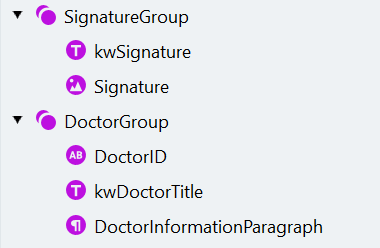
1. Create a **Group** element called "SignatureGroup". Make the element optional.
2. Most documents contain a label for the signature. To find it, create a **Static Text** element called "kwSignature" (**Text to find**: "Signature" or "handtekening").
3. To locate the signature itself, create an **Object Collection** element with the following settings:
| Property | Value |
| :------------- | :---------------------------------------------------------------- |
| Name | Signature |
| Type | Picture |
| Minimum width | 15 |
| Minimum height | 15 |
| Maximum width | 600 |
| Maximum height | 350 |
| Search area | Below the top boundary of "kwSignature", Nearest to "kwSignature" |
1. Create a **Group** element called "DoctorGroup". Make the element optional.
2. First, we'll search for the doctor's ID which has a strict format and can therefore be defined by a regular expression. Create a **Character String** element with the following settings:
| Property | Value |
| :----------------- | :------------------------------------------- |
| Name | DoctorID |
| Method | Regular Expression |
| Regular Expression | `N{1-1}n{1-1}N{5-5}n{1-1}N{2-2}n{1-1}N{3-3}` |
| Character count | `{13, 13, INF, INF}` |
| Search area | Nearest to top page edge |
3. Some documents also contain the doctor's title. We will locate it in order to exclude it from the paragraph with the doctor's data. Create a **Static Text** element with the following settings:
| Property | Value |
| :---------------------- | :------------------------------------------------------------------------------------------------------------ |
| Name | kwDoctorTitle |
| Text to find | Cachet du prescripteur, Médecin, Stempel van de voorschrijver, Identification du médecin (each on a new line) |
| Match case | Enabled |
| Allowed errors | 10% |
| Null hypothesis quality | 1 |
You may insert recognized text from the document to this field. To do this, simply draw an area that includes the desired words on the document image when the **Text to find** dialog is open. The text will be automatically inserted on a new line.
4. To locate the doctor's data, create a **Paragraph** element with the following settings:
| Property | Value |
| :------------- | :--------------------------------------------------------------------- |
| Name | DoctorInformationParagraph |
| Text alignment | Left |
| Line count | 4 - 6 |
| Search area | Below "kwDoctorTitle", Nearest to "DoctorID", Exclude "IssueDateGroup" |
The search element structure should look like this:
1. Open the **Manage Fields** dialog, select the following fields in the "Patient" group to be used in this activity, and map them to search elements as follows:
| Name | Search element |
| :------------ | :----------------------------------------------- |
| Full Name | PatientGroup -> NameGroup -> Name |
| Date of Birth | PatientGroup -> AdditionalDataGroup -> BirthDate |
| Insurance ID | PatientGroup -> AdditionalDataGroup -> PatientID |
| Address | PatientGroup -> AddressParagraph |
2. Delete the elements that were automatically created when enabling the fields.
### Extracting the doctor's data
Information about the doctor is usually located at the bottom of the sick note and usually includes an ID. We'll first locate the signature and then search for the ID. Finally we'll search for the paragraph that contains the ID.
1. Create a **Group** element called "SignatureGroup". Make the element optional.
2. Most documents contain a label for the signature. To find it, create a **Static Text** element called "kwSignature" (**Text to find**: "Signature" or "handtekening").
3. To locate the signature itself, create an **Object Collection** element with the following settings:
| Property | Value |
| :------------- | :---------------------------------------------------------------- |
| Name | Signature |
| Type | Picture |
| Minimum width | 15 |
| Minimum height | 15 |
| Maximum width | 600 |
| Maximum height | 350 |
| Search area | Below the top boundary of "kwSignature", Nearest to "kwSignature" |
1. Create a **Group** element called "DoctorGroup". Make the element optional.
2. First, we'll search for the doctor's ID which has a strict format and can therefore be defined by a regular expression. Create a **Character String** element with the following settings:
| Property | Value |
| :----------------- | :------------------------------------------- |
| Name | DoctorID |
| Method | Regular Expression |
| Regular Expression | `N{1-1}n{1-1}N{5-5}n{1-1}N{2-2}n{1-1}N{3-3}` |
| Character count | `{13, 13, INF, INF}` |
| Search area | Nearest to top page edge |
3. Some documents also contain the doctor's title. We will locate it in order to exclude it from the paragraph with the doctor's data. Create a **Static Text** element with the following settings:
| Property | Value |
| :---------------------- | :------------------------------------------------------------------------------------------------------------ |
| Name | kwDoctorTitle |
| Text to find | Cachet du prescripteur, Médecin, Stempel van de voorschrijver, Identification du médecin (each on a new line) |
| Match case | Enabled |
| Allowed errors | 10% |
| Null hypothesis quality | 1 |
You may insert recognized text from the document to this field. To do this, simply draw an area that includes the desired words on the document image when the **Text to find** dialog is open. The text will be automatically inserted on a new line.
4. To locate the doctor's data, create a **Paragraph** element with the following settings:
| Property | Value |
| :------------- | :--------------------------------------------------------------------- |
| Name | DoctorInformationParagraph |
| Text alignment | Left |
| Line count | 4 - 6 |
| Search area | Below "kwDoctorTitle", Nearest to "DoctorID", Exclude "IssueDateGroup" |
The search element structure should look like this:
 1. Open the **Manage Fields** dialog, select all fields in the "Doctor" group to be used in this activity, and map them to search elements as follows:
| Name | Search element |
| :----------------- | :------------------------- |
| Doctor Information | DoctorInformationParagraph |
| Signature | Signature |
| Doctor ID | DoctorID |
2. Delete the elements that were automatically created when enabling the fields.
### Extracting the sick note type
In contrast to German documents, in Dutch and Belgian sick notes this information is not presented in a uniform way. Some of the checkmark labels may be missing, and the checkmarks' appearance may vary.
1. Create a **Group** element called "TypeOfSickNote". Make the element optional.
2. We'll use the same algorithm to extract each checkmark. We'll configure one group of elements and then copy it and adjust the necessary properties.
a. Create an optional group called "PrimaryGroup".
b. First, we have to locate the keyword. Create a **Static Text** element called "kwCheckmark" (**Text to find**: "le début de" or "Eerste ongeschiktheid").
c. Make this element Required. If the keyword is not found, Advanced Designer will not search for the corresponding checkmark.
Now we'll search for the checkmark. We will first search for an actual checkmark, and then for a character string containing the letter "x". We'll assign any of the rectangles found for the checkmark or the X mark to a **Region** search element that will be mapped to a field. Create the following elements to locate the Primary checkmark:
| Property | Value |
| :------------------------------------ | :--------------------------------------------------------------------------------------------------------------------------------------------------------------------------- |
| **Object Collection** search element: | |
| Name | Checkmark |
| Type | Checkmark |
| Maximum height | 100 |
| Search area | Below the "kwCheckmark" top boundary, **Below** value = -15, Left of "kwCheckmark", Above the "kwCheckmark" bottom boundary, **Above** value = -15, Nearest to "kwCheckmark" |
| Min. hypothesis quality | 1 (we adjust this setting because we don't want the hypothesis chain quality to decrease if the checkmark wasn't found) |
| **Character String** search element: | |
| Name | XMark |
| Method | Characters |
| Character set | `[]\|Xx` |
| Word count | `{1, 1, 1, 1}` |
| Character count | `{1, 1, 3, 3}` |
| Search for parts of words | Disabled |
| Search area | Below the "kwCheckmark" top boundary, **Below** value = -15, Left of "kwCheckmark", Above the "kwCheckmark" bottom boundary, **Above** value = -15, Nearest to "kwCheckmark" |
| Under what conditions | Do not find element if "Checkmark" is found |
| **Region** search element: | |
| Name | CheckmarkRegion |
For the "CheckmarkRegion" element, paste the following code in the **Search Conditions** section of the Code Editor:
```text theme={null}
if Checkmark.IsFound then
RSA: Checkmark.Rect;
else if XMark.IsFound then
RSA: XMark.Rect;
else DontFind;
```
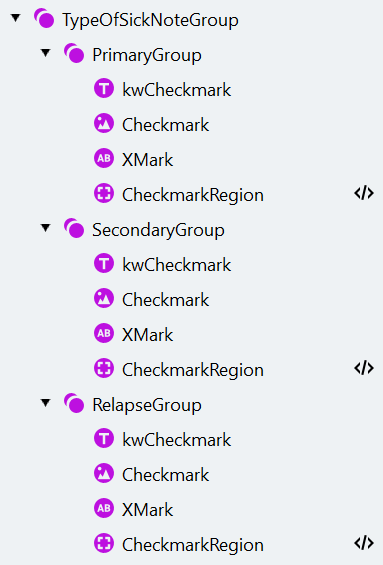
1. Create a copy of "PrimaryGroup" and rename it to "SecondaryGroup". Change the text to find of its "kwCheckmark" element to "prolongation", "verlenging".
2. German sick notes were divided into two types. As opposed to them, Dutch and Belgian sick notes are divided into three types ('relapse' is an additional type). Hence create another copy of the "PrimaryGroup" group and rename it to "RelapseGroup".
3. Change the text to find of its "kwCheckmark" element to "Herval" and enable the **Match case** option to exclude words occurring in the middle of a sentence.
The search element structure should look like this:
1. Open the **Manage Fields** dialog, select all fields in the "Doctor" group to be used in this activity, and map them to search elements as follows:
| Name | Search element |
| :----------------- | :------------------------- |
| Doctor Information | DoctorInformationParagraph |
| Signature | Signature |
| Doctor ID | DoctorID |
2. Delete the elements that were automatically created when enabling the fields.
### Extracting the sick note type
In contrast to German documents, in Dutch and Belgian sick notes this information is not presented in a uniform way. Some of the checkmark labels may be missing, and the checkmarks' appearance may vary.
1. Create a **Group** element called "TypeOfSickNote". Make the element optional.
2. We'll use the same algorithm to extract each checkmark. We'll configure one group of elements and then copy it and adjust the necessary properties.
a. Create an optional group called "PrimaryGroup".
b. First, we have to locate the keyword. Create a **Static Text** element called "kwCheckmark" (**Text to find**: "le début de" or "Eerste ongeschiktheid").
c. Make this element Required. If the keyword is not found, Advanced Designer will not search for the corresponding checkmark.
Now we'll search for the checkmark. We will first search for an actual checkmark, and then for a character string containing the letter "x". We'll assign any of the rectangles found for the checkmark or the X mark to a **Region** search element that will be mapped to a field. Create the following elements to locate the Primary checkmark:
| Property | Value |
| :------------------------------------ | :--------------------------------------------------------------------------------------------------------------------------------------------------------------------------- |
| **Object Collection** search element: | |
| Name | Checkmark |
| Type | Checkmark |
| Maximum height | 100 |
| Search area | Below the "kwCheckmark" top boundary, **Below** value = -15, Left of "kwCheckmark", Above the "kwCheckmark" bottom boundary, **Above** value = -15, Nearest to "kwCheckmark" |
| Min. hypothesis quality | 1 (we adjust this setting because we don't want the hypothesis chain quality to decrease if the checkmark wasn't found) |
| **Character String** search element: | |
| Name | XMark |
| Method | Characters |
| Character set | `[]\|Xx` |
| Word count | `{1, 1, 1, 1}` |
| Character count | `{1, 1, 3, 3}` |
| Search for parts of words | Disabled |
| Search area | Below the "kwCheckmark" top boundary, **Below** value = -15, Left of "kwCheckmark", Above the "kwCheckmark" bottom boundary, **Above** value = -15, Nearest to "kwCheckmark" |
| Under what conditions | Do not find element if "Checkmark" is found |
| **Region** search element: | |
| Name | CheckmarkRegion |
For the "CheckmarkRegion" element, paste the following code in the **Search Conditions** section of the Code Editor:
```text theme={null}
if Checkmark.IsFound then
RSA: Checkmark.Rect;
else if XMark.IsFound then
RSA: XMark.Rect;
else DontFind;
```
1. Create a copy of "PrimaryGroup" and rename it to "SecondaryGroup". Change the text to find of its "kwCheckmark" element to "prolongation", "verlenging".
2. German sick notes were divided into two types. As opposed to them, Dutch and Belgian sick notes are divided into three types ('relapse' is an additional type). Hence create another copy of the "PrimaryGroup" group and rename it to "RelapseGroup".
3. Change the text to find of its "kwCheckmark" element to "Herval" and enable the **Match case** option to exclude words occurring in the middle of a sentence.
The search element structure should look like this:
 1. Open the **Manage Fields** window and add a "Relapse" checkmark to the "Type of Sick Note" checkmark group. Enable all checkmarks in the group to be used in the current activity and click **Save**.
2. Map the checkmarks to the corresponding **Region** elements and delete the elements that were automatically created when enabling the fields.
### Testing the activity
We have configured all the necessary search elements and fields. Select all documents, click **Match**, and switch to the **Fields** tab to review the field regions on the document images. Keep in mind that a region will be passed to a field only if it belongs to the hypothesis from the best path.
Once you're satisfied with the results, click the copy icon above the document image to copy predicted labeling to reference labeling.
## What's next
Add business rules to validate and normalize extracted field values.
Back to the tutorial introduction.
1. Open the **Manage Fields** window and add a "Relapse" checkmark to the "Type of Sick Note" checkmark group. Enable all checkmarks in the group to be used in the current activity and click **Save**.
2. Map the checkmarks to the corresponding **Region** elements and delete the elements that were automatically created when enabling the fields.
### Testing the activity
We have configured all the necessary search elements and fields. Select all documents, click **Match**, and switch to the **Fields** tab to review the field regions on the document images. Keep in mind that a region will be passed to a field only if it belongs to the hypothesis from the best path.
Once you're satisfied with the results, click the copy icon above the document image to copy predicted labeling to reference labeling.
## What's next
Add business rules to validate and normalize extracted field values.
Back to the tutorial introduction.