> ## Documentation Index
> Fetch the complete documentation index at: https://docs.abbyy.com/llms.txt
> Use this file to discover all available pages before exploring further.
# Process mixed document sets in Advanced Designer
> Build Document skills for mixed document sets — semi-structured + unstructured combos, table cells with embedded fields, or unstructured docs with inserts.
A ["mixed" document set](/vantage/documentation/advanced-designer/use-cases/extracting-from-docs#mixed-document-sets) can mean two things in Advanced Designer:
* A single set that contains both **semi-structured and unstructured documents** (different document types).
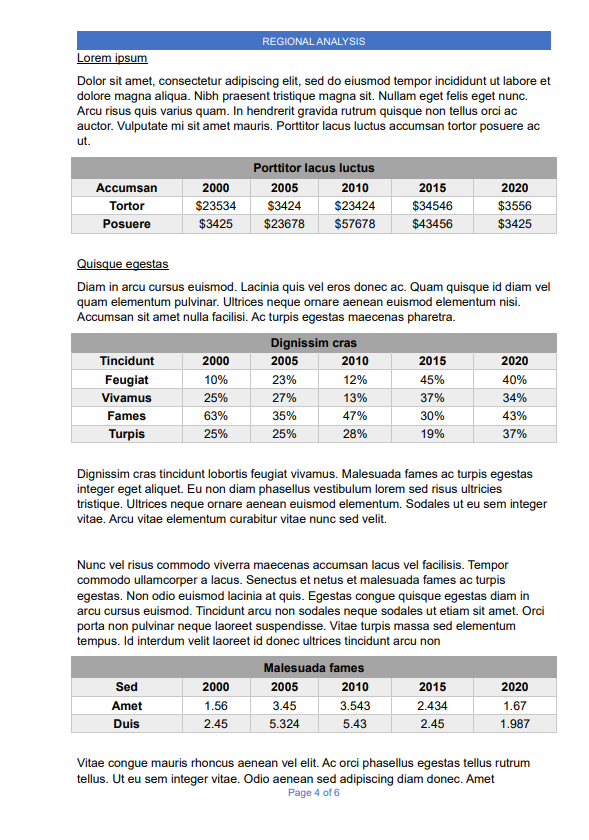
* A single document that contains **mixed structure** — for example, an unstructured contract with embedded tables, titles, headers, or footers.
## Pick a scenario
| Scenario | When to use | Key activities |
| :------------------------------------------------------- | :--------------------------------------------------------------------------- | :------------------------------------------------------------------- |
| Semi-structured + unstructured in one set | Both belong to one logical type with shared output fields | Classify + IF + Fast Learning + Segmentation + Deep Learning for NLP |
| Table cells with embedded fields | Extract values from inside table cells (e.g., names in a Closing Disclosure) | Fast Learning + NER (+ Address Parsing) |
| Unstructured with embedded tables/titles/headers/footers | Mostly unstructured documents with semi-structured fragments | Segmentation + Extraction Rules |
Each scenario below shares a common pattern; only the activities you add to the processing flow differ.
## Common workflow
Open Advanced Designer and click **Create Document Skill** on the start page.
On the **Documents** tab, upload the documents you'll use to set up the skill.
On the **Fields** tab, create and configure the fields the skill will extract. Label documents in the **Reference** section.
On the **Activities** tab, add the activities for your scenario (described below). Open each activity in the **Activity Editor** to configure and train it.
Click **Test Skill Using Selected Documents** to evaluate results. When the results are good enough, [publish the skill](/vantage/documentation/advanced-designer/document-skills/publish).
## Semi-structured and unstructured documents in one set
Use this scenario when one Document skill must process both [semi-structured](/vantage/documentation/advanced-designer/use-cases/process-semi-structured) and [unstructured](/vantage/documentation/advanced-designer/use-cases/process-unstructured) documents — both belong to the same logical type and share the same set of output fields.
Classify each document with a [Classify By Text and Image activity](/vantage/documentation/advanced-designer/activities/classify-by-text-and-image), which combines text and geometry to handle low-quality images and documents that differ only by graphic features (signatures, seals). For best results, upload a roughly equal number of documents for each variant so the classifier has balanced training data. Then branch the flow with an IF activity:
* Process semi-structured documents with a [Fast Learning activity](/vantage/documentation/advanced-designer/activities/fast-learning).
* Process unstructured documents with a [Segmentation activity](/vantage/documentation/advanced-designer/activities/segmentation/segmentation-activity) followed by a [Deep Learning for NLP activity](/vantage/documentation/advanced-designer/activities/deep-learning-nlp).
 ## Table cells with fields embedded in cell text
Use this scenario when you need to extract specific values from inside table cells in semi-structured documents — for example, a borrower's name and partial address embedded in a Closing Disclosure cell.
Extract the cell as one block of text with a [Fast Learning activity](/vantage/documentation/advanced-designer/activities/fast-learning), then run NLP activities on that block to pull out the embedded fields:
* [Named Entities (NER) activity](/vantage/documentation/advanced-designer/activities/ner) for entities like names and organizations.
* [Address Parsing activity](/vantage/documentation/advanced-designer/activities/address-parsing) to break addresses into components.
## Table cells with fields embedded in cell text
Use this scenario when you need to extract specific values from inside table cells in semi-structured documents — for example, a borrower's name and partial address embedded in a Closing Disclosure cell.
Extract the cell as one block of text with a [Fast Learning activity](/vantage/documentation/advanced-designer/activities/fast-learning), then run NLP activities on that block to pull out the embedded fields:
* [Named Entities (NER) activity](/vantage/documentation/advanced-designer/activities/ner) for entities like names and organizations.
* [Address Parsing activity](/vantage/documentation/advanced-designer/activities/address-parsing) to break addresses into components.
 ## Unstructured documents with tables, titles, headers, or footers
Use this scenario for documents that are mostly unstructured (for example, contracts) but contain embedded semi-structured fragments such as tables, titles, headers, or footers.
Detect plain-text paragraphs with a [Segmentation activity](/vantage/documentation/advanced-designer/activities/segmentation/segmentation-activity) and detect the semi-structured fragments with an [Extraction Rules activity](/vantage/documentation/advanced-designer/activities/extraction-rules/extraction-rules). Once each fragment is isolated, use the appropriate activity to extract its fields.
## Unstructured documents with tables, titles, headers, or footers
Use this scenario for documents that are mostly unstructured (for example, contracts) but contain embedded semi-structured fragments such as tables, titles, headers, or footers.
Detect plain-text paragraphs with a [Segmentation activity](/vantage/documentation/advanced-designer/activities/segmentation/segmentation-activity) and detect the semi-structured fragments with an [Extraction Rules activity](/vantage/documentation/advanced-designer/activities/extraction-rules/extraction-rules). Once each fragment is isolated, use the appropriate activity to extract its fields.
 ## Related activities
Classify documents by combining text and visual features.
Extract fields from semi-structured documents and table cells.
Isolate the paragraphs that contain unstructured fields.
Extract custom or hard-to-disambiguate entities from unstructured text.
Extract pre-trained entities like names, organizations, and dates.
Define rule-based extraction for semi-structured fragments.
## Related activities
Classify documents by combining text and visual features.
Extract fields from semi-structured documents and table cells.
Isolate the paragraphs that contain unstructured fields.
Extract custom or hard-to-disambiguate entities from unstructured text.
Extract pre-trained entities like names, organizations, and dates.
Define rule-based extraction for semi-structured fragments.