> ## Documentation Index
> Fetch the complete documentation index at: https://docs.abbyy.com/llms.txt
> Use this file to discover all available pages before exploring further.
# Process structured documents in Advanced Designer
> Build Document skills for structured documents — Skill Designer handles the basic case; Advanced Designer combines Forms with other activities.
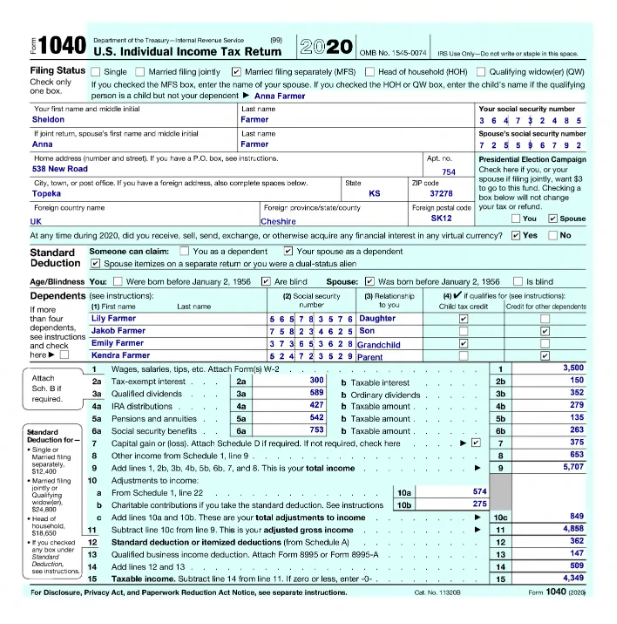
A **structured document** has a fixed layout — fields appear in the same place on every instance. Common examples are questionnaires, application forms, and tax return forms. Some structured documents have a small number of variants with minor field-position differences. For background, see [Extract data from documents in Advanced Designer](/vantage/documentation/advanced-designer/use-cases/extracting-from-docs#structured-documents).
 ## Where to build the skill
You can create skills for structured documents in either Skill Designer or Advanced Designer; you can only **edit** them in Advanced Designer.
* **Skill Designer (cloud)** — turn on the **Fixed-form documents** toggle on the skill, then upload and label some blank forms. See [Setting up a Document skill for processing structured documents](/vantage/documentation/skill-designer/document/set-up). The resulting skill includes a [Forms activity](/vantage/documentation/advanced-designer/activities/forms/forms-activity), visible if you later open it in Advanced Designer.
* **Advanced Designer (Windows desktop)** — use this when you need to combine the Forms activity with other Vantage activities (the scenarios below).
If you do not enable the **Fixed-form documents** toggle in Skill Designer, the skill's processing flow contains only a Fast Learning activity.
Once a skill's flow includes a Forms activity together with other activities, or contains multiple Forms activities, you can only change skill properties from Vantage — training and deeper edits must happen in Advanced Designer.
## Pick a scenario
| Scenario | When to use | Key activities |
| :------------------------------------- | :------------------------------------------------------------- | :------------------------------------ |
| Forms with unstructured elements | Forms also include barcodes, stamps, or variable-length tables | Forms + Extraction Rules |
| Mixed forms and unstructured documents | Same data arrives as either forms or freeform text | Classify + IF + Forms + Fast Learning |
## Forms with unstructured elements
Some structured documents include unstructured elements such as barcodes or stamps placed anywhere on the page, or have variable-length tables alongside the fixed layout. To process them, pair a [Forms activity](/vantage/documentation/advanced-designer/activities/forms/forms-activity) with an [Extraction Rules activity](/vantage/documentation/advanced-designer/activities/extraction-rules/extraction-rules) — Forms handles the structured fields, Extraction Rules handles the unstructured elements (for example, barcodes).
Open Advanced Designer and click **Create Document Skill** on the start page.
On the **Activities** tab, add a [Forms activity](/vantage/documentation/advanced-designer/activities/forms/forms-activity). In the **Activity Editor**, on the **Blank Form** tab, upload one sample blank form per variant (no more than ten variants recommended) and label the fields you want to extract. See [labeling guidelines](/vantage/documentation/advanced-designer/labeling/guidelines). Click **Train Activity**.
Open the **Test Set** tab, upload completed test documents, verify that fields are labeled correctly, and click **Test Activity**. Review the results.
Back on the **Activities** tab, add an [Extraction Rules activity](/vantage/documentation/advanced-designer/activities/extraction-rules/extraction-rules) and configure it in the **Activity Editor**.
Click **Test Skill Using Selected Documents**. If the results are acceptable, [publish the skill](/vantage/documentation/advanced-designer/document-skills/publish). Otherwise, adjust the labeling, retrain, and test again.
**Tables and repeating groups.** Forms activities can extract tables and repeating groups only when the maximum row count or instance count is known in advance and the boundaries are fixed. Label every row that may appear across all form variants — only rows with data are returned in results. Currently, Forms tables support text values only; for columns containing checkboxes or barcodes, use a repeating group instead. If row count is unknown in advance, use a different Vantage technology.
## Mixed forms and unstructured documents
Some workflows receive the same information on either a printed form or a freeform document — for example, questionnaires returned as both filled forms and unstructured prose. Combine a [Forms activity](/vantage/documentation/advanced-designer/activities/forms/forms-activity) with a [Fast Learning](/vantage/documentation/advanced-designer/activities/fast-learning) (or [Extraction Rules](/vantage/documentation/advanced-designer/activities/extraction-rules/extraction-rules)) activity, and route documents to the right path with a Classify activity and an IF activity.
Open Advanced Designer and click **Create Document Skill** on the start page.
On the **Activities** tab, add a [Forms activity](/vantage/documentation/advanced-designer/activities/forms/forms-activity). In the **Activity Editor**, on the **Blank Form** tab, upload a sample blank form and label its fields. See [labeling guidelines](/vantage/documentation/advanced-designer/labeling/guidelines). Click **Train Activity**.
Open the **Test Set** tab, upload completed test documents, verify field labeling, and click **Test Activity**. Review the results.
On the **Activities** tab, add a [Fast Learning activity](/vantage/documentation/advanced-designer/activities/fast-learning) and configure and train it in the **Activity Editor**.
Add a Classify activity ([Classify By Company](/vantage/documentation/advanced-designer/activities/classify-by-company) or [Classify By Text and Image](/vantage/documentation/advanced-designer/activities/classify-by-text-and-image)) at the beginning of the flow. In the **Activity Editor**, create a class for each document variant, assign classes to your training documents, and train the activity.
Add an IF activity, then connect its branches to the Forms and Fast Learning activities so each document type is routed to the correct extraction path.
Click **Test Skill Using Selected Documents**. If the results are acceptable, [publish the skill](/vantage/documentation/advanced-designer/document-skills/publish). Otherwise, adjust the labeling and retrain.
## Related activities
Extract fields from documents with fixed layouts.
Define rule-based extraction for unstructured elements like barcodes.
Refine extraction on freeform documents using manual review feedback.
Branch a flow by document variant before extraction.
## Where to build the skill
You can create skills for structured documents in either Skill Designer or Advanced Designer; you can only **edit** them in Advanced Designer.
* **Skill Designer (cloud)** — turn on the **Fixed-form documents** toggle on the skill, then upload and label some blank forms. See [Setting up a Document skill for processing structured documents](/vantage/documentation/skill-designer/document/set-up). The resulting skill includes a [Forms activity](/vantage/documentation/advanced-designer/activities/forms/forms-activity), visible if you later open it in Advanced Designer.
* **Advanced Designer (Windows desktop)** — use this when you need to combine the Forms activity with other Vantage activities (the scenarios below).
If you do not enable the **Fixed-form documents** toggle in Skill Designer, the skill's processing flow contains only a Fast Learning activity.
Once a skill's flow includes a Forms activity together with other activities, or contains multiple Forms activities, you can only change skill properties from Vantage — training and deeper edits must happen in Advanced Designer.
## Pick a scenario
| Scenario | When to use | Key activities |
| :------------------------------------- | :------------------------------------------------------------- | :------------------------------------ |
| Forms with unstructured elements | Forms also include barcodes, stamps, or variable-length tables | Forms + Extraction Rules |
| Mixed forms and unstructured documents | Same data arrives as either forms or freeform text | Classify + IF + Forms + Fast Learning |
## Forms with unstructured elements
Some structured documents include unstructured elements such as barcodes or stamps placed anywhere on the page, or have variable-length tables alongside the fixed layout. To process them, pair a [Forms activity](/vantage/documentation/advanced-designer/activities/forms/forms-activity) with an [Extraction Rules activity](/vantage/documentation/advanced-designer/activities/extraction-rules/extraction-rules) — Forms handles the structured fields, Extraction Rules handles the unstructured elements (for example, barcodes).
Open Advanced Designer and click **Create Document Skill** on the start page.
On the **Activities** tab, add a [Forms activity](/vantage/documentation/advanced-designer/activities/forms/forms-activity). In the **Activity Editor**, on the **Blank Form** tab, upload one sample blank form per variant (no more than ten variants recommended) and label the fields you want to extract. See [labeling guidelines](/vantage/documentation/advanced-designer/labeling/guidelines). Click **Train Activity**.
Open the **Test Set** tab, upload completed test documents, verify that fields are labeled correctly, and click **Test Activity**. Review the results.
Back on the **Activities** tab, add an [Extraction Rules activity](/vantage/documentation/advanced-designer/activities/extraction-rules/extraction-rules) and configure it in the **Activity Editor**.
Click **Test Skill Using Selected Documents**. If the results are acceptable, [publish the skill](/vantage/documentation/advanced-designer/document-skills/publish). Otherwise, adjust the labeling, retrain, and test again.
**Tables and repeating groups.** Forms activities can extract tables and repeating groups only when the maximum row count or instance count is known in advance and the boundaries are fixed. Label every row that may appear across all form variants — only rows with data are returned in results. Currently, Forms tables support text values only; for columns containing checkboxes or barcodes, use a repeating group instead. If row count is unknown in advance, use a different Vantage technology.
## Mixed forms and unstructured documents
Some workflows receive the same information on either a printed form or a freeform document — for example, questionnaires returned as both filled forms and unstructured prose. Combine a [Forms activity](/vantage/documentation/advanced-designer/activities/forms/forms-activity) with a [Fast Learning](/vantage/documentation/advanced-designer/activities/fast-learning) (or [Extraction Rules](/vantage/documentation/advanced-designer/activities/extraction-rules/extraction-rules)) activity, and route documents to the right path with a Classify activity and an IF activity.
Open Advanced Designer and click **Create Document Skill** on the start page.
On the **Activities** tab, add a [Forms activity](/vantage/documentation/advanced-designer/activities/forms/forms-activity). In the **Activity Editor**, on the **Blank Form** tab, upload a sample blank form and label its fields. See [labeling guidelines](/vantage/documentation/advanced-designer/labeling/guidelines). Click **Train Activity**.
Open the **Test Set** tab, upload completed test documents, verify field labeling, and click **Test Activity**. Review the results.
On the **Activities** tab, add a [Fast Learning activity](/vantage/documentation/advanced-designer/activities/fast-learning) and configure and train it in the **Activity Editor**.
Add a Classify activity ([Classify By Company](/vantage/documentation/advanced-designer/activities/classify-by-company) or [Classify By Text and Image](/vantage/documentation/advanced-designer/activities/classify-by-text-and-image)) at the beginning of the flow. In the **Activity Editor**, create a class for each document variant, assign classes to your training documents, and train the activity.
Add an IF activity, then connect its branches to the Forms and Fast Learning activities so each document type is routed to the correct extraction path.
Click **Test Skill Using Selected Documents**. If the results are acceptable, [publish the skill](/vantage/documentation/advanced-designer/document-skills/publish). Otherwise, adjust the labeling and retrain.
## Related activities
Extract fields from documents with fixed layouts.
Define rule-based extraction for unstructured elements like barcodes.
Refine extraction on freeform documents using manual review feedback.
Branch a flow by document variant before extraction.