> ## Documentation Index
> Fetch the complete documentation index at: https://docs.abbyy.com/llms.txt
> Use this file to discover all available pages before exploring further.
# Completing a task
> Complete or reject a task in the ABBYY Vantage Manual Review Client. Rejecting a task returns it to the queue and pauses automatic assignment.
After reviewing all documents in a task, you can either complete it to finalize the review or reject it back to the queue.
## Completing a task
Click **Complete** in the **Actions** pane to finalize the task.
## Rejecting a task
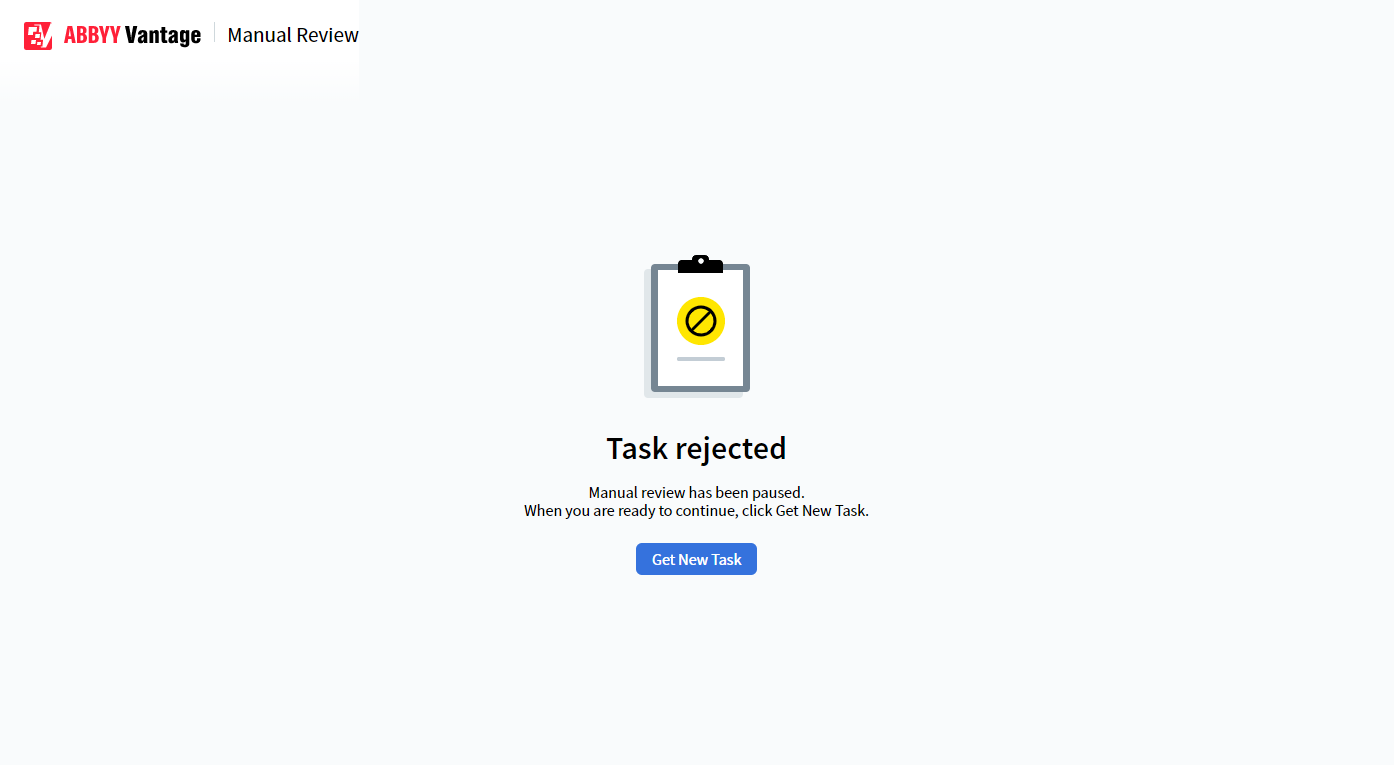
To reject the task, select **Reject** in the **Actions** pane. Rejecting a task returns it to the manual review queue.
After rejecting a task, automatic task assignment is paused. Click **Get new task** to resume receiving tasks.
 ## Related topics
Overview of how Manual Review works in Vantage
Review extracted data, customize table columns, and escalate tasks
Receive, resume, and withdraw tasks in the Manual Review Client
What happens when no tasks are available in the queue
## Related topics
Overview of how Manual Review works in Vantage
Review extracted data, customize table columns, and escalate tasks
Receive, resume, and withdraw tasks in the Manual Review Client
What happens when no tasks are available in the queue