> ## Documentation Index
> Fetch the complete documentation index at: https://docs.abbyy.com/llms.txt
> Use this file to discover all available pages before exploring further.
# Working with a task
> Receive, resume, and withdraw tasks in the ABBYY Vantage Manual Review Client, including the inactivity timeout and automatic reassignment behavior.
Tasks are the units of work the Manual Review Client assigns to you. This page covers how you receive, resume, and release tasks.
## Receiving a task
Once a task appears in the manual review queue, you receive it automatically. Every task contains one or more documents with automatically assigned document types and extracted data.
## Inactivity timeout
If you take no action on an open task for 15 minutes, the system triggers a timeout. The Client then displays a warning message:
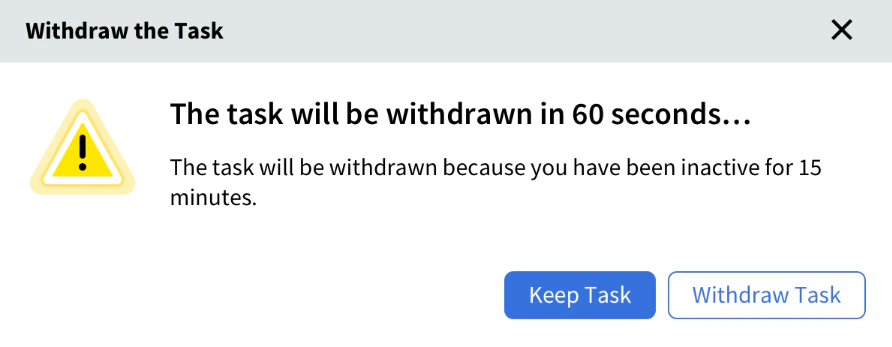 To resume the task, click **Keep task**.
## Withdrawing a task
If you click **Withdraw task** or take no action on the prompt, the Client returns the active task to the queue with all changes saved. After this, you no longer automatically receive new tasks, and the Client displays the **Task withdrawn** screen:
To resume the task, click **Keep task**.
## Withdrawing a task
If you click **Withdraw task** or take no action on the prompt, the Client returns the active task to the queue with all changes saved. After this, you no longer automatically receive new tasks, and the Client displays the **Task withdrawn** screen:
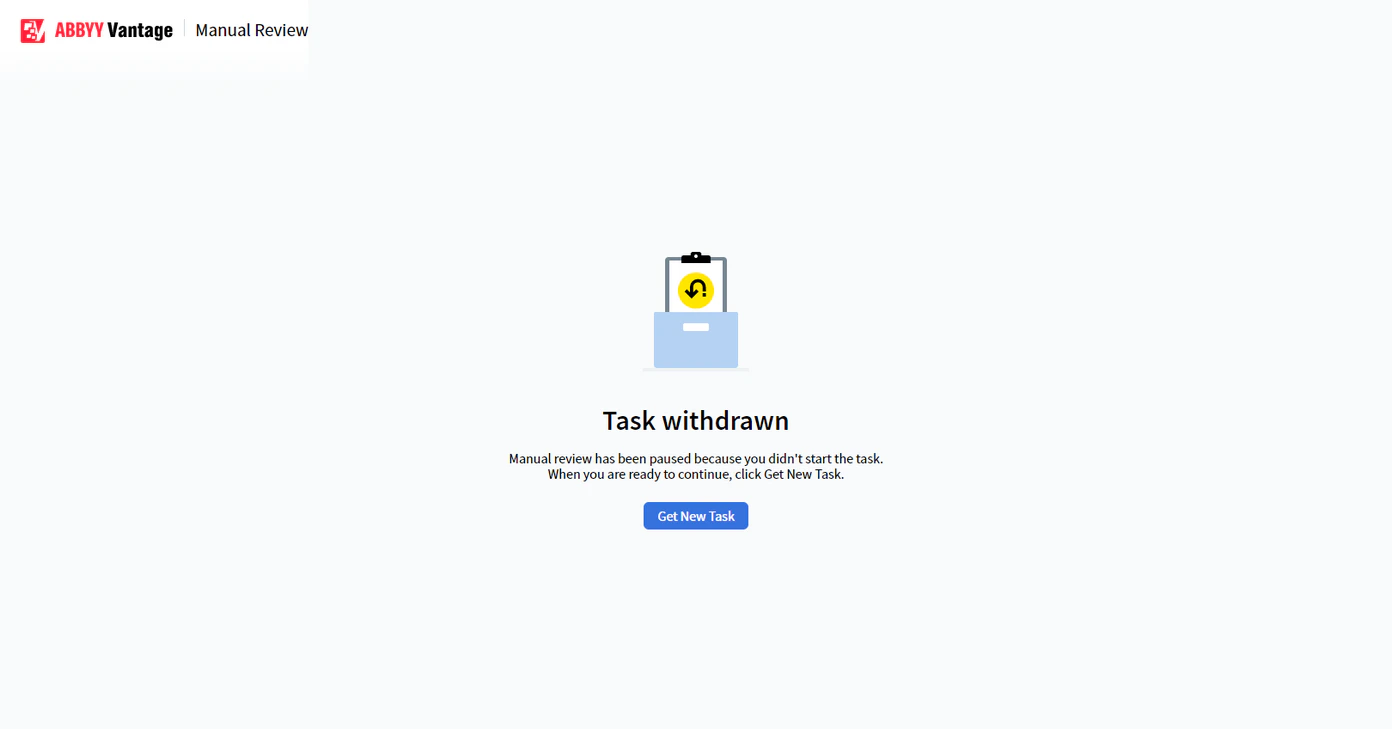 To resume receiving tasks automatically, click **Get new task**. If a task is available in the queue, it opens immediately. Otherwise, the [standby screen](/vantage/documentation/runtime/manual-review/standby-screen) appears.
## Closing the browser or tab
If you close the browser or tab containing an active Manual Review task, Vantage receives an event and automatically returns the task to the queue. The Client then reassigns the task to the next operator with the appropriate permissions, or it may reassign the task back to you.
If Vantage does not receive the event — for example, due to a connection issue — Vantage returns the task to the queue after 15 minutes of inactivity.
## Related topics
Overview of how Manual Review works in Vantage
Review extracted data, customize table columns, and escalate tasks
Complete or reject a task and return it to the queue
What happens when no tasks are available in the queue
To resume receiving tasks automatically, click **Get new task**. If a task is available in the queue, it opens immediately. Otherwise, the [standby screen](/vantage/documentation/runtime/manual-review/standby-screen) appears.
## Closing the browser or tab
If you close the browser or tab containing an active Manual Review task, Vantage receives an event and automatically returns the task to the queue. The Client then reassigns the task to the next operator with the appropriate permissions, or it may reassign the task back to you.
If Vantage does not receive the event — for example, due to a connection issue — Vantage returns the task to the queue after 15 minutes of inactivity.
## Related topics
Overview of how Manual Review works in Vantage
Review extracted data, customize table columns, and escalate tasks
Complete or reject a task and return it to the queue
What happens when no tasks are available in the queue